Share via

How to set an app to use Default Communication Device instead of Default Playback device

Anonymous
2018-07-25T03:23:28+00:00

In my Windows 10 system, I have multiple audio devices. Ex: TV as HDMI monitor, USB Speakers, Headset connected to the front panel Headphone/Mic ports. 
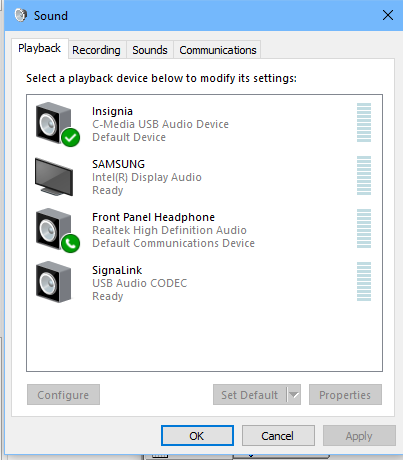
Most applications use the Default Playback device (currently set to USB Speakers as indicated by the Green Check), some direct their output to the TV via the HDMI port. I have an application that I use for VOIP communications. I have set my Default Communications Device as the front panel headset ports (as indicated by the Green Phone handset). When using the VOIP application the output audio goes to the Default Playback Device instead of the Default Communications Device. 

Is there a way to designate the VOIP application as a Communications Applications so that it will use the Default Communications Device instead of the Default Playback Device?

Yes, I know that this question has been asked before but the answers do not address assigning the application as a Communications Application so that it will use the Default Communications Device.

Windows for home | Windows 10 | Devices and drivers

Locked Question. This question was migrated from the Microsoft Support Community. You can vote on whether it's helpful, but you can't add comments or replies or follow the question.

0 comments No comments

3 answers

Sort by: Most helpful
  1. Anonymous
    2018-07-25T17:39:19+00:00

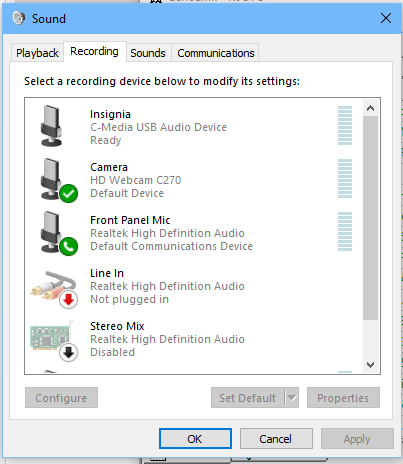
    As I tried to explain, I am not looking for a way to select what device is the Default Communications Device. In the initial two images, the Playback Default Communications Device and the Recording Default Communications Device are as I want them. The Default (all other sounds) Device is set to the device I want them.

    What I am looking to do is tell an application to use the Default Communication Device instead of the Default Device.

    6 people found this answer helpful.
    0 comments No comments
  2. Anonymous
    2018-08-10T20:38:42+00:00

    Can anyone point me to where this question was asked previously? 

    More details. I am a Ham Radio Operator. I use a program called EchoLink. I want EchoLink to use the Front Panel Connections (Mic and Headphones) as indicated by the Default Communications Device in the pictures above with the icon of a phone handset. Meanwhile, I want system sounds and various other audio applications to use the "Insignia" speakers as indicated by the Checkmark in the image above.

    Listed in the playback devices is one titled "SignaLink". It is also in the Recording devices but just outside of the image. This is used for one and only one application and thus I do not want to designate it as either Default or communications device.

    Is there anyone that can assist with this issue?

    4 people found this answer helpful.
    0 comments No comments
  3. VARADHARAJAN K 9,676 Reputation points Volunteer Moderator
    2018-07-25T09:28:36+00:00

    rightclick on device preferred , open it , ad rightside see , set as default , click ok ok

    restart the computer

    0 comments No comments