Share via

File associations for Photoshop impossible

Anonymous
2018-05-26T18:33:31+00:00

I have Windows 10 Pro, the latest update. I installed Photoshop CC 2018, and Windows won't let me change many of the basic image file associations to point at Photoshop. For many of them, it isn't even an option in either the file association menu or or the "open with" choice on an individual file. If I try to associate files extensions "by app" in Windows, Photoshop doesn't appear as a choice in the long list of all apps.

I've tried uninstalling and reinstalling Photoshop to no avail.

Has someone seen this problem and found a resolution?

Thank you for your help,

Scott

Windows for home | Windows 10 | Settings

Locked Question. This question was migrated from the Microsoft Support Community. You can vote on whether it's helpful, but you can't add comments or replies or follow the question.

0 comments No comments

2 answers

Sort by: Most helpful
  1. Anonymous
    2018-07-12T01:17:13+00:00

    This does not address the issue.  Photoshop IS a " exclusive program that can support them".  I can open png and any other image file in Photoshop just FINE.  YOU decided that it's not an option to associate that extension with.  I'm regretting more and more not moving to Mac.  Let me do what I want with my PC - I paid for it.  I also pay a lot for Photoshop and other tools.  I should be able to double click on the file and have it open in the program of MY choice, not yours.

    The problem is Photoshop does not display as an available application in the list of programs you can either right click, open with, or associate as you described above.  All it lists are some very basic viewers.  And this isn't an issue just with Photoshop.  You can't, in 1803, browse to an app you want - it has to be in your list or in your store.  Fix it!

    10+ people found this answer helpful.
    0 comments No comments
  2. Anonymous
    2018-06-13T20:54:42+00:00

    Hi Scott,

    When you open files with certain file formats or extension, it requires exclusive programs that can support them. For example: If you have Photo Viewer, you will be able to open .bmp and .jpeg image files. To ensure that we can provide the appropriate resolution for your concerns with this error, we’d like to ask you a few questions:

    • Which version or build of Windows device are you using? To know, press Windows + R to open the Run window. Type winverand press Enter. A new window will open showing the version and build number of your Windows device.
    • What were the recent changes made on your computer before you encounter this issue?
    • Is this working before? When was the time it is still opening normally?
    • What troubleshooting steps have you done so far?
    • What are the file formats that you need to set to be opened by Photoshop 2018?
    • What are the file formats that you cannot open or associate with Photoshop 2018?
    • Do you have any other programs installed on your computer that causing conflicts when opening certain files?

    In addition, we suggest that you select a default program when you open these files. To do this, follow these steps:

    1. Press Windows + S to open Search Box.
    2. Type Default app settings, then click it.
    3. Click Choose default apps by file type.
    4. Scroll down until you see the file formats that you want to change. For example: .bmp, .jpg, .pdf.
    5. Click the icon of the program besides it (sometimes it is Choose a default).
    6. Click it to select a new default program that will open it.
    7. Click X to apply changes and close the window.

    For example:
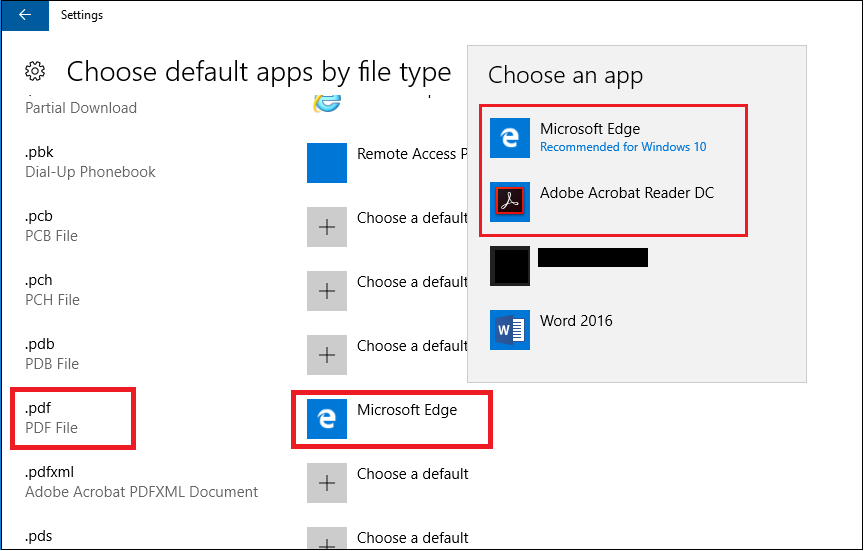
    Get back to us once you provide answers to our questions and if you need more help with our suggestions above.

    0 comments No comments
