Share via

Lenovo USB-C 3.0 Hub with Realtek GB Ethernet. Code 45, “the hardware device is not connected tothe computer.”

Anonymous
2019-01-10T04:42:09+00:00

Original title: Lenovo USB-C 3.0 Hub with Realtek GB Ethernet, Ethernet not working on Lenovo Flex 5 with Windows 10 Pro

I plug in the Lenovo USB-C C506 USB 3.0 hub + Gigabit Ethernet (https://www.amazon.com/dp/B0761RZ5WJ). The USB portion works fine.

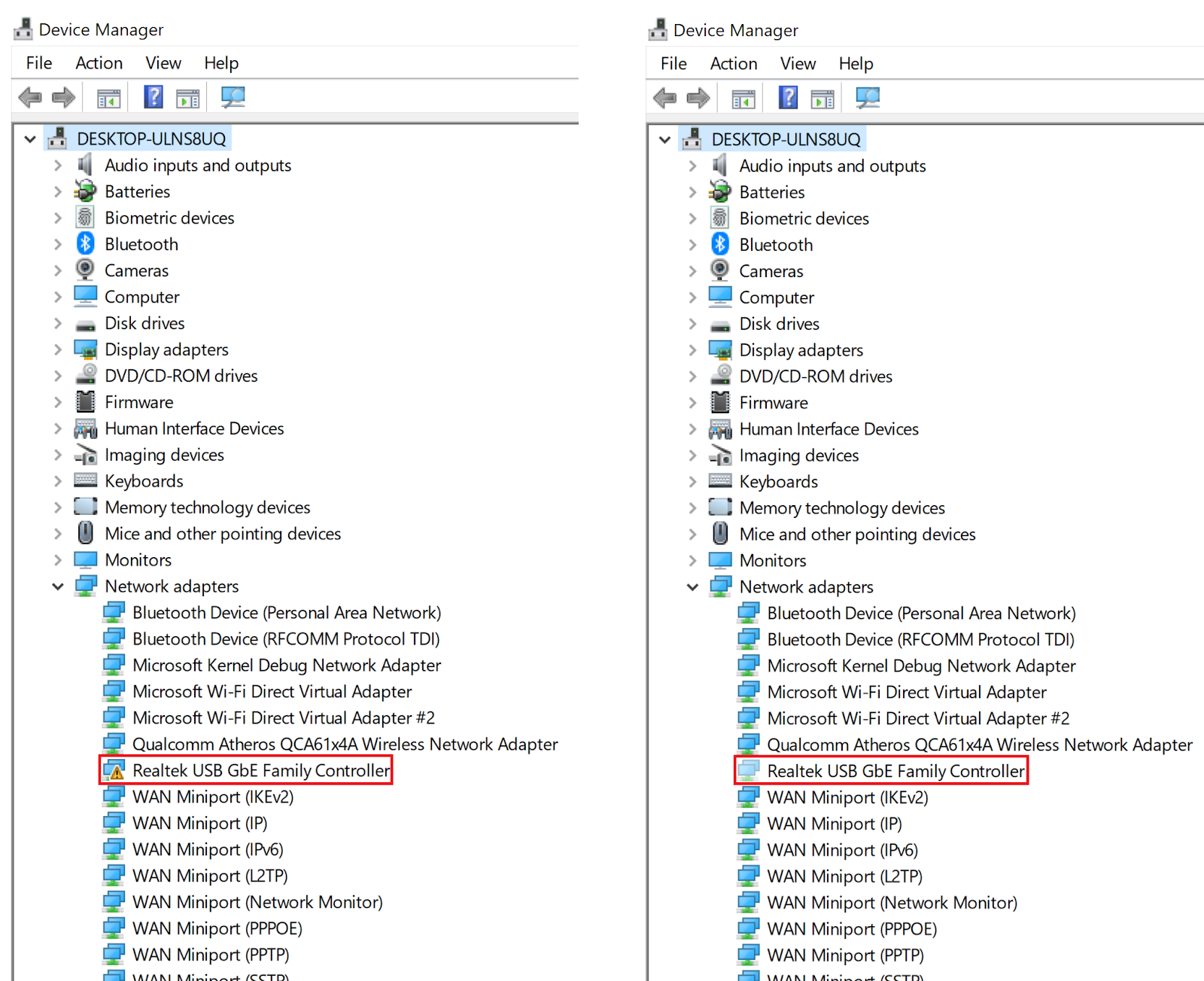
For the Realtek Gigabit Ethernet section, first it enumerates the USB device with a yellow triangle exclamation point, then it drops the device, then it re-enumerates it but it is hidden. It shows a Code 45, “the hardware device is not connected to the computer.” I have downloaded the driver for the device and tried installing the driver manually but it doesn’t help. Yes, I’ve rebooted, removed and reinstalled the device and the driver multiple times, to no avail. The laptop is a Lenovo Flex 5 Core i7. The network cable is fine and another computer connects, via its internal Ethernet card, using the same cable, just fine.

Upon Connecting Device it enumerates:                 It drops the device and re-enumerates but it is hidden:                           

Windows for home | Windows 10 | Internet and connectivity

Locked Question. This question was migrated from the Microsoft Support Community. You can vote on whether it's helpful, but you can't add comments or replies or follow the question.

0 comments No comments

Answer accepted by question author

  1. Anonymous
    2019-01-15T20:18:25+00:00

    My IT department tried for hours to figure this out, to no avail.

    A System Restore did not fix it.

    Searching online, I found that many other people had the exact same issue and no one had found a solution. Apparently, even when you uninstall a device, and remove the driver. the driver isn't really removed, and it appeared to be a driver issue. Every time I tried to update the driver Windows said that I already had the most up to date driver, even though I didn't. There's no way to manually remove the old driver as it is a protected file in \Windows\systyem32\drivers. (rtux64w10.sys).

    I don't know exactly what I eventually did to fix this. What appeared to be the fix was one of the installation packages at https://www.dell.com/support/home/sr/en/srbsdt1/drivers/driversdetails?driverid=nnwkp even though this was not a Dell machine. The rtux64w10.sys file after this was a newer version dated 12/20/2018.

    Following the installation of the Dell/Realtek driver I got a BSOD (Blue Screen of Death) but then when the machine rebooted the problem was gone and the device was enumerated correctly.

    1 person found this answer helpful.
    0 comments No comments

2 additional answers

Sort by: Most helpful
  1. Anonymous
    2019-01-16T05:40:24+00:00

    Hello,

    We are glad to know that you were able to fix the issue. We appreciate your time and patience and also thank you for sharing the information on how you fixed the issue, as it might help other users with the similar issues.

    Regards,

    Noor Azam S

    Microsoft Community – Moderator

    0 comments No comments
  2. Anonymous
    2019-01-11T04:35:54+00:00

    Hi,

    Thank you for writing to Microsoft Community Forums.

    I understand how it can be when the devices and drivers does not work. This error occurs if a device that was previously connected to the computer is no longer connected.

    • What is the current version of Windows 10 running on your computer?
    • Could you please try using the Lenovo USB-C 3.0 Hub on a different computer and check if you are able to use it?
    • Please try connecting the Lenovo USB-C 3.0 Hub to a different port on the computer and check with the result.
    • As you had mentioned that, you have removed and reinstalled drivers. Did you delete the driver package completely?
    • Was there any updates installed or changes on the computer?

    If you have not checked the box and deleted the driver package completely, please follow these steps to delete the driver package completely from the computer.

    1. Press and hold the Windows + X key on the keyboard.
    2. Select Device manager.
    3. In Device manager, expand Network adaptors.
    4. Right click on Realtek USB GbE Family Controllerand select uninstall.
    5. You will receive a prompt; make sure you check the box for Delete the driver software.
    6. After uninstalling the driver, re-install the driver and check with the issue.

    Hope it helps.

    Regards,

    Noor Azam S

    Microsoft Community - Moderator

    0 comments No comments