Share via

Microsoft Lifecam HD 3000 windows 10 driver

Anonymous
2019-02-12T09:05:45+00:00

I have 3 HD300 Lifecams and since updating to Windows 10 none of them now work..I do live streaming etc so really not sure why the are made by Microsoft and are now not working/supported??? I have read other queries and tried the compatability mode option as suggested, but still does not work and says LifeCam can't run on windows ?

Windows for home | Windows 10 | Devices and drivers

Locked Question. This question was migrated from the Microsoft Support Community. You can vote on whether it's helpful, but you can't add comments or replies or follow the question.

0 comments No comments

7 answers

Sort by: Most helpful
  1. Anonymous
    2019-02-12T09:24:35+00:00

    Hello, my name is Bradford, I'm an Independent Advisor for the Microsoft Community and I will try to assist you. Post, Windows 7, there are no signed drivers for the Lifecam HD 3000, however, built into Windows there is a generic webcam driver that might get your Lifecams working again.

    Please follow these steps:

    1. Open "Device Manager".
    2. Expand "Imaging devices".
    3. Locate the name of your "Lifecam HD 3000 camera" in the list and right-click on it.
    4. Select Update Driver Software.
    5. Click Browse my computer for driver software.
    6. Click Let me pick from a list of device drivers on my computer.
    7. Check Show compatible hardware, and then select "USB Video Device".
    8. Click Next and follow the on-screen instructions to update the driver.

    Please let me know if the above solution helps you to solve the problem.

    100+ people found this answer helpful.
    0 comments No comments
  2. Anonymous
    2019-02-12T09:12:51+00:00

    Hi Distorted,

    I'm Stefano an Independent Advisor here to help you.

    Have you tried uninstalling and reinstalling devices from device manager?

    To do so:

    1. Press WINDOWS + X
    2. Click on "Device Manager"
    3. Click on "Image acquisition devices"
    4. Right click on your Microsoft Livecam HD
    5. Click on "Remove"
    6. Click on "Detects Hardware change" (monitor icon)
    7. Reboot your system

    Please let me know if that solves your issue, or if need more help.

    100+ people found this answer helpful.
    0 comments No comments
  3. Anonymous
    2019-02-14T09:11:09+00:00

    Let's try a different route of uninstalling the existing driver, then running Windows update, then trying to reconnect the Webcam.

    First,

    Unplug both of the Lifecams from their USB ports, and leave them unplugged for now.

    Next,

    1. Press “Win + X” and select “Command Prompt (Admin)” from the list of options
    2. Type the following and press the Enter:

    SET DEVMGR_SHOW_NONPRESENT_DEVICES=1

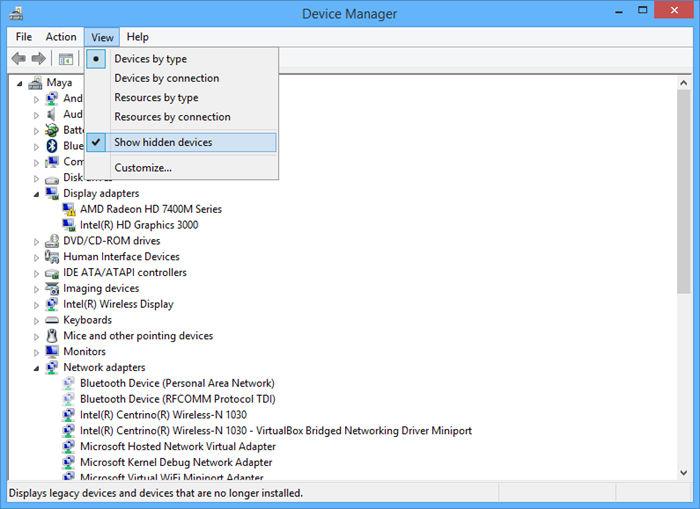
    1. Press “Win + X” and select "Device Manager"
    2. Go to “view” and select the option “show hidden devices” to reveal all the hidden and old drivers.
    3. Select the driver for the HD LifeCam (the name should include "LifeCam" in it but I'm not sure of the installed driver's exact name for that version), Right-click and select "Uninstall".
    4. The next step I suggest is to use a "Registry Cleaning" program to remove the former Driver's Data from the registry. Sadly, Microsoft doesn't provide such a tool and I can't post a link to one here, but there are several available via a Google search. This process MIGHT working without running a Registry Cleaner but I feel it would help to improve the chances of success.
    5. If you've been able to find a Registry cleaning program, run it, if you have not, please restart your computer now.
    6. Once restarted please update Windows by going to Windows Update and selecting "Check for Updates Now".

    You can access Windows Update by selecting "Settings" in the Start Menu (that's the gear icon),. then selecting "Updates and Security", next select "Windows Update" and select "Check for Updates Now".

    1. If updates are found please install them, and once the updates successfully install please restart your computer.

    9B. If no updates are found, then restart your computer at this point, however, it's important to let updates found install even if they seem unrelated to this issue.

    1. After restarting your computer, now plug in your LifeCams and see if they work normally.

    Please let me know if the above process helps.
    30+ people found this answer helpful.
    0 comments No comments
  4. Anonymous
    2019-02-12T18:30:50+00:00

    No the camera still does not work in windows live movie maker?

    10+ people found this answer helpful.
    0 comments No comments
  5. Anonymous
    2019-02-13T17:38:03+00:00

    I've tried this numerous times and get the following mewssage :

    LifeCam can't run on Windows

    This app may impact PC security or performance.Check for an updated app that runs on this version of Windows.

    10 people found this answer helpful.
    0 comments No comments
