Share via

HP LASERJET 1020

Anonymous
2019-02-19T12:50:45+00:00

Hi,

I have been using HP LaserJet 1020 for years and I used it with  win 10 with no problems. Suddenly my computer does not see it.  I spent hours trying to fix it with no success.  HELP.

Windows for home | Windows 10 | Devices and drivers

Locked Question. This question was migrated from the Microsoft Support Community. You can vote on whether it's helpful, but you can't add comments or replies or follow the question.

0 comments No comments

8 answers

Sort by: Most helpful
  1. Anonymous
    2019-02-19T13:14:30+00:00

    Hi MohammadAshkanani, I am Dexter, an Independent Advisor, here to help you.

    Can you find your printer from the Device Manager - Printer queues?

    If not, change another USB port for your HP printer or change another USB cable.

    I hope this helps. Feel free to ask back any questions and let me know how it goes. I will keep working with you until it's resolved.

    4 people found this answer helpful.
    0 comments No comments
  2. Vijay A. Verma 104.8K Reputation points Volunteer Moderator
    2019-02-19T12:56:41+00:00

    Hi MohammadAshkanani,

    I am Vijay, an Independent Advisor. I am here to work with you on this problem.

    Before proceeding with the troubleshooting steps, Connect your Printer to the computer and Switch it ON. In case of Wireless printer, Switch it ON and connect it to the Wifi network.

    1. Run printer troubleshooter

    HP provides a tool for HP printers to troubleshoot - HP Print and Scan Doctor. Download it, launch it and follow the onscreen directions to locate problems and fix them

    Download Link - http://ftp.hp.com/pub/printers/hppsdr/HPPSdr.exe

    1. Update Printer Driver

    Download printer driver from printer manufacturer's website and reinstall.

    1. Uninstall and reinstall the Printer (Credit to Andre Da Costa, MVP for providing steps)

    A. Uninstall Printer

    Click on Windows Key+X > Apps and Features > Scroll down and click Programs and Features > Select your printer > Select Uninstall

    Type Printer in Windows Search box > Printers & Scanners > Select your printer > Remove device

    Type Printer in Windows Search box > Click Printers & Scanners > Scroll down and click Print server properties under Related settings > Under Driver tab, look for your printer > Select it and click Remove button at the bottom

    B. Install Printer

    Go to the Printer manufacturer’s website and search for the latest Windows 10 drivers > Reinstall the Printer driver > Reboot the computer

    Type Printer in Windows Start Search box > Click Printers & Scanners > On Right side, Click Add a printer or scanner > If Windows detects your printer, it will be listed > Select the printer and follow on screen directions to set it up (In case of Wifi printer, your computer should also be logged into Wifi network)

    If Windows doesn't detect your printer, then you will get a blue message - Click The printer that I want isn't listed

    If you are using Bluetooth / Wirelss printer > Select Add a Bluetooth, wireless or network discoverable printer > Choose the printer > Select your Printer and follow on screen directions

    If you are using wired printer > Select Add a local printer or network printer with manual settings > Select Use an existing port > Select your Printer and follow on screen directions

    1. Clear Spooler

    Type Services in Windows Start Search Box > Click Services > Scroll down to Print Spooler > Right-click and choose Stop for the Print Spooler service > Go to C:\WINDOWS\System32\spool\PRINTERS. You can also type %windir%\System32\spool\PRINTERS into the address bar in Explorer if the C drive is not the default Windows partition > Delete all the files in this folder > Services console and right-click and choose Start for the Print Spooler service

    Do let me know if you require any further help on this. Will be glad to help you.

    (Source - https://support.microsoft.com/en-us/help/401540...)

    Disclaimer 1 - Using Third Party Software is completely at your own risk. This advice is in my personal capacity as a volunteer.

    Disclaimer 2 - This is a non-Microsoft website. The page appears to be providing accurate, safe information. Watch out for ads on the site that may advertise products frequently classified as a PUP (Potentially Unwanted Products). Thoroughly research any product advertised on the site before you decide to download and install it.

    3 people found this answer helpful.
    0 comments No comments
  3. Anonymous
    2019-02-19T13:08:03+00:00

    I did all the steps and more and no success.

    2 people found this answer helpful.
    0 comments No comments
  4. Anonymous
    2019-04-07T04:54:43+00:00

    Thank you very much for taking time to help me.

    I followed your instructions and it did not work.

    Thank you again :-)

    1 person found this answer helpful.
    0 comments No comments
  5. Anonymous
    2019-03-27T16:18:37+00:00

    Hi, I'm posting this here, because I think it will help you, M.Ashkanani.  I have a HP LaserJet 1012, and it did not have drivers to work with Windows 7 either.  I had found a work-around, but that is no longer good when I switched to Windows 10.

    Here is a great work-around, and I hope it helps with your LaserJet 1020 as it did with my 1012.  NOTE:  There is a driver on HP's website for 1010/1012/1015.  You may have to find the one for 1020, and you should look for the Vista 64-bit version (explained in STEP 1).  It should work with the following instructions.  Best of luck!

     HP Laserjet 1010/1012/1015 DOES WORK with Windows 10.

    Main Problem:  The only drivers available for the 1012 are for Windows 2000, XP, and Vista.

    I had a DIFFERENT work around, to get it working on Windows 7, which involved installing and running it with the driver “HP LaserJet 2000 PLC 5”  But that solution was not workable with Windows 10.

    The work-around:

    STEP 1:  Since Windows 10 is a 64-bit operating system, download a 64-bit driver.  For the HP 1012, this happens to be Windows Vista-64 (Still available as of 2019/03/27)

    https://support.hp.com/us-en/drivers/selfservice/closure/hp-laserjet-1012-printer/377934

    You will need to “SAVE AS”, not “Open” or “Run”.  Put it in a nice folder you can get to easily, such as

    C:\DRIVERS\HP LaserJet 1012 for Win 10

    STEP 2:  Go to the folder where you saved, and find the .zip file:  lj1010serieshb-vista64.zip

    Right-Click on it, and chose “Extract All…”

    It will make a folder with the same name as the zip file. 

    STEP 3:  If you then open that folder, you will see 29 files.  Most of them are the type “.cab”, or “Cabinet file”.  This depends on your “view”, and whether you can see the “file extension” or not.

    There is ONE file we will need next, the “System information” file: hpc1015w.inf 

    If you are not viewing file extensions, then it will just say “hpc1015w”, but it is the only “system information” file here.

    STEP 4:  Go to the Windows menu, and click Settings, the 2^nd^ icon up.

    STEP 5:  Open Printers and scanners, and Click on “Add a printer or scanner”.  It will start searching.  This work-around would be unnecessary if this worked, so we are going to skip ahead as soon as it lets us:

    STEP 6:  Click on “the printer I want isn’t listed”, as soon as you see it. 
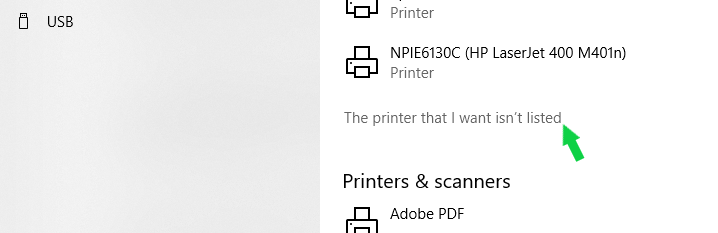
    STEP 7:  In the new window with the “Find a printer by other options” list, choose the last one:

    “Add a local printer or network printer with manual settings”, and click Next.

    STEP 8:  In the “Use an existing port:” pull down menu, you should have a “DOT4_001” port listed.  If so, goto STEP 10.  If not,

    STEP 9:  You will need the “Dor4x64.msi” installer from the HP website.  It is listed as “Driver-USB”:

    https://support.hp.com/us-en/drivers/selfservice/closure/hp-laserjet-2200-printer-series/28861

    You can run it or save it and run later, but it runs and “goes away” without looking like it actually did anything.  It does add the DOT4 port into your list of ports, though.  I did not have to restart my computer, but you may have to exit and re-start the Add a printer process.

    STEP 10:  After selecting DOT4_001 and clicking Next, you will click “Have Disk”, and then “Browse”

    STEP 11:  You then need to browse and find the “hpc1015w.inf” file from STEP 3.  Click on it, Click OPEN, then click OK.

    STEP 12:  You should now see 3 printers listed: HP Laserjet 1010 HB, 1012 HB, and 1015 HB. 
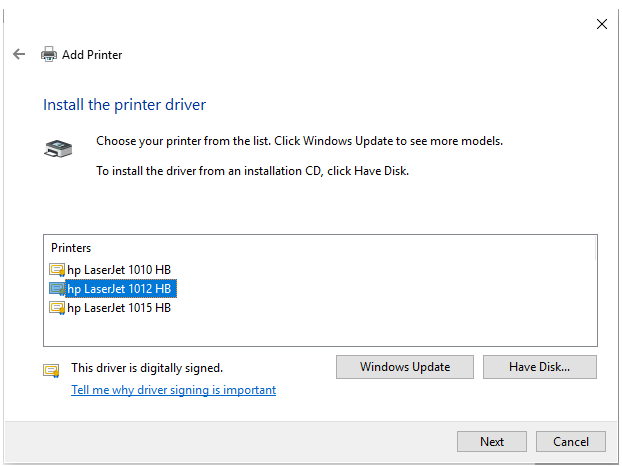
    Choose the one you need, and click Next.

    The rest is the same as it would be for any printer in Windows 10.  Choose to print a test page, whether to share it on your network, or rename it. 

    (I did all of the above, and my office mate can print to it just fine, after browsing the network printers and finding it.)

    1 person found this answer helpful.
    0 comments No comments

