Share via

Windows randomly restarts, EventID 42, TaskCategory 64

Anonymous
2019-04-22T12:08:36+00:00

Recently, I have updated the version of Windows. After that, the system has randomly slept with the following error: 

Log Name:      System

Source:        Microsoft-Windows-Kernel-Power

Date:          22.04.2019 13:37:13

Event ID:      42

Task Category: (64)

Level:         Information

Keywords:      (1024),(4)

User:          N/A

Computer:      LAPTOP-8MHTIDTG

Description:

The system is entering sleep.

Sleep Reason: Battery

Event Xml:

<Event xmlns="http://schemas.microsoft.com/win/2004/08/events/event">

<System>

<Provider Name="Microsoft-Windows-Kernel-Power" Guid="{331c3b3a-2005-44c2-ac5e-77220c37d6b4}" />

<EventID>42</EventID>

<Version>3</Version>

<Level>4</Level>

<Task>64</Task>

<Opcode>0</Opcode>

<Keywords>0x8000000000000404</Keywords>

<TimeCreated SystemTime="2019-04-22T11:37:13.321897700Z" />

<EventRecordID>1132</EventRecordID>

<Correlation />

<Execution ProcessID="4" ThreadID="17748" />

<Channel>System</Channel>

<Computer>LAPTOP-8MHTIDTG</Computer>

<Security />

</System>

<EventData>

<Data Name="TargetState">5</Data>

<Data Name="EffectiveState">5</Data>

<Data Name="Reason">2</Data>

<Data Name="Flags">0</Data>

<Data Name="TransitionsToOn">30</Data>

</EventData>

</Event>

In the PlanPower I have disabled everything that relates to sleep.
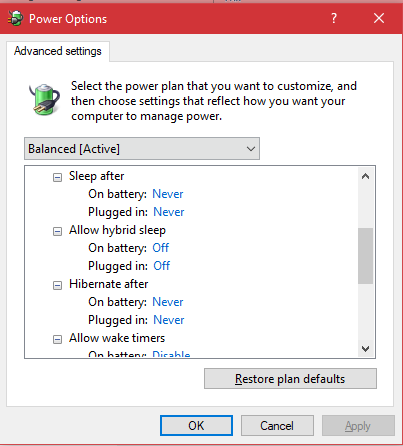
Would you like to tell me, what is the reason?

Windows for home | Windows 10 | Performance and system failures

Locked Question. This question was migrated from the Microsoft Support Community. You can vote on whether it's helpful, but you can't add comments or replies or follow the question.

0 comments No comments

2 answers

Sort by: Most helpful
  1. Sumit D - IA 169.2K Reputation points Independent Advisor
    2019-04-22T13:08:11+00:00

    Hi,

    I am Sumit, an Independent Advisor and a 2-Year Windows Insider MVP here to help.

    To better understand the issue, Please see the article below on how to share System logs.

    http://www.yourwindowsguide.com/2017/12/how-to-...

    Content on the above blog is written by a Microsoft MVP so it is safe. However, do watch out for the ads.

    Was this answer helpful?

    0 comments No comments
  2. Vijay A. Verma 104.8K Reputation points Volunteer Moderator
    2019-04-22T12:10:44+00:00

    Hi AkmalKhikmatullaev

    I am Vijay, an Independent Advisor. I am here to work with you on this problem.

    Please try these options one by one and check after each option.

    1. Troubleshoot Power

    Type troubleshoot in Cortana Search > Click Troubleshoot > Scroll down > Click Power > Run the troubleshooter > Follow on-screen direction.

    1. Restore Default for Power Settings

    Windows Key+I > System > Power & sleep > Click Additional power settings to open Power options > Click Change Plan Settings > Click Restore default settings for this plan

    1. Disable Fast Startup

    Reach to Power options as in previous step > Click Choose what the power buttons do > Click Change settings that are currently unavailable > Scroll down to Shutdown settings and uncheck Turn on fast startup > Click Save changes

    1. Uninstall / Install Battery Driver (Only for laptops)

    Shut down your computer > Detach power chord > Remove battery (if fixed no need to remove) > Attach power chord > Reboot your computer

    Windows Key+X > Device Manager > Expand Batteries > Right-click Microsoft ACPI-Compliant System > Uninstall > Shutdown the computer > Remove the power chord > Attach your battery > Attach your power chord > Reboot the computer to automatically install the driver

    Do let me know if you have any more question or require further help.

    Was this answer helpful?

    0 comments No comments

