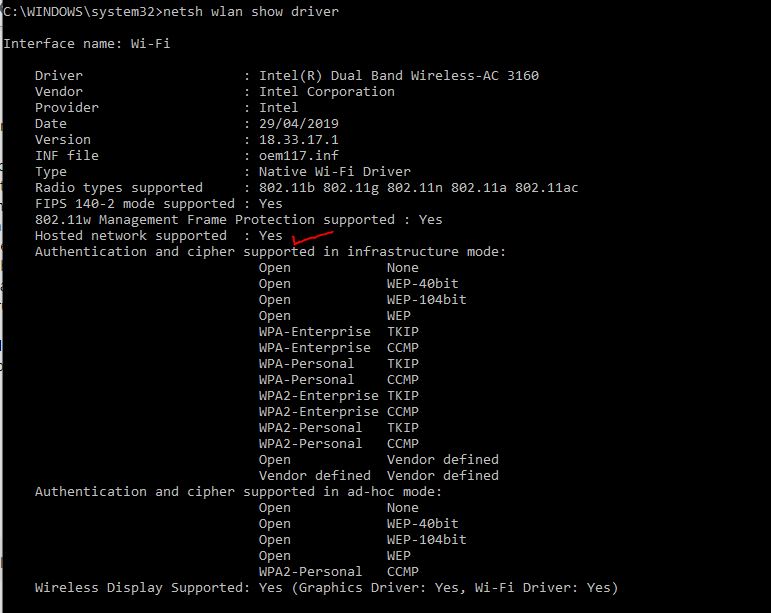
- I think Hosted Network is supported in the card.
- I never get yellow triangle-ed when
not running a mobile hotspot or a hosted network
- I have tried to reinstall the drivers from scratch and remove and install the new Intel Pro/Set Wireless software using the below steps (as advised from Intel):
- Remove WiFi components
- Uninstall driver from Device Manager*. If prompted, choose remove driver.
- Remove Intel® PROSet/Wireless Software and Drivers from Programs and Features in the Control Panel.
- Remove temporary files
- Press Windows* Key + R to open the run box. Type Cleanmgr.exe. Press OK.
- Select your boot drive (usually C:\)
- Check Temporary Files and uncheck everything else. Press OK.
- Remove hidden temporary folders
- Go to %USERPROFILE%\AppData\Roaming\
- Delete the "Intel" folder found here.
- Install the latest version of the Intel® PROSet/Wireless Software and Drivers.
- Choose to Customize.
- Select all options available.
Currently I have the latest Wi-Fi Driver 2019 and latest Intel PROSet/Wireless Software and Driver WiFi_20.120.1_PROSet64_Win10.
I have run by your steps using the troubleshooter
Step 1) Returned no issues in troubleshooter
Step 2) I have run the troubleshooter on my Wi-Fi adapter. The troubleshooter restarted my Wi-Fi adapter even though it was working fine and returned the below report:
| Issues found |
|
|
|
|
|
|
|
|
|
| Problem with wireless adapter or access point<br><br><br>Problem with wireless adapter or access point |
Fixed |
|
|
|
|
|
|
|
|
|
Reset the wireless adapter |
Completed |
<br> |
--- |
--- |
<br> |
Investigate router or access point issues |
Not run |
|
| | 6 | Problem with wireless adapter or access point | Fixed | |<br>| --- | --- | --- | --- | |
| | | Reset the wireless adapter | Completed |<br>| --- | --- | |<br>| | Network Diagnostics Log |<br>| | File Name: | 8843F3B2-C09F-42B9-B24B-37115D374BC4.Repair.1.etl |<br>| --- | --- | |<br>| --- | |<br>| --- |<br><br><br><br><br>| | Investigate router or access point issues | Not run |<br>| --- | --- | |<br>| --- |<br>| If you're connected to a hotspot or domain network, contact the network administrator. Otherwise: 1. Unplug or turn off the device. 2. After all the lights on the device are off, wait at least 10 seconds. 3. Turn the device back on<br> or plug it back into the power outlet. To restart a router or access point that has a built-in battery, press and quickly release the Reset button. | |
| --- |
| Diagnostics Information (Network Adapter) |
|
|
|
|
|
Details about network adapter diagnosis: <br> <br> Network adapter Wi-Fi driver information:<br> <br> Description . . . . . . . . . . : Intel(R) Dual Band Wireless-AC 3160<br> Manufacturer . . . . . . . . . : Intel Corporation<br> Provider . . . . . . . . . . . : Microsoft<br> Version . . . . . . . . . . . : 17.15.0.5<br> Inf File Name . . . . . . . . . : C:\WINDOWS\INF\netwbw02.inf<br> Inf File Date . . . . . . . . . : Saturday, September 15, 2018 7:28:15 AM<br> Section Name . . . . . . . . . : Install_MPCIEX_GEN_3160_AC_HMC_WINB_64_AC<br> Hardware ID . . . . . . . . . . : pci\ven_8086&dev_08b3&subsys_00708086<br> Instance Status Flags . . . . . : 0x180200a<br> Device Manager Status Code . . : 0<br> IfType . . . . . . . . . . . . : 71<br> Physical Media Type . . . . . . : 9 |
<br> |
--- |
|
| Diagnostics Information (Wireless Connectivity) |
|
|
|
|
|
Details about wireless connectivity diagnosis: <br> <br> Information for connection being diagnosed<br> Interface GUID: 8592f331-5f2f-403b-adf2-ce919d0a9522<br> Interface name: Intel(R) Dual Band Wireless-AC 3160<br> Interface type: Native Wi-Fi<br> <br> Connection incident diagnosed<br> Auto Configuration ID: 1<br> Connection ID: 1<br> <br> Connection status summary<br> Connection started at: 2019-06-23 06:25:02-427<br> Profile match: Success<br> Pre-Association: Success<br> Association: Success<br> Security and Authentication: Success<br> <br> List of visible access point(s): 7 item(s) total, 7 item(s) displayed<br> BSSID BSS Type PHY Signal(dB) Chnl/freq SSID<br> -------------------------------------------------------------------------<br> D8-D7-75-08-A8-D8 Infra <unknown> -83 11 OPTUS_08A8D7<br> B0-AC-D2-3C-91-A3 Infra <unknown> -76 4 EXETEL 3C91A3 2.4G<br> 10-0D-7F-E1-D7-62 Infra <unknown> -74 11 OPTUSVD3D4F248<br> FA-8F-CA-3A-DD-A4 Infra <unknown> -71 11 (Unnamed Network)<br> B6-B6-86-98-BE-E1 Infra <unknown> -89 11 DIRECT-E1-HP ENVY 5000 series<br> B0-AC-D2-3C-91-A4 Infra <unknown> -82 5500000 EXETEL 3C91A3 5G<br> 08-02-8E-F0-50-41 Infra <unknown> -85 6 Telstra110C<br> <br> Connection History<br> <br> Information for Auto Configuration ID 1<br> <br> List of visible networks: 8 item(s) total, 8 item(s) displayed<br> BSS Type PHY Security Signal(RSSI) Compatible SSID<br> ------------------------------------------------------------------------------<br> Infra <unknown> Yes 50 Yes OPTUS_08A8D7<br> Infra <unknown> Yes 41 Yes EXETEL 3C91A3 2.4G<br> Infra <unknown> Yes 41 Yes OPTUSVD3D4F248<br> Infra <unknown> No 48 Yes (Unnamed Network)<br> Infra <unknown> Yes 18 Yes DIRECT-E1-HP ENVY 5000 series<br> Infra <unknown> Yes 20 Yes EXETEL 3C91A3 5G<br> Infra <unknown> Yes 30 Yes Telstra110C<br> Infra <unknown> Yes 20 Yes OPTUS_08A8D7_5GHz<br> <br> List of preferred networks: 3 item(s)<br> Profile: OPTUS_7E52B8_5GHz<br> SSID: OPTUS_7E52B8_5GHz<br> SSID length: 17<br> Connection mode: Infra<br> Security: Yes<br> Set by group policy: No<br> Connect even if network is not broadcasting: No<br> Connectable: No<br> Reason: 0x00028002<br> Profile: OPTUS_08A8D7 2<br> SSID: OPTUS_08A8D7<br> SSID length: 12<br> Connection mode: Infra<br> Security: Yes<br> Set by group policy: No<br> Connect even if network is not broadcasting: No<br> Connectable: No<br> Reason: 0x00028001<br> Profile: OPTUS_08A8D7<br> SSID: OPTUS_08A8D7<br> SSID length: 12<br> Connection mode: Infra<br> Security: Yes<br> Set by group policy: No<br> Connect even if network is not broadcasting: No<br> Connectable: Yes<br> <br> Information for Connection ID 1<br> Connection started at: 2019-06-23 06:25:02-427<br> Auto Configuration ID: 1<br> Profile: OPTUS_08A8D7<br> SSID: OPTUS_08A8D7<br> SSID length: 12<br> Connection mode: Infra<br> Security: Yes<br> Pre-Association and Association<br> Connectivity settings provided by hardware manufacturer (IHV): No<br> Security settings provided by hardware manufacturer (IHV): No<br> Profile matches network requirements: Success<br> Pre-association status: Success<br> Association status: Success<br> Last AP: d8-d7-75-08-a8-d8<br> Security and Authentication<br> Configured security type: WPA2-PSK<br> Configured encryption type: CCMP(AES)<br> 802.1X protocol: No<br> Key exchange initiated: Yes<br> Unicast key received: Yes<br> Multicast key received: Yes<br> Number of security packets received: 0<br> Number of security packets sent: 0<br> Security attempt status: Success<br> Connectivity<br> Packet statistics<br> Ndis Rx: 18571<br> Ndis Tx: 21400<br> Unicast decrypt success: 197<br> Multicast decrypt success: 0<br> Unicast decrypt failure: 0<br> Multicast decrypt failure: 0<br> Rx success: 288<br> Rx failure: 0<br> Tx success: 191<br> Tx failure: 0<br> Tx retry: 66<br> Tx multiple retry: 23<br> Tx max lifetime exceeded: 0<br> Tx ACK failure: 112<br> Roaming history: 3 item(s)<br> Times: 2019-06-23 06:39:32-059<br> Roamed from BSSID: d8-d7-75-08-a8-d8<br> Reason: 0x00000002<br> Times: 2019-06-23 06:39:28-897<br> Roamed from BSSID: d8-d7-75-08-a8-d8<br> Reason: 0x00000000<br> Times: 2019-06-23 06:39:27-861<br> Roamed from BSSID: d8-d7-75-08-a8-d8<br> Reason: 0x00000002 |
<br> |
--- |
|
| Diagnostics Information (Wireless Connectivity) |
|
|
|
|
|
Details about wireless connectivity diagnosis: <br> <br> For complete information about this session see the wireless connectivity information event.<br> <br> Helper Class: Auto Configuration<br> Initialize status: Success<br> <br> Information for connection being diagnosed<br> Interface GUID: 8592f331-5f2f-403b-adf2-ce919d0a9522<br> Interface name: Intel(R) Dual Band Wireless-AC 3160<br> Interface type: Native Wi-Fi<br> <br> Result of diagnosis: There may be problem |
<br> |
--- |
|
| Diagnostics Information (Wireless Network Adapter) |
|
|
|
|
|
Details about wireless network adapter diagnosis: <br> <br> For complete information about this session see the wireless connectivity information event.<br> <br> Helper Class: Native Wi-Fi MSM<br> Initialize status: Success<br> <br> Information for connection being diagnosed<br> Interface GUID: 8592f331-5f2f-403b-adf2-ce919d0a9522<br> Interface name: Intel(R) Dual Band Wireless-AC 3160<br> Interface type: Native Wi-Fi<br> Profile: OPTUS_08A8D7<br> SSID: OPTUS_08A8D7<br> SSID length: 12<br> Connection mode: Infra<br> Security: Yes<br> Connect even if network is not broadcasting: No<br> <br> Result of diagnosis: Problem found<br> <br> Root cause:<br> This computer is continuously switching between two or more wireless routers or access points<br> <br> Detailed root cause:<br> Excessive roaming (between access points, within a profile or a preferred network)<br> <br> Repair option:<br> Select one preferred network<br> Windows Help and Support can provide more information about how to prevent your computer from continuously switching between wireless routers or access points. |
<br> |
--- |
|
| Network Diagnostics Log |
| | File Name: | 8843F3B2-C09F-42B9-B24B-37115D374BC4.Diagnose.0.etl |<br>| --- | --- | |
| --- |
| Other Networking Configuration and Logs |
| | File Name: | NetworkConfiguration.cab |<br>| --- | --- | |
| --- |
| Collection information |
| Computer Name: | HP-HIMOZ |
| --- | --- |
| Windows Version: | 10.0 |
| --- | --- |
| Architecture: | x64 |
| --- | --- |
| Time: | Sunday, June 23, 2019 6:50:01 AM |
| --- | --- |
| Windows Network Diagnostics |
| Detects problems with network connectivity. |
| Package Version: | 4.0 |
| --- | --- |
| Publisher: | Microsoft Windows |
| --- | --- |
| Network Adapter |
| Find and fix problems with wireless and other network adapters. |
It is funny to note that the troubleshooter identified the "root cause" as it is trying to jump constantly between two access points even though I am only connect automatically to a single Wi-Fi network which I have double checked
more than once now. I have made sure all other saved networks are forgotten except the one I am currently using.
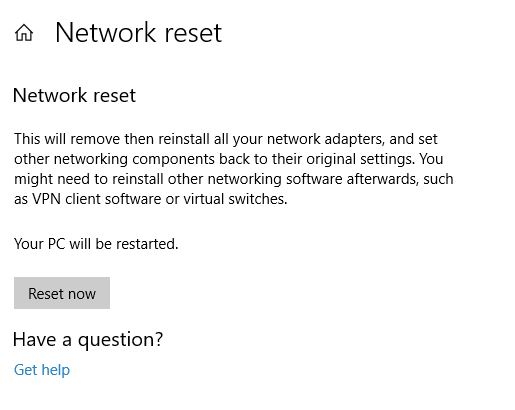
Step 3) I have attempted the Network Reset below and it reverted all my Wi-Fi drivers to the old ones
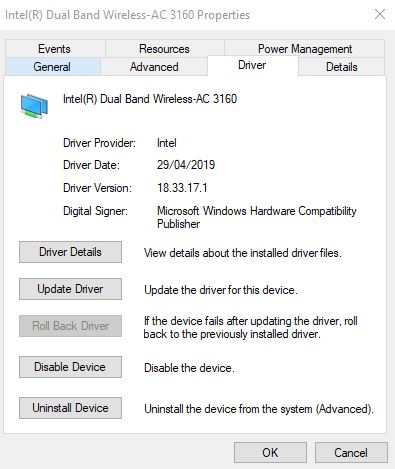
Step 4) Updated Wi-Fi Driver to the latest Intel Dual Band Wireless Adapter AC3160 Properties.
...
After all that the problem still persists.
I have tried extra steps that I have tried before such as disabling Firewall completely temporarily to check any issues and checking to remove any windows updates that may caused any conflicts (because that is what
I think may be happening here)
I think as a last resort I will backup my personal data and attempt a
Fresh Start, it seems a bit radical but I have been struggling with this a while and no solution have worked so far.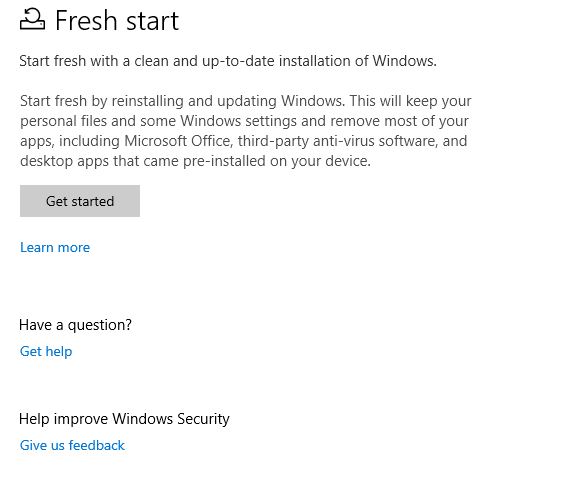
If it does not work after that it is either a hardware issue with the wireless adapter inside the laptop itself (it is a HP ENVY 15 Notebook, a 4-5 years old laptop after all) OR it could be that just there is incompatibility of
this feature with an intel card especially with new updates of windows.
One thing to note is I have tried using the mobile hotspot feature in other Wi-Fi networks before in other places and no matter how good the internet and max signal next to router, it still goes to the yellow triangle of death scenario
after a while of using a connected device to the hotspot.
' cx='32' cy='32' r='32' /%3E%3Ctext x='50%25' y='55%25' dominant-baseline='middle' text-anchor='middle' fill='%23FFF' %3EA%3C/text%3E%3C/svg%3E)

' cx='32' cy='32' r='32' /%3E%3Ctext x='50%25' y='55%25' dominant-baseline='middle' text-anchor='middle' fill='%23FFF' %3EFD%3C/text%3E%3C/svg%3E)