SQL Server | Other
Additional SQL Server features and topics not covered by specific categories
This browser is no longer supported.
Upgrade to Microsoft Edge to take advantage of the latest features, security updates, and technical support.
' cx='32' cy='32' r='32' /%3E%3Ctext x='50%25' y='55%25' dominant-baseline='middle' text-anchor='middle' fill='%23FFF' %3EK%3C/text%3E%3C/svg%3E)
I am learning to work with SQL server 2019.
During the installation I got some errors.

TITLE: Microsoft SQL Server 2019 Setup
------------------------------

The following error has occurred:

Cannot find the user 'DESKTOP-QGVGUB6\PdwComputeNodeAccess', because it does not exist or you do not have permission.
Changed database context to 'DWConfiguration'.

Script version: 107
Version_History table created.
Currently stored version: 0
Need to run SP and insert value into the version_history table: 107
Database name is: DWConfiguration
Current Version:0
Database name is: DWDiagnostics

Click 'Retry' to retry the failed action, or click 'Cancel' to cancel this action and continue setup.

For help, click: https://go.microsoft.com/fwlink?LinkID=20476&ProdName=Microsoft%20SQL%20Server&EvtSrc=setup.rll&EvtID=50000&ProdVer=15.0.4013.40&EvtType=0x7590AFD6%25400x9A41B222

------------------------------
BUTTONS:

&Retry
Cancel
------------------------------
and then
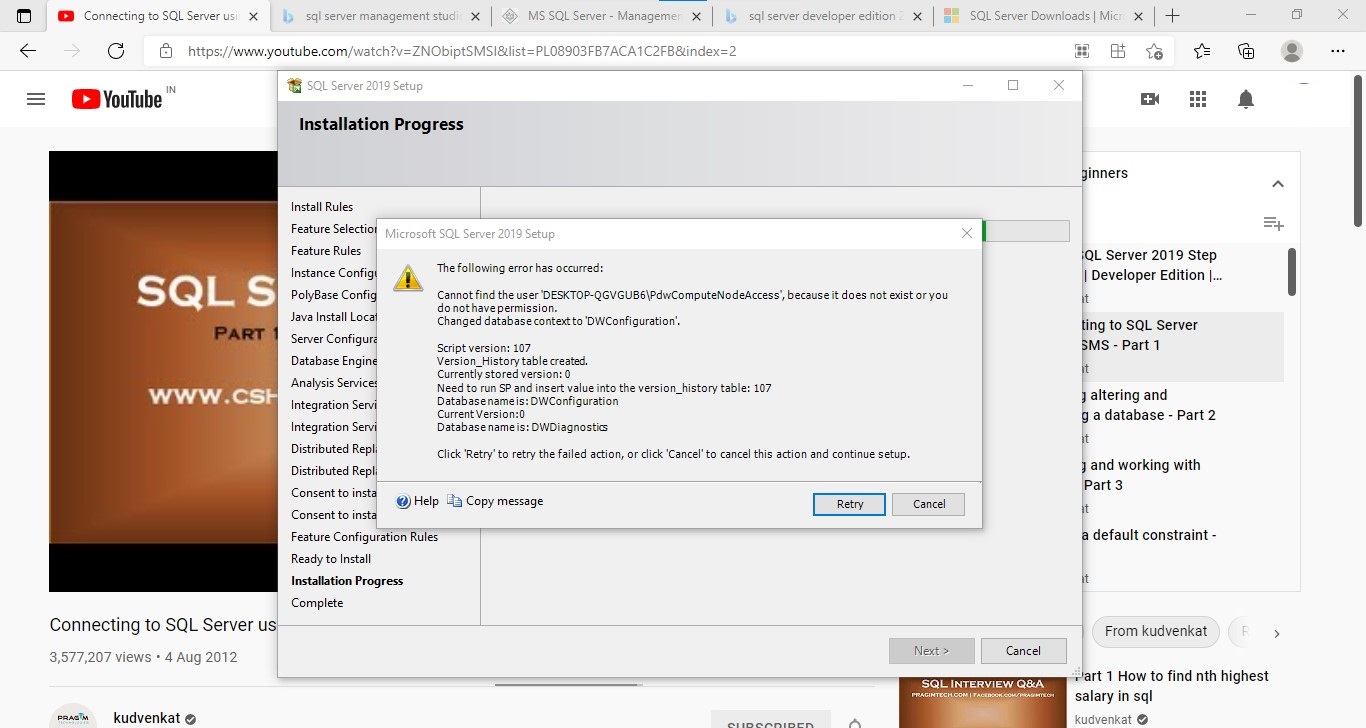
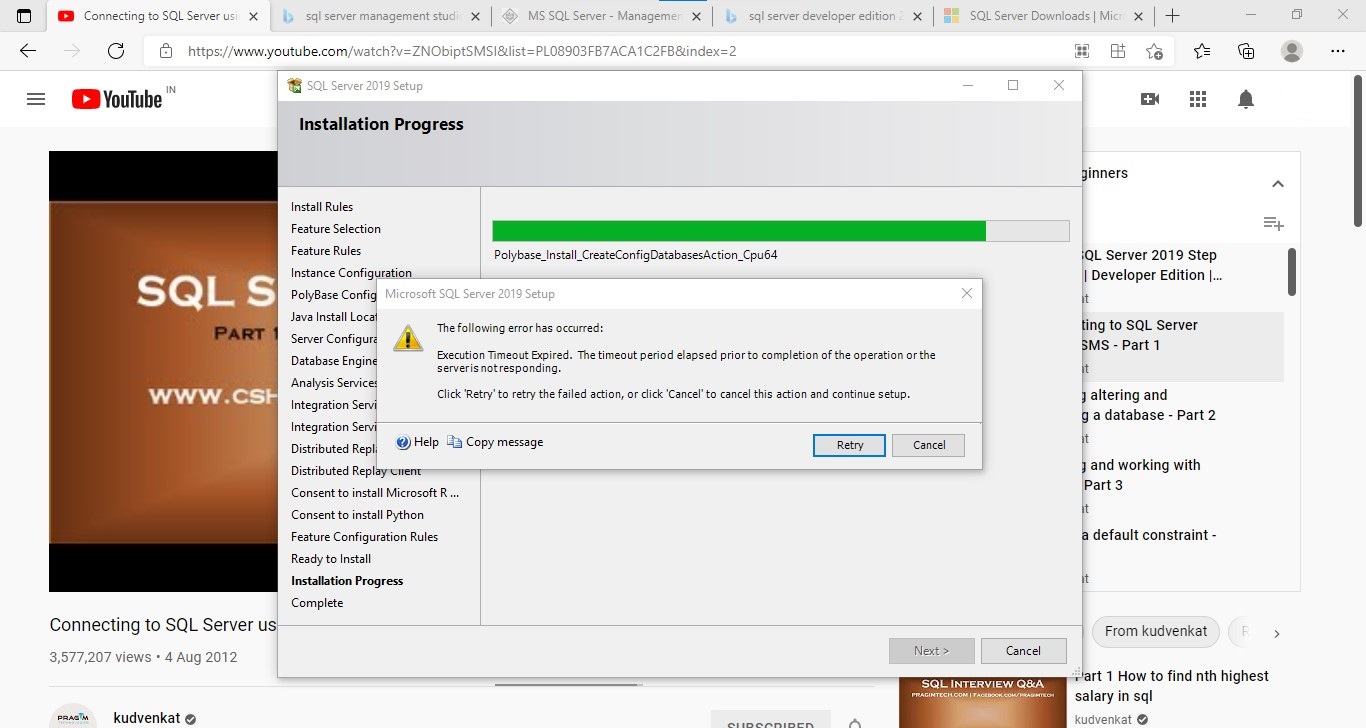
so it happened with failures.
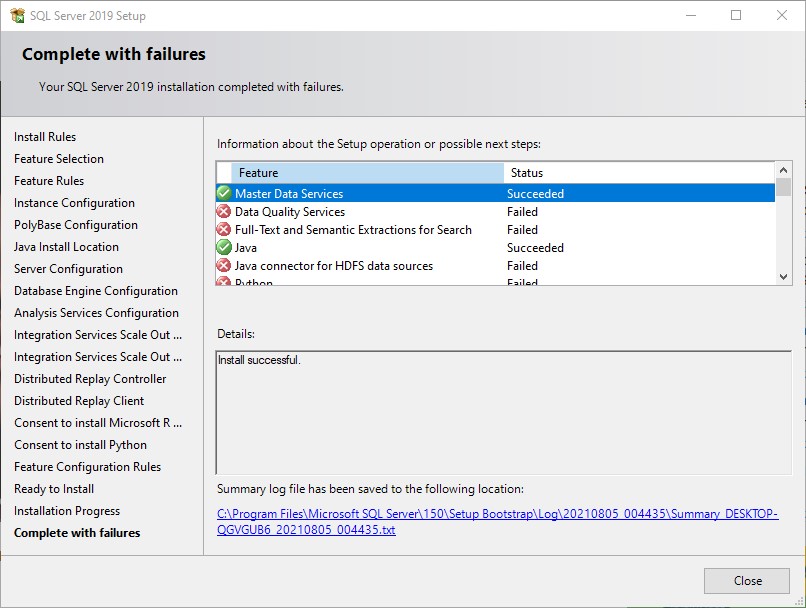
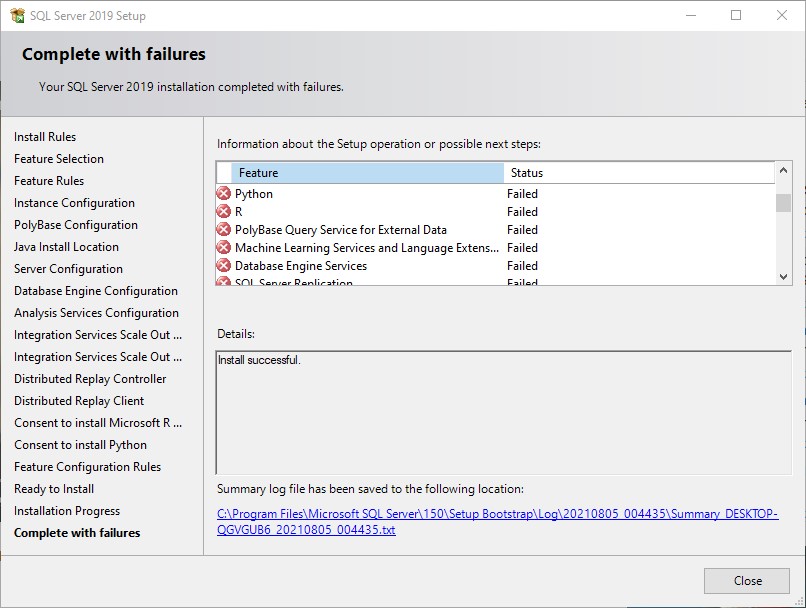
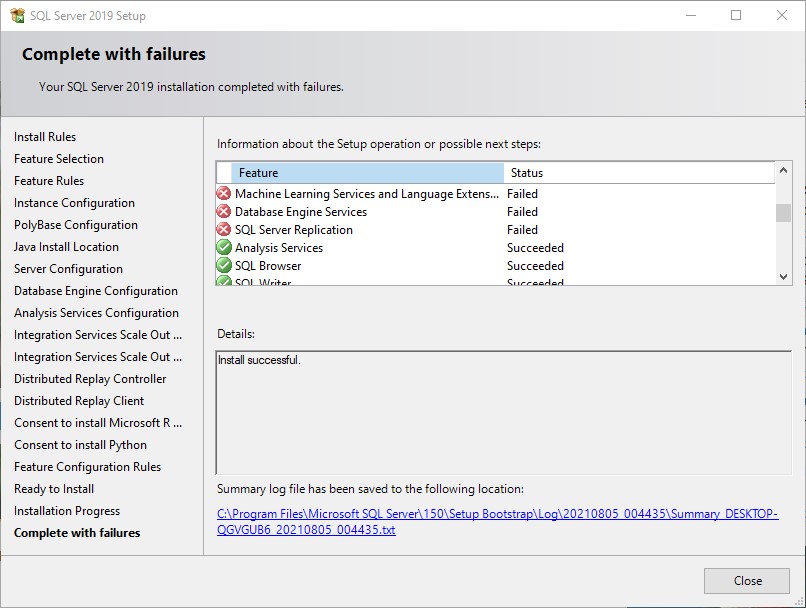

so I could not understand any thing. After a reboot I decided to uninstall every thing.


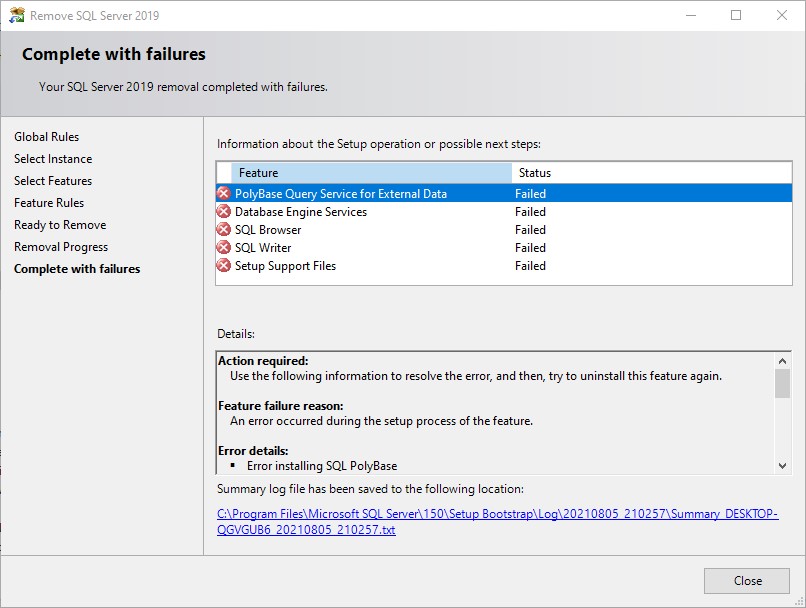
I want to do a clean uninstall and re install every thing.
I had previously installed with windows authentication I think I did that mistake.
It should have been a MySQL authentication. So I am trying to uninstall and re install again.
But during uninstall I am not able to remove the SQL Server 2019 completely
Additional SQL Server features and topics not covered by specific categories
I used Revo Uninstaller to uninstall every thing.
' cx='32' cy='32' r='32' /%3E%3Ctext x='50%25' y='55%25' dominant-baseline='middle' text-anchor='middle' fill='%23FFF' %3EAM%3C/text%3E%3C/svg%3E)
Hi Kdaevap132-8291,
Please try to manually uninstall SQL Server using the following procedure:
In addition, you can use this official troubleshooter to help you fix issues when you're blocked from installing or removing programs.
And please make sure you right click on setup.exe file and select run as administrator when you want to start the SQL Server installation.
Best Regards,
Amelia
If the answer is helpful, please click "Accept Answer" and upvote it.
Note: Please follow the steps in our documentation to enable e-mail notifications if you want to receive the related email notification for this thread.
Ok thanks for your answer. I had installed SQL server again and then un installed again. I now saw your message and since I had installed 3 times fresh installation in past 2-3 days. I saw your answer now.
I deleted all the entries as you mentioned.
I am getting some errors this is after a reboot and deleting all the entries you mentioned . What I did was in point number 6 as you mentioned to rename I deleted all the folders and subfolders. Because it is a new installation.
Error 1
The following error has occurred:
Unable to open registry key: 'Software\Microsoft\Microsoft SQL Server\150\Bootstrap', registry may be corrupted.
BUTTONS:
OK
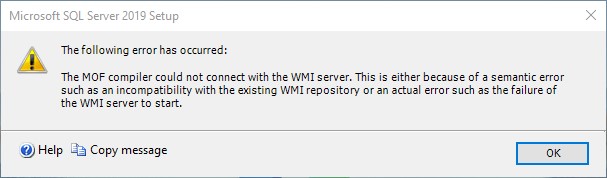
and this error
`TITLE: Microsoft SQL Server 2019 Setup
------------------------------
The following error has occurred:
The MOF compiler could not connect with the WMI server. This is either because of a semantic error such as an incompatibility with the existing WMI repository or an actual error such as the failure of the WMI server to start.
For help, click: https://go.microsoft.com/fwlink?LinkID=20476&ProdName=Microsoft%20SQL%20Server&EvtSrc=setup.rll&EvtID=50000&ProdVer=15.0.2000.5&EvtType=0xA60E3551%25400xD3BEBD98%25401211%25401
------------------------------
BUTTONS:
OK
and this error
TITLE: Microsoft SQL Server 2019 Setup
------------------------------
The following error has occurred:

PerfLib 2.0 counter removal failed with exit code 2. Command line: C:\Windows\system32\unlodctr.exe /m:hkengperfctr.xml from directory C:\Program Files\Microsoft SQL Server\150\Shared\.

For help, click: https://go.microsoft.com/fwlink?LinkID=20476&ProdName=Microsoft%20SQL%20Server&EvtSrc=setup.rll&EvtID=50000&ProdVer=15.0.2000.5&EvtType=0x590D6427%25400x24BDAA65%25401260%25401

------------------------------
BUTTONS:

OK



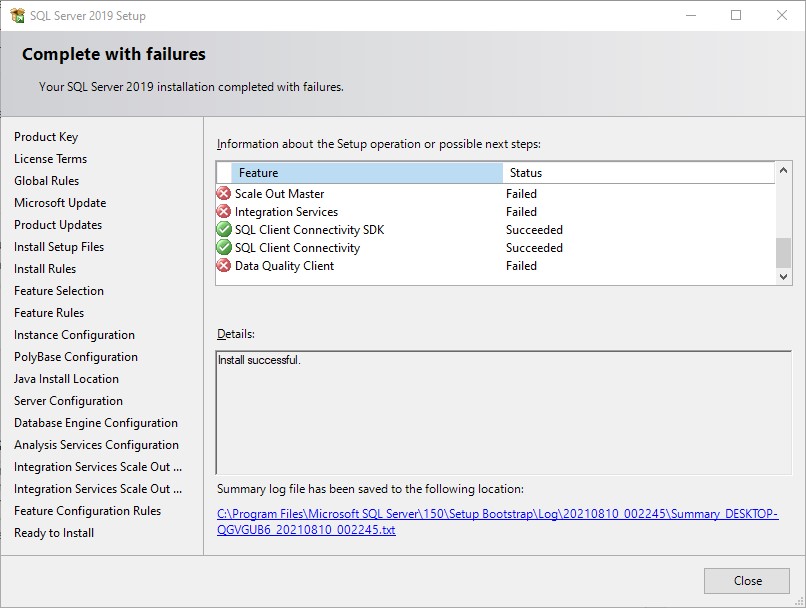
What should I do now I need a clean installation.
Hi Kdaevap132-8291,
Could you please share us SQL Server Setup log detail.txt within %programfiles%\Microsoft SQL Server\150\Setup Bootstrap\Log? Please refer to View and Read SQL Server Setup Log Files.
Best Regards,
Amelia