Normally between "Speaker setup" and "troubleshoot sound problems" there is a "sounds" option. However after reinstalling Windows 10 on my device, it does not show any longer. Image shows a better representation.
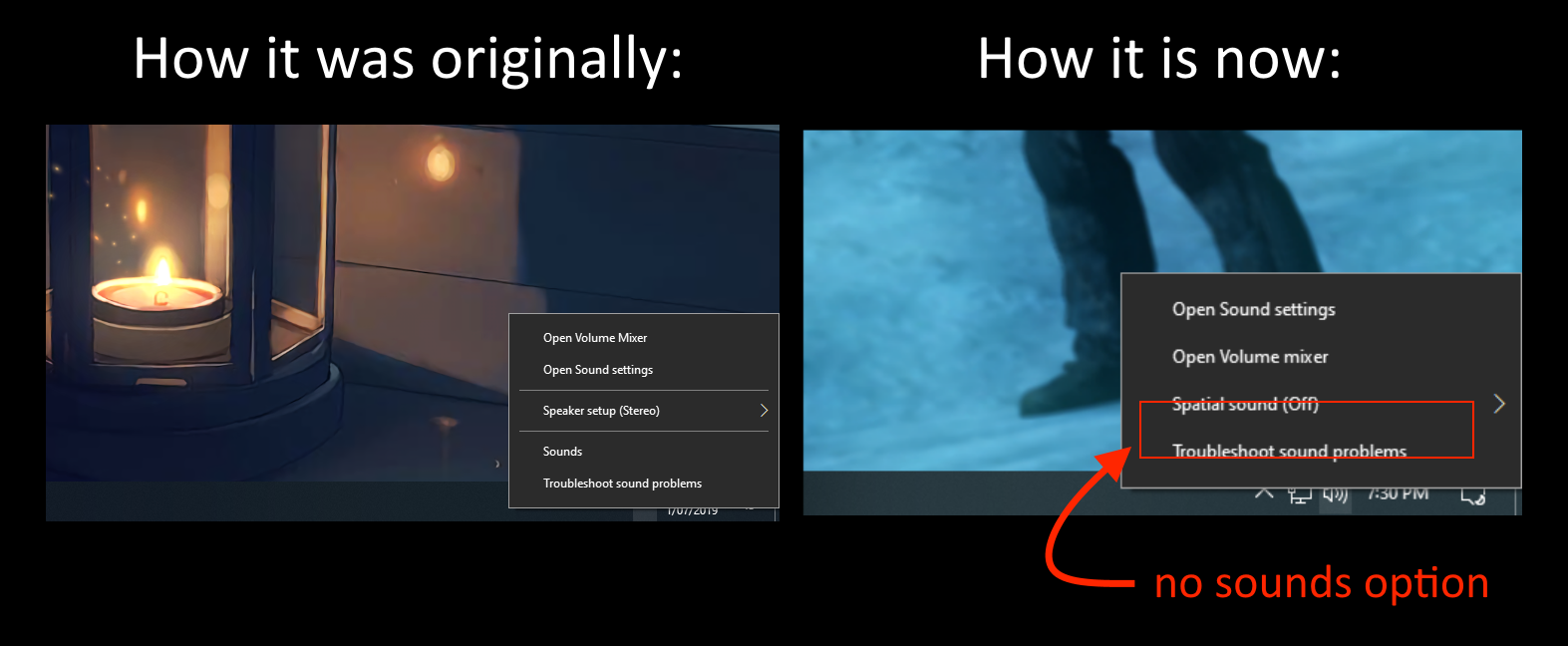
Tried:
- restarting Windows Explorer in task manager
- turning on and off the volume system icon
Been searching into the registry editor but I haven't been able to find anything. Any help would be greatly appreciated.
EDIT:
Managed to find a temporary solution (although this really shouldn't be necessary to begin with as it was a poor design choice by the microsoft devs). Apparently this is a flaw with the 1903 update for Windows 10.
Final product looks like this for my work-around if you're interested: (not limited to this icon)


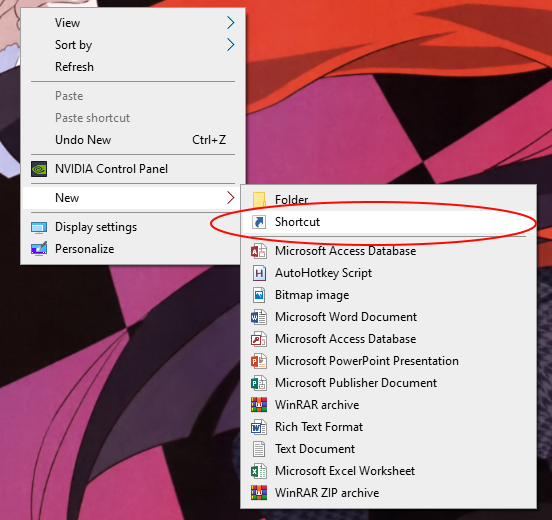
So, I created a shortcut on my desktop and made it link to the sound control panel;
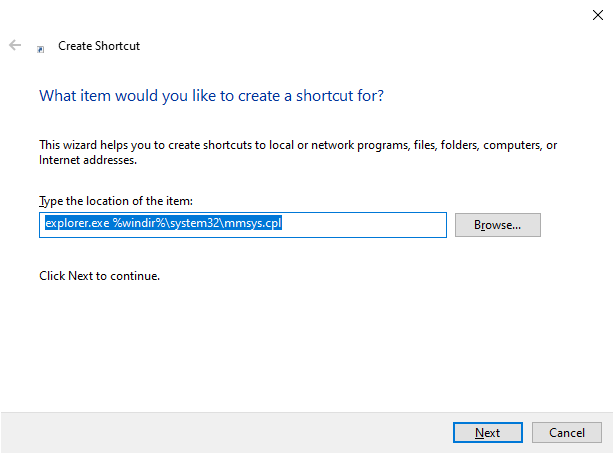
Linked it to this "explorer.exe %windir%\system32\mmsys.cpl" (sound control panel). Then named it "Sounds" or whatever your preference may be.
(next step is purely for aesthetics sake to maintain the original Windows 10 sound icon) I then right clicked on properties>change icon.
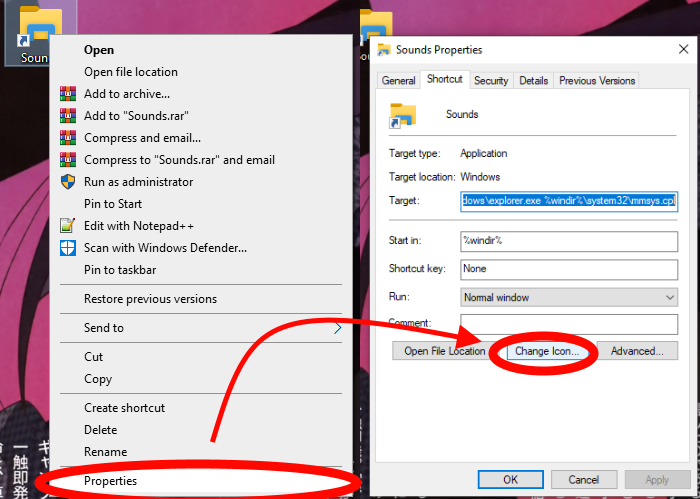
Then click browse>file name: "%SystemRoot%\System32\SndVol.exe"
(you can also download your own icon file and use it)
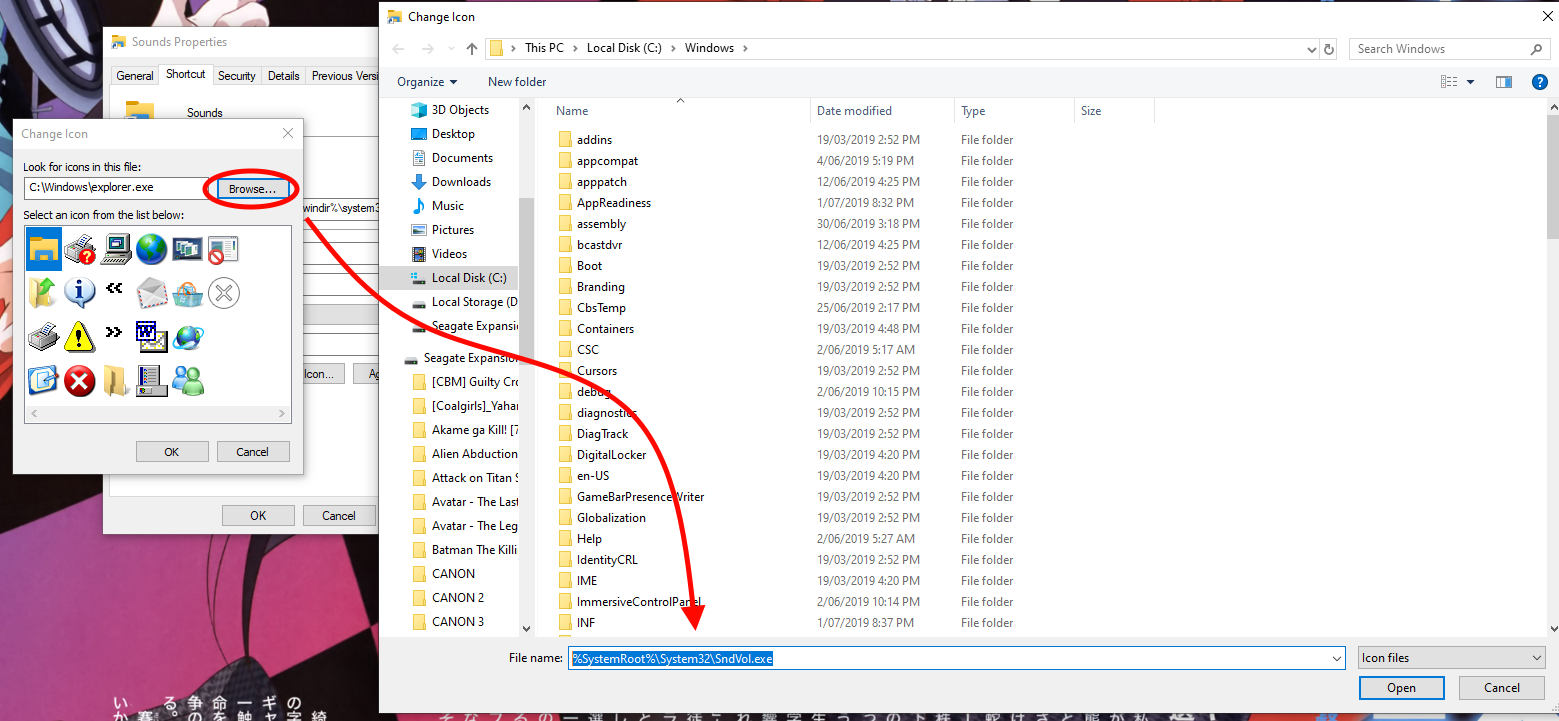
Select any of these any click OK
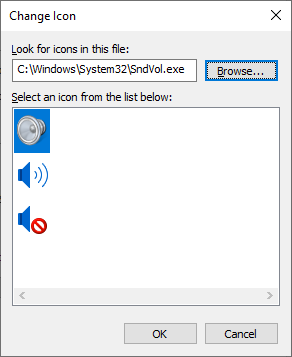
This shortcut can be dragged onto the task bar as normal, if this is acceptable then stop reading here.
Otherwise if you want to keep it on the right side (as per how the original option was positioned) then create a new folder in any directory and place the newly created Sounds shortcut in that folder.
I recommend keeping it where all the other taskbar icons are stored (if you're a perfectionist);
"%AppData%\Microsoft\Internet Explorer\Quick Launch\User Pinned\TaskBar"
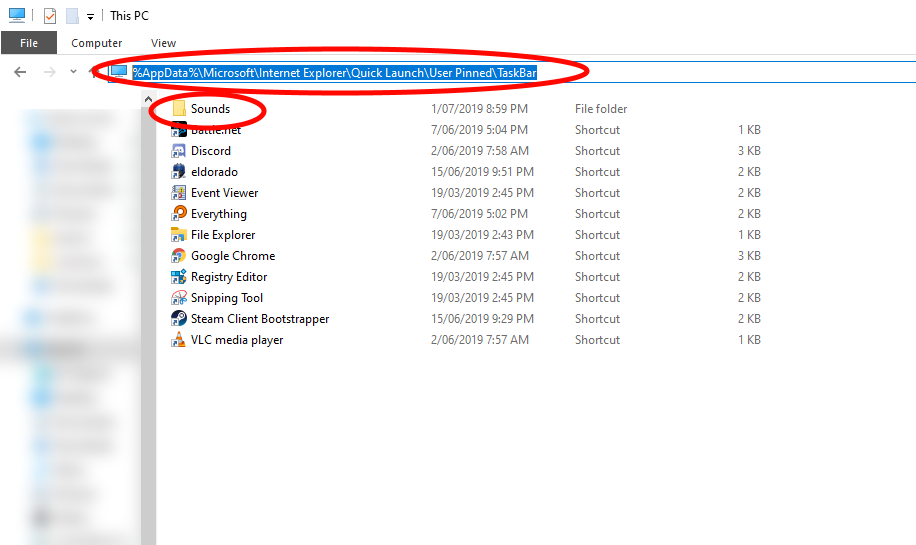
From here, right click on Taskbar>Toolbars>New toolbar...
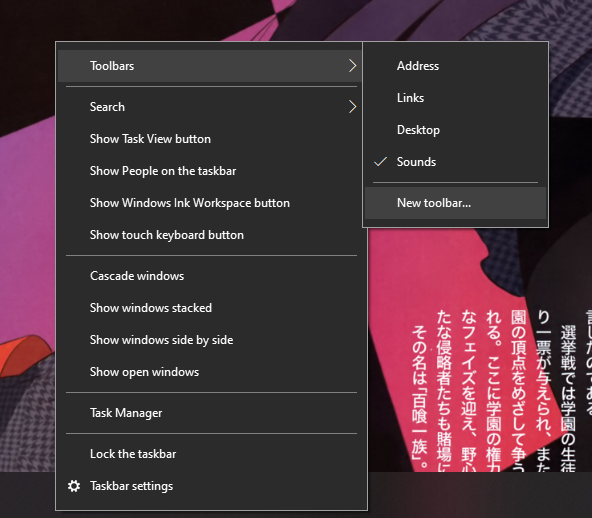
Select the folder that you created with your newly created "Sounds" shortcut inside of it. (in my example it is "%AppData%\Microsoft\Internet Explorer\Quick Launch\User Pinned\TaskBar\Sounds"
Right click the Taskbar and make sure "Lock the taskbar" is unticked.
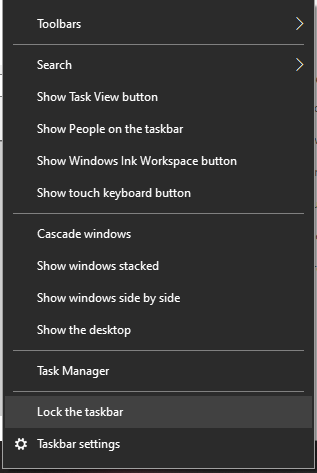
Now right click on newly added toolbar and unselect "Show text" and "Show title"
Now again right click on taskbar toolbar>View>Large icons
Then re-lock the taskbar and you want.
If having two sound icons in the task tray annoys you, you can go here;
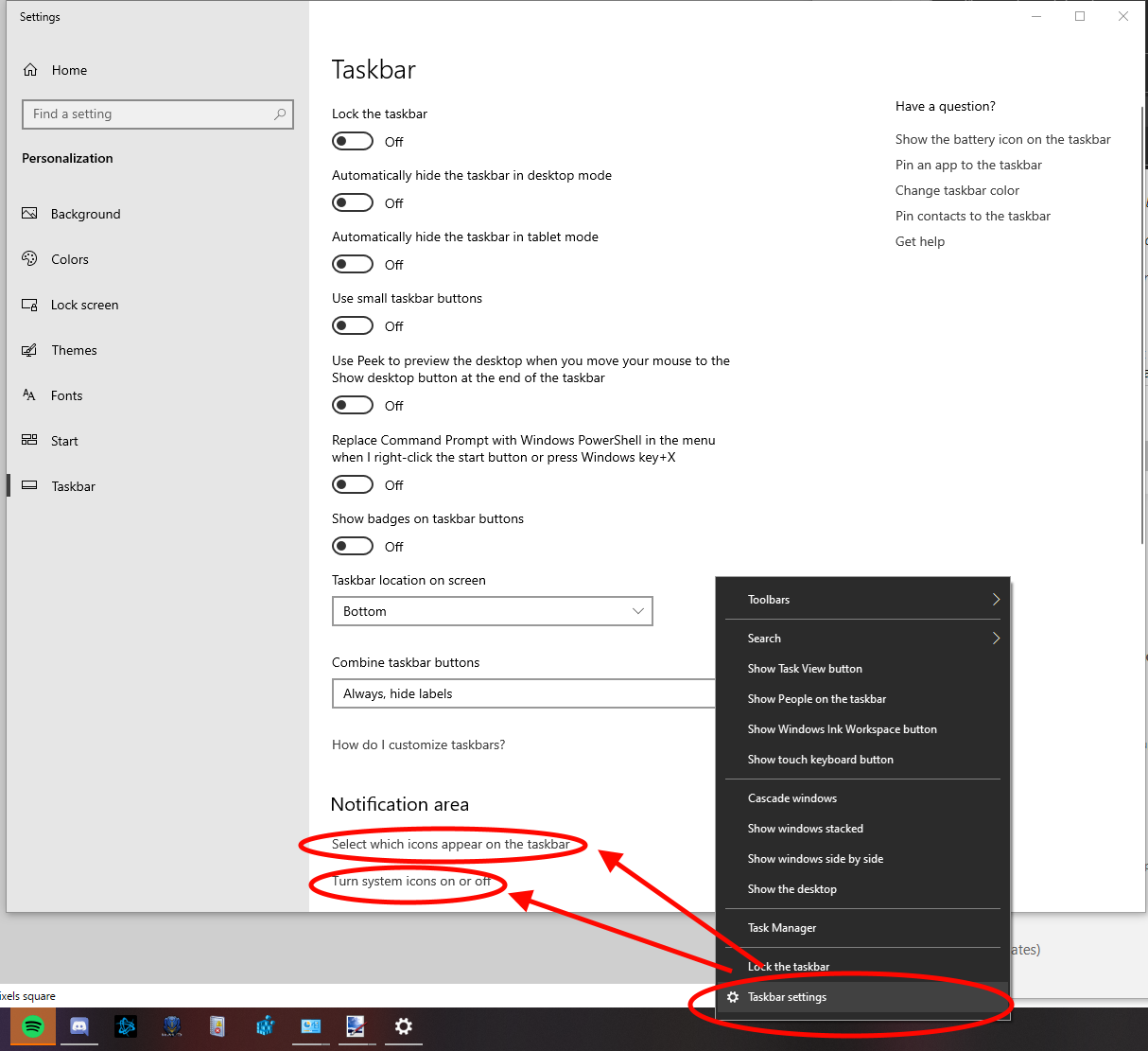
Choosing "Select which icons appear on the taskbar" will stow away the default sound icon into the "^" tray.
Choosing "Turn system icons on or off" will turn it off completely.
There is probably a registry edit fix for this to bring the context menu back to it's original state with the "sounds" being there. But I've searched for about 4 hours on how to fix this issue. Nothing online says anything about specifically editing the
registry for the context menu of the icon tray. It's just all stuff about the general context menu for windows explorer. I was starting to grow impatient and this was the best work-around I could find.
' cx='32' cy='32' r='32' /%3E%3Ctext x='50%25' y='55%25' dominant-baseline='middle' text-anchor='middle' fill='%23FFF' %3EA%3C/text%3E%3C/svg%3E)
