Share via

Wrong IP address

Anonymous
2019-11-06T02:54:45+00:00

Hey! So I got my pc repaired recently and noticed that my internet is weirdly bad. I checked my ip address and it is some other state. Not sure why, it's not the routers fault since my other devices are working just fine. I think it might have to do something with the repair but im not sure...

Windows for home | Windows 10 | Internet and connectivity

Locked Question. This question was migrated from the Microsoft Support Community. You can vote on whether it's helpful, but you can't add comments or replies or follow the question.

0 comments No comments

5 answers

Sort by: Most helpful
  1. Anonymous
    2019-11-06T04:35:43+00:00

    Hi JinwooJB,

    You might want to Renew your IP address.

    Step 1:

    Right-click Windows key then select Command Prompt (Administrator much better)

    Step 2:

    On Command Prompt, enter “ipconfig/release” then press (Enter) to release your computer’s current IP Address.

    You will see that the Ethernet adapter section has no numerical values.

    Step 3:

    Enter “ipconfig/renew” then press (Enter) to renew your computer’s IP Address.

    If these steps help. Feel free to leave your feedback.

    Thanks and have a good day!

    Was this answer helpful?

    10+ people found this answer helpful.
    0 comments No comments
  2. Anonymous
    2019-11-06T11:04:34+00:00

    Hi, 

     I am certain that you were already advised to restart your gateway/router. If you are using both a router AND the Gateway that should be provided by your ISP this can cause multiple issues. If so; try to connect using ONLY the Gateway first, use an ethernet cable as well to narrow down anything else that can cause issues, restart the computer and the Gateway, waiting about 30 to 60 seconds before reconnecting the power cord, then test to see if you experience the same issues, if not then try adding your router, restart as before, continue using the ethernet cable as well. See if you are still no longer experiencing the problem, if not then, if you were normally connecting wirelessly remove the cable, restart exactly as you have been, test again. If your problem is ongoing then remove all other equipment except the Gateway your provider gave you to use, do not add your additional equipment until you have finished following the troubleshooting steps along the way, including using the ethernet cable. If nothing works up to this point then go forward using the steps I provided you below.

    Personally I am the "simple" species of techie, I have to begin at point A then on to B or I get confused by all the variables that factor into the issues but this method can be easy enough to use doing half as much work, sometimes she says while (crossing fingers),

    I hope the information and the tips above along with these IP DOS commands provide you a bit more information to help find the answer and even help to fix your issues; personally even after doing this type of tech work for many years I still resort to good old Google before researching other avenues. Hope this will help was able to provide some information that can narrow down your search for the answers you are seeking. Happy teching, lol 

    Here are the basic list of DOS commands 

    This is just an example of what you will see using the cmd prompt:

    Windows IP Configuration heading (see example below)
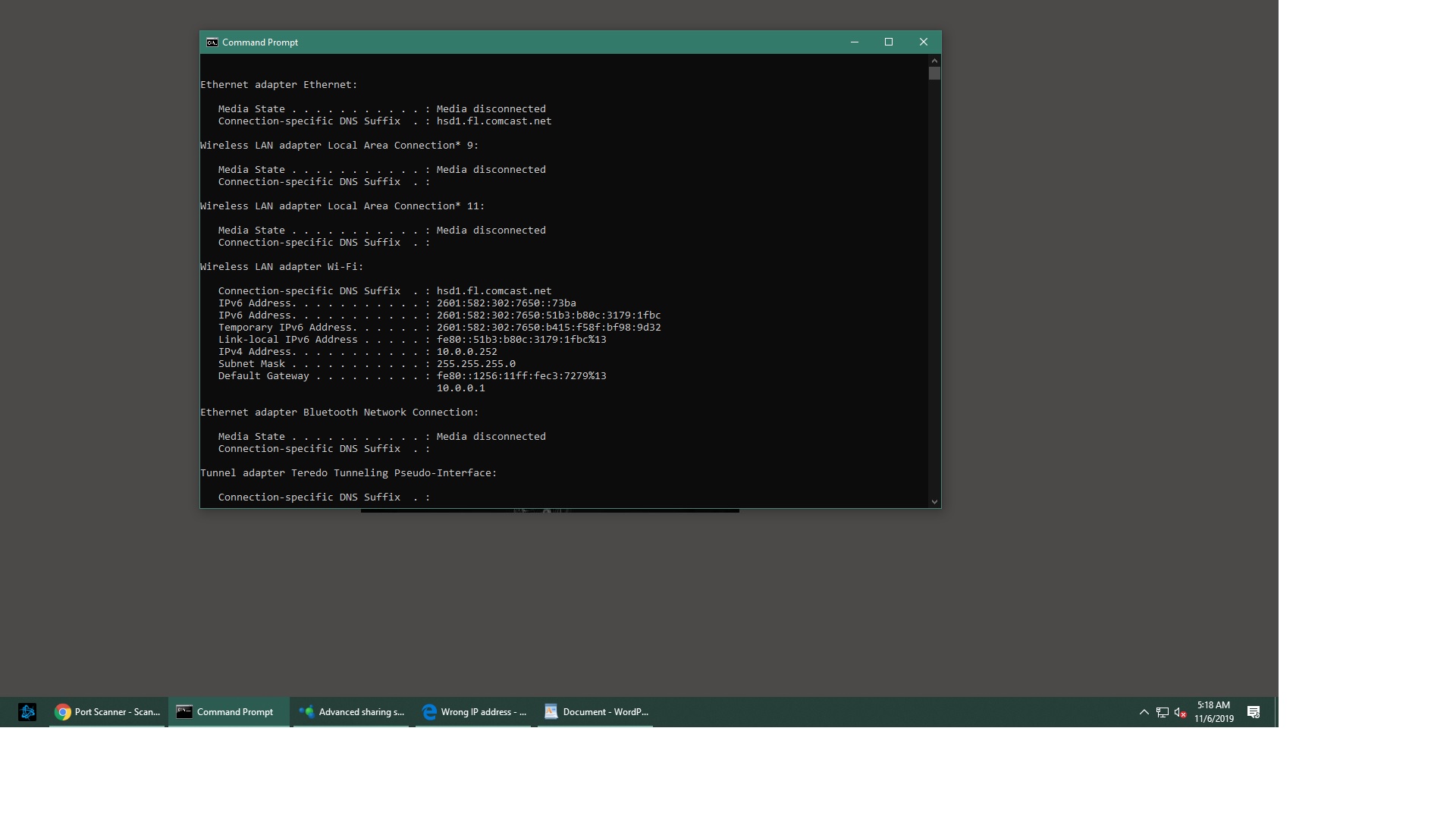
    These are a list of basic commands for all the information you may need;

    make sure to take some notes on the various types of information you gather.

    You will use the same technique as the first poster suggested: 

    Display Connection Configuration: ipconfig /all

    Display DNS Cache Info: ipconfig /displaydns 

    Clear DNS Cache: ipconfig /flushdns 

    Release All IP Address Connections: ipconfig /release 

    Renew All IP Address Connections: ipconfig /renew 

    Re-Register the DNS connections: ipconfig /registerdns 

    Change/Modify DHCP Class ID: ipconfig /setclassid  

    Network Connections: control netconnections 

    Network Setup Wizard: netsetup.cpl

    Test Connectivity: ping whatismyip.com

    Trace Route: tracert

    Displays the TCP/IP protocol sessions: netstat

    Display Local Route: route

    Display Resolved MAC Addresses: arp

    Display Name of Computer Currently on: hostname

    Display DHCP Class Information: ipconfig /showclassid

    NameServer Lookup: nslookup whatismyip.com

    Hope this helps your issues; if nothing does the trick; perhaps system restore could help, or using the network troubleshooter will offer at least some further information; scroll down and expand the details section and note the wording, you might not understand everything but almighty Google will lead the way...

    Was this answer helpful?

    7 people found this answer helpful.
    0 comments No comments
  3. Anonymous
    2019-11-06T05:02:05+00:00

    hey, tried it but it didn't work. I got in reach with a microsoft advisor, but didn't help me :/

    Was this answer helpful?

    7 people found this answer helpful.
    0 comments No comments
  4. Anonymous
    2019-11-07T01:45:58+00:00

    I am sorry that I couldn't' help. you, everything I could think of trying I recommended; I forgot to ask or overlooked something in your question, you mentioned that you had the machine repaired, correct? What caused you to have to take it to the shop initially? What was your original issue? 

    When your tech called for you to pick up the repaired computer, did the person say what they found was causing your problem and what was done to fix the issue, was any hardware replaced? Did you have the operating system older than say Windows XP? And the one thing I should have asked first was if you worked with your internet provider tech support team before going forward to a repair shop? Did they recommend anything that they felt was unable to be their responsibility to repair or replace, the newest Gateways are obsolete in the blink of an eye. and they can cause slow connectivity, lagging and basically an unstable connection. Have you tried to run any of the online speed tests such as my personal favorite, ookala? google it and create a free account, the advantage of that is you are able to run tests at various dates and times and under the results history you can begin to find patterns, these can help you when you speak to anyone who you might be dealing with to assist with troubleshooting... My best advice is to research everything you can; write down each and everything that might show up as an error message, you might not understand all the goofy symbols and numbers mean, but if you just search the exact error message in Google I promise it may lead you down a rabbit hole but it will tell you more about your issues. I really wish you the best of luck, if I can help any further I will be monitoring your post, Best to you, Deb

    Was this answer helpful?

    4 people found this answer helpful.
    0 comments No comments
  5. Anonymous
    2019-11-06T16:20:21+00:00

    Hey thanks for the reply, but the things you have mentioned have not worked, I can’t system restore since it’s basically new since i got it repaired. Network troubleshooter didn’t do anything either

    Was this answer helpful?

    2 people found this answer helpful.
    0 comments No comments
