Share via

Which ISO should I be using to reinstall Windows 10?

Anonymous
2019-11-16T21:58:47+00:00

I previously had Windows 10 installed and activated on a PC and was told I could therefore skip the steps which ask for a product key during the installation process and was directed to this link:

https://www.microsoft.com/en-us/software-download/windows10ISO

to download the Media Creation Tool in order to create a bootable USB flash drive.

I went to the link and selected the 32 bit and downloaded the Windows 10 Disc Image (ISO File) and then saved it to my flash drive and then plugged it into the USB port of my corrupted laptop. I managed to change Boot Order in BIOS which I understood should have allowed me to begin installing Windows 10 but then I got the following:

Missing operating system

I tried more than once with the same result. One thing I noticed though on https://www.microsoft.com/en-us/software-download/windows10ISO is that it says there 'To use the media creation tool, visit the Microsoft Software Download Windows 10 page from a Windows 7, Windows 8.1 or Windows 10 device'. I downloaded it to a desktop running Vista and I also noticed that although I understood the file should be around 8 GB in size, according to Properties on my Vista-operated machine, it reads only 3.54 GB (3,808,397,312 bytes) on my flash drive.

Is the problem possibly that I am not visiting the Microsoft Software Download Windows 10 page from a Windows 7, Windows 8.1 or Windows 10 device but rather from a Vista-operated system or is there a step I am missing somehow or what?

* Moved from Vista/Update

Windows for home | Windows 10 | Install and upgrade

Locked Question. This question was migrated from the Microsoft Support Community. You can vote on whether it's helpful, but you can't add comments or replies or follow the question.

0 comments No comments

26 answers

Sort by: Most helpful
  1. Anonymous
    2019-11-16T22:02:52+00:00

    Hi, marneo21

    My name is Jeffrey and I am an Independent Advisor. I would be happy to help you today.

    I recommend you to repair Windows Completely before you must backup your personal files, the third-party software will be deleted.

    https://www.microsoft.com/en-us/software-downlo...

    https://www.kapilarya.com/how-to-repair-windows...

    https://www.tenforums.com/tutorials/16397-repai...

    Note: This is a non-Microsoft website. The page appears to be providing accurate, safe information. Watch out for ads on the site that may advertise products frequently classified as a PUP (Potentially Unwanted Products). Thoroughly research any product advertised on the site before you decide to download and install it.

    2 people found this answer helpful.
    0 comments No comments
  2. Anonymous
    2019-12-11T06:14:54+00:00

    You are welcome. I guess your way would be better. If you carry the computer instead of kicking it, you can look out the window to see who's under it first. You have a better nature than most. Seriously, I like your thought about solutions being closer than it may seem. That's optimistic. But you do indeed have the "sticktoitiveness" just in case.

    (1)

    "

    Now with the ribbon cable installed correctly and the flash drive plugged in (with the BIOS update folder still loaded onto it), the screen says Boot Manager - Boot Option Menu with the following 2 options showing on the screen:

    1. OS Boot Manager(UEFI) - Windows Boot Manager (HGST HTS541010A9E680)

    2. Boot From EFI File

    What do you think (HGST HTS541010A9E680) means? I'm perplexed at not seeing 'Kingston' any more as that is the brand name of the USB flash drive.

    "

    (a) "HGST HTS541010A9E680" is the internal 1 TB Travelstar HDD. You can BING that.

    (b) Is that the BIOS Boot Menu - or is it BIOS Setup at the Boot tab?

    (c) Was the flash drive already plugged in before you went there?

         That likely is necessary, or it won't be seen. We do know the BIOS has the ability to see a

         flash drive, of course, because it already did when you flashed it.

    (2) IIRC = if I recall correctly - & I'm pretty sure I came close.

    (3) BIOS will not update automatically. You must occasionally check for them & do it yourself.

    (4) Here is how to make a Windows system image backup. You need an external HDD - 2 TB is big enough & should never fill. It makes a backup of all the Windows partitions required to boot & run Windows:  EFI, MSR, Windows (C:), & Recovery. If you've got additional partition(s), they will also be offered for inclusion.

    Make it at "START, Settings, Update & Security, Backup, Go to backup & Restore (Win 7), Create a system image". Afterward, make the Repair Disc or ask Cortana for Recovery Drive to put it on USB, which is even better. Then see...

    https://www.winhelp.us/restore-a-system-image-in-windows-7.html

    Restore a System Image Backup in Windows 7, 8, 8.1 and 10

    Note: That is an informative 3rd-party site, but I know nothing (good or bad) about any downloads or links that are there (or anywhere else).

    https://answers.microsoft.com/en-us/windows/forum/windows_10-update/how-to-restore-a-windows-10-system-image-to-an/e20992ca-5641-4f7c-bb09-3895d0732162

    How to restore a Windows 10 system image to an existing or larger storage device

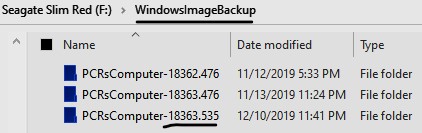
    I make one after each new OS Build comes in, & I keep the last 3. After making one, I rename the computername folder inside the WindowsImageBackup folder to include the OS Build. That way, the images are separate & distinct, & each will be offered at the time one needs to be restored. You can see the OS Build at "START, Settings, System, About".
    1 person found this answer helpful.
    0 comments No comments
  3. Anonymous
    2019-11-16T22:50:40+00:00

    Well, I'm running Win 10 version 1909 - not Vista. But...

    (1) You cannot boot to an .ISO file. You must right-click it & select "Burn disc image". This will make a bootable image onto a DVD. Then, insert the DVD, & boot to that.

    (2) Or, you can select "Mount" (or just double-click the .ISO) to open it in File Explorer. It calls itself a DVD - but really none is plugged in. Then double-click Setup.exe to run it...

    When done, right-click the so-called DVD in File Explorer, & select "Eject"...

    (3) Or instead of an .ISO - make a bootable USB drive at the site...

    https://www.microsoft.com/en-us/software-download/windows10

    Download Windows 10 - Currently May, soon to be November

    Currently that offers the May 2019 Update which is Win 10 version 1903. It is expected very shortly to offer November 2019 - which will be version 1909. Don't be fooled. The tool currently downloaded says "MediaCreationTool1909.exe" - but it still is 1903. Take a look at the Properties of the .ISO's Setup.exe to be sure. For 1909, that must read 18363 - not 18362.

    That's right, the site says 8 GB is required. It may include overhead for the download process. But it ends up being about half that size for the .ISO (or even the USB drive). Its precise size varies depending whether you take 32- or 64-bit. Also it depends on the version & even on the level of OS Build that is downloaded.

    Edit 11/21/2019: The site does say November now. MediaCreationTool1909.exe still has a 1903 version number & so will Setup.exe after the tool is run to make installation media. However, what gets installed ends up being 1909. That is because the final update during the installation process turns on switches to change 1903 to 1909.

    0 comments No comments
  4. Anonymous
    2019-11-16T22:31:51+00:00

    I recommend you look for another computer to create a USB and repair Windows

    https://www.microsoft.com/en-us/software-downlo...

    https://www.kapilarya.com/how-to-repair-windows...

    https://www.tenforums.com/tutorials/16397-repai...

    Note: This is a non-Microsoft website. The page appears to be providing accurate, safe information. Watch out for ads on the site that may advertise products frequently classified as a PUP (Potentially Unwanted Products). Thoroughly research any product advertised on the site before you decide to download and install it.

    0 comments No comments
  5. Anonymous
    2019-11-16T22:25:44+00:00

    Hello Jeffrey and thank you for your response.

    I have all my data backed up. 

    I don't see an In-Place Upgrade as being a viable solution for me as I read that 'You will only be able to do a repair install of Windows 10 from within Windows 10'. My machine will not boot up.

    I have already tried every repair option offered by the machine itself to no avail.

    0 comments No comments
