Share via

Can't reinstall the driver for Microsoft Print to PDF because it is missing from the list

Anonymous
2020-04-20T22:35:30+00:00

I have been told to try to correct a problem I'm having with the Microsoft Print to PDF feature by reinstalling the driver, but I can't follow the given instructions, because it isn't in the list!

All the instructions I've been given or seen say to click on add a printer, click on "the printer that I want isn't listed," then "Add a local printer or network printer with manual settings," select FILE (Print to File) from the drop down list, click Next, then choose Microsoft in the left-hand list, and Microsoft Print to PDF on the right.....

BUT THAT OPTION ISN'T THERE!  I can't click on it and tell the computer to replace the current driver, because Print to PDF isn't on the list!

And, yes, the feature DOES show up as enabled in the "Turn Windows features on or off" area, and unchecking it, rebooting, checking the box, and rebooting again doesn't make it show in the list of printers I can add manually.

I'm stumped!  Help?

Melissa MB Wilkins

Windows for home | Windows 10 | Devices and drivers

Locked Question. This question was migrated from the Microsoft Support Community. You can vote on whether it's helpful, but you can't add comments or replies or follow the question.

0 comments No comments

6 answers

Sort by: Most helpful
  1. Anonymous
    2020-04-24T04:15:54+00:00

    I finally got it to work... I found a place to delete the driver manually through help I was getting with a printer issue (I ran "printui.exe /s" then found the driver in the drivers list and removed it).  When I got back to adding the "printer" manually, clicking the "Windows Update" button under the list brought it up this time.    Dunno why the manual removal helped, but it seemed to.  In any case, I'll take it!

    My computer really seems to be trying to rub my nose in how dumb it thinks I am...

    90+ people found this answer helpful.
    0 comments No comments
  2. Anonymous
    2020-04-21T02:16:41+00:00

    Hello!

    I'm your Independent Advisor for today. Let's figure this out and come up with a solution.

    You might need to turn the Microsoft Print to PDF feature on. Please follow the steps in the link below:

    1. Open a Run box (Windows key + R).
    2. Type in this command and click OK: optionalfeatures.exe
    3. In the "Windows Features" window, locate Microsoft Print to PDF and tick/check the box to turn the said feature on, then click OK.

    Then add the Print to File printer, if needed, by going to Settings > Devices > Printers & Scanners > Add a printer or scanner.

    You can also try the other steps to resolve this in the link below:

    https://windows10skill.com/microsoft-print-to-p...

    Hope this helps.


    Note: This is a non-Microsoft website. The page appears to be providing accurate, safe information. Watch out for ads on the site that may advertise products frequently classified as a PUP (Potentially Unwanted Products). Thoroughly research any product advertised on the site before you decide to download and install it.

    I'm sorry, but nothing you offered above helps at all, because, as I attempted to explain in my original post, I have already tried everything you suggested above. In addition, I tried rebooting after turning the Print to PDF feature off and again when I turned it back on (by unchecking and checking the box you described), just to see if it might possibly make a difference.  It didn't. 

    What's more, it's the very instructions in the link you gave me that I said I can't follow, because Print to PDF does not show up in the list of drivers/printers to install!  THAT was the reason I said I was posting! 

    Because it seems I did not communicate my problem effectively the first time, here goes another attempt:

    Microsoft Print to PDF shows up in my list of available printers every time I reenable the feature.   I don't even have to go through an "add printer" process to get it to show up there.  That's not the problem.  The problem is that  I was told to try to reinstall the driver by following the same instructions you provided a link to, but I CAN'T complete them, because "Print to PDF" does not show up in the list of drivers to install!

    Where things go wrong for me exactly is labeled step 8 in the tutorial you gave me the link to.  It says to select "Microsoft" on the left (under Manufacturers), then choose" "Print to PDF" in the Printers list on the right, THAT'S where I get stuck, because, again, "Print to PDF" isn't in the list where every tutorial I've seen says it should be, even when I have made sure the Print to PDF feature is enabled!  I can't get to the step where I tell the computer to replace the old driver with the new one, because there's nothing to select!

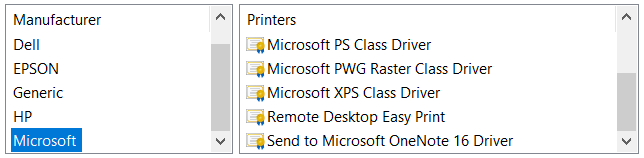
    Here are two screen shot snippets showing all the options I CAN see:
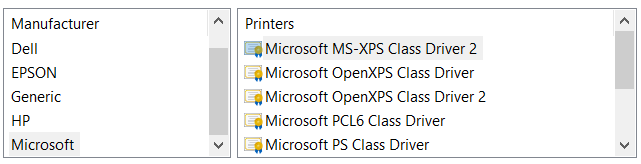
    That's the entire list.  No "Print to PDF" like the tutorials always show.

    So, hopefully I was more clear that time, and you now know that I've done my homework and tried to do everything that everyone I could find says to do, but I'm prevented from completing the instructions because an option that is supposed to be in my list that just isn't there!

    I've put 8 hours of work into my Print to PDF problems over the last 3 days, and I'm feeling very frustrated to be no closer to solving them.  

    Do you have ANY suggestions for me as to how to either get the Microsoft Print to PDF option to appear under my printer options, or how to reinstall the driver some other way?  ANYTHING you could offer would be appreciated, for I can't find anything but the same instructions that I've already followed!  

    Melissa MB Wilkins

    40+ people found this answer helpful.
    0 comments No comments
  3. Anonymous
    2020-04-20T22:42:54+00:00

    Hello!

    I'm your Independent Advisor for today. Let's figure this out and come up with a solution.

    You might need to turn the Microsoft Print to PDF feature on. Please follow the steps in the link below:

    1. Open a Run box (Windows key + R).
    2. Type in this command and click OK: optionalfeatures.exe
    3. In the "Windows Features" window, locate Microsoft Print to PDF and tick/check the box to turn the said feature on, then click OK.

    Then add the Print to File printer, if needed, by going to Settings > Devices > Printers & Scanners > Add a printer or scanner.

    You can also try the other steps to resolve this in the link below:

    https://windows10skill.com/microsoft-print-to-p...

    Hope this helps.


    Note: This is a non-Microsoft website. The page appears to be providing accurate, safe information. Watch out for ads on the site that may advertise products frequently classified as a PUP (Potentially Unwanted Products). Thoroughly research any product advertised on the site before you decide to download and install it.

    10+ people found this answer helpful.
    0 comments No comments
  4. Anonymous
    2020-04-21T02:24:48+00:00

    Alright. Have you tried adding the feature through DISM?:

    1. Open Command Prompt with administrator rights.
    2. Type this command in and press Enter: dism /Online /Enable-Feature /FeatureName:"Printing-PrintToPDFServices-Features" /NoRestart

    You can also try enabling it using PowerShell:

    1. Open PoweShell.
    2. Type this command in and press Enter:

    Enable-WindowsOptionalFeature -online -FeatureName Printing-PrintToPDFServices-Features -All

    Once completed, kindly check Devices and Printers and see if Print to PDF is listed there.

    If the issue persists, please do a repair install of Windows without affecting your apps and files:

    1. Download and create your Windows 10 ISO by clicking "Download Tool Now" and following the steps in this link:

    https://www.microsoft.com/en-us/software-downlo...

    1. Locate and right-click the ISO file, then click "Mount".
    2. Go to File Explorer and open the virtual drive where the ISO is mounted. It's usually labeled "ESD-ISO".
    3. Open setup.exe and follow the on-screen steps.

    This repair process might take a while. Once it's completed, check if the problem is resolved.

    Please keep me posted.

    10 people found this answer helpful.
    0 comments No comments
  5. Anonymous
    2020-07-07T08:08:14+00:00

    To fix any Microsoft issues please visit https://www.microsoft.com/en-us/software-download/windows10

    6 people found this answer helpful.
    0 comments No comments