This marks as SOLVED this issue with screenshots at bottom
--- a brief introduction ---
as usual Microsoft did the things in the F*** O** version
Since version 2.79 the Realtek HD Audio Control Panel is gone
Now it should ( PLEASE NOTE """ Should """ ) have been transferred inside the Windows 10 audio settings
But it is a Micrososft-As-Usual-Buggy-Port
UNFORTUNATELY Microsoft FORGOT F*** O** that realtek HD audio panel WAS PROMPTING the user for the type of device that was plugged
OR
That you WERE (because NOW YOU ARE NOT ANYMORE) able to set manually if you had plugged a earphone OR a earphone-microphone OR speakers or an hummer
THIS AVOID THE MICROPHONE of my notebook to work
issue: with realtek drivers v 2.79 onward, as soon I plug the earphones, the laptop built in microphone stops to work
This was making me crazy
so I went through an amount of documents
and I got a self-hint
If from version 2.79 of realtek drivers, the Realtek HD Audio Control Panel is gone ... WDF let's remove the currently installed drivers and search for a previous 2.78 version
I did the google search
found the 2.78 realtek hd audio drivers
removed the drivers with delete files option in the device manager
installed the old 2.78
this works partially, since anyway the panel won't appear either if enabled in the startup,
BUT AT LEAST now you can start it manually :-) YEEEEH
go to
C:\Program Files\Realtek\Audio\HDA
and run RAVCpl64.exe
there you back your beloved Windows 10 HD Realtek Audio Manager Control Panel
How to solve notebook built in microphone not working when earphones are plugged realtek audio
run RAVCpl64.exe
right click on the black bullet on the right side below "ANALOG"
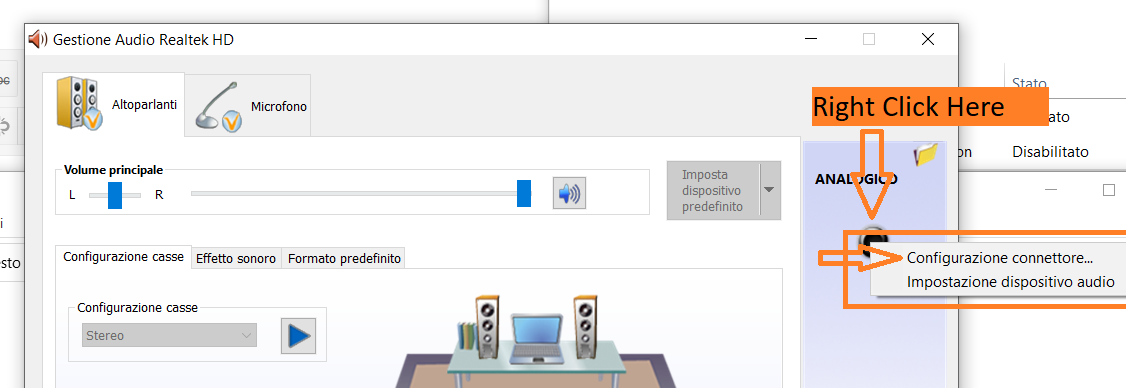
click on jack configuration ("Configurazione connettore" in ITA)
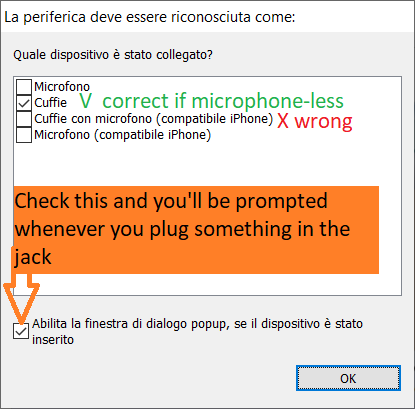
and you'll get the ol' lil' form ( F*** O*** MicroSfot ) ,
hey you at Microsoft!!! ---> this missing form is the HUGE issue that you Microsoft are causing to hundred thousands people
for the simple reason that YOU SET IT DEFAULT TO the WRONG "Earphones with Microphone"
Set it to "earphones" only and tick the option at bottom, so EITHER if the Audio Manager is not visible, whenever you plug something into the audio jack,
you'll be prompted with this little form and you'll be capable to select your case
If I saved your day search for Corsari DJ on youtube and drop me a like :-)
' cx='32' cy='32' r='32' /%3E%3Ctext x='50%25' y='55%25' dominant-baseline='middle' text-anchor='middle' fill='%23FFF' %3EA%3C/text%3E%3C/svg%3E)
