Share via

Razer Blackshark v2 X microphone not working

Anonymous
2020-12-29T23:10:51+00:00

Hello guys!

I have done multiple things to get my microphone working visited multiple forums but my microphone still didn't get recognised.

Any idee how I can fix this?

Windows for home | Windows 10 | Devices and drivers

Locked Question. This question was migrated from the Microsoft Support Community. You can vote on whether it's helpful, but you can't add comments or replies or follow the question.

0 comments No comments

17 answers

Sort by: Most helpful
  1. Anonymous
    2020-12-30T13:36:46+00:00

    Well it's more that the laptop doesn't see that the microphone is there on my headset, it detects that there is a headset and the sound get to my headset, but my microphone doesn't work it only sees the build in mic. I tried the things what you've suggested but it didn't work.

    20+ people found this answer helpful.
    0 comments No comments
  2. Anonymous
    2021-01-15T04:45:31+00:00

    I had this same problem with my headphones but don't worry its an easy fix. On the left side of the head phones there should be a small button and it mutes and unmutes the microphone. Click it and see if the problem is fixed. Seeing what all your problems are this is most likely the problem.

    20+ people found this answer helpful.
    0 comments No comments
  3. Anonymous
    2021-02-12T12:06:51+00:00

    I made the same mistake. Cheers.

    did you forget to switch to an alt account?

    10+ people found this answer helpful.
    0 comments No comments
  4. Anonymous
    2021-03-02T08:00:11+00:00

    Hello there.

    I was cracking my head for so long trying to get an answer but i figured it out.

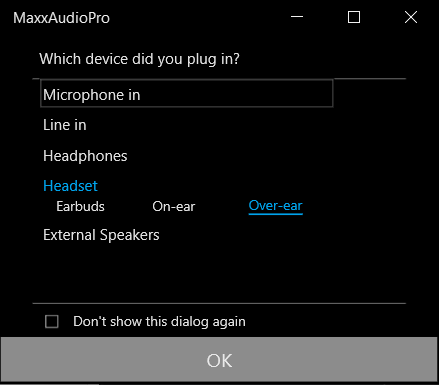
    The fact is, when you plug in your headset you must select "headset" and NOT "earphones" or "external speakers".

    If you don't see this pop-up, you must enable it again by searching on your Start Menu for Waves MaxxAudioPro on your PC. It should be a pre-installed driver software for Windows 10.

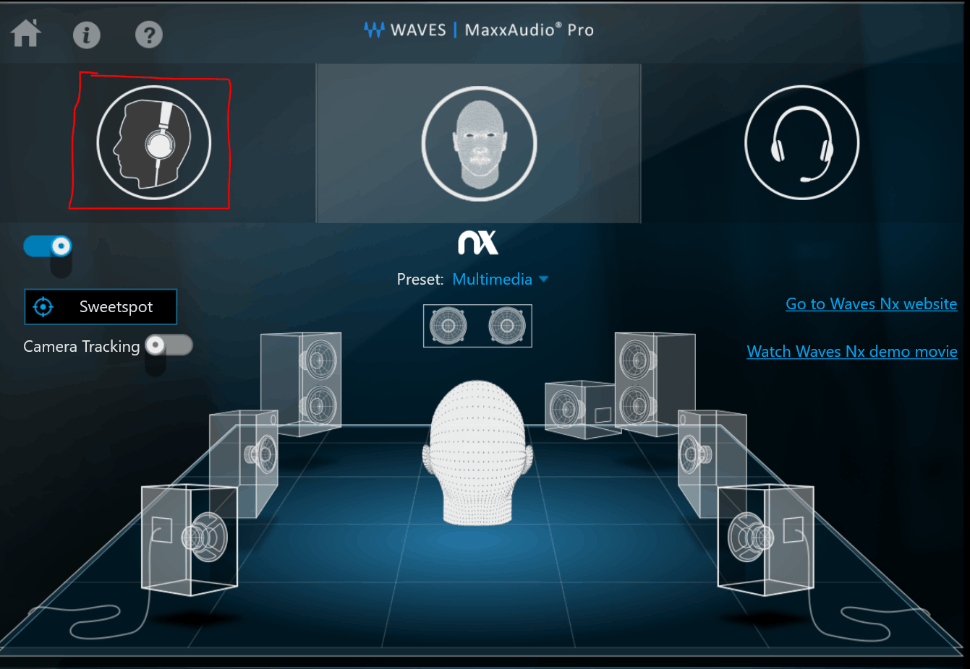
    Once you're in there, click the icon I highlighted in red:
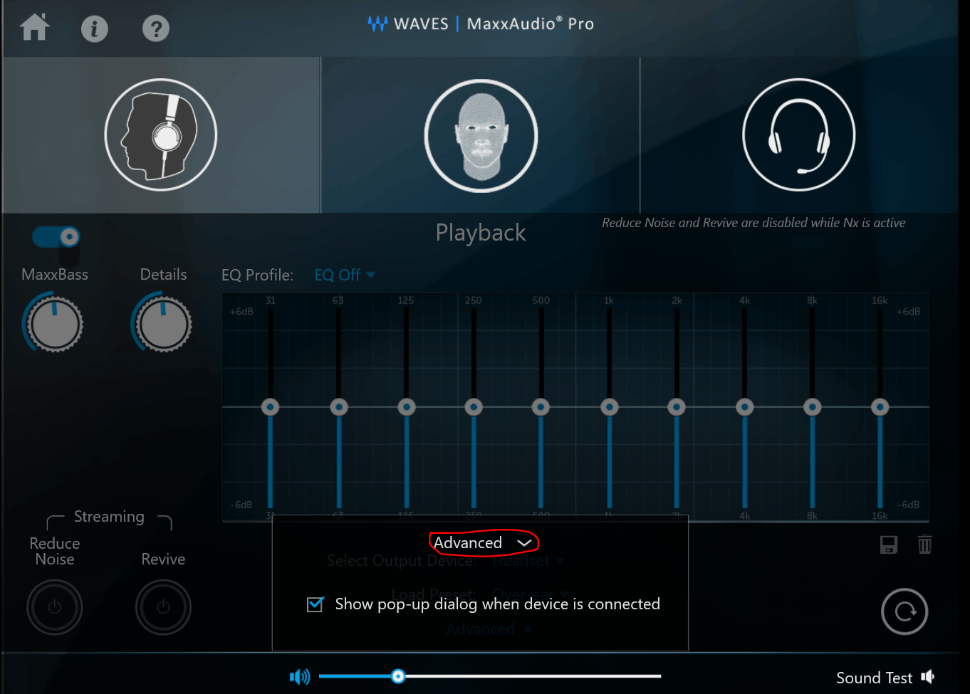
    After that, you'll be greeted with this screen below. Click "Advanced" and select "Show pop-up dialog when device is connected".
    After that, unplug and plug your headset back into the laptop. You'll get a dialog box, and then select "Over Ear Headset". You can choose to never show the dialog again if you wish.
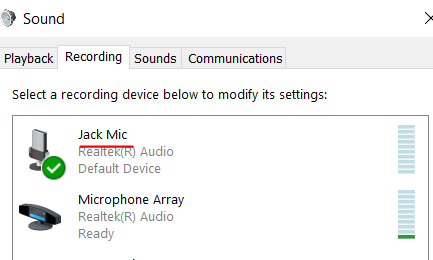
    Once this is done, you'll be able to see another input option in your Recording devices called "Jack Mic". I tested and this is indeed the headset's mouthpiece.
    Hope this helps!!

    10+ people found this answer helpful.
    0 comments No comments
  5. Anonymous
    2020-12-31T15:21:50+00:00

    Thanks for the help! 

    But it didn't do anything.

    I've got some photo's of what I'm seeing maybe you could see what the problem is. 

    What I think is that it shouldn't be a speaker but a headphone with s microphone. And the microphone you see in the second picture is the build-in-microphone.

    10+ people found this answer helpful.
    0 comments No comments
