I turned on my computer and the following error message appears after the "preparing automatic repair" message comes up for a second:
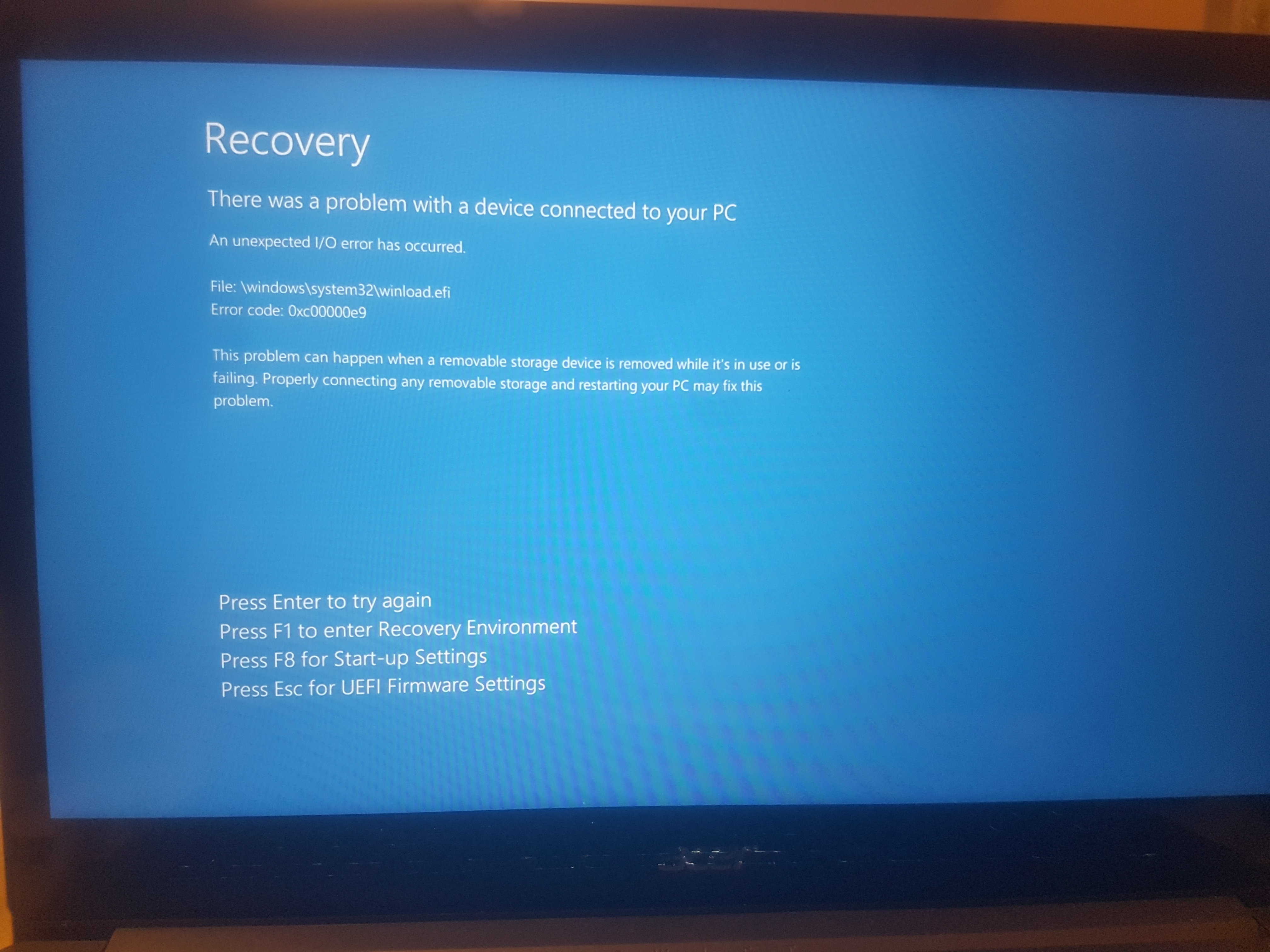
The only working option from here is Esc - both F8 and enter just cause the screen to flash black once, briefly. F1
attempts to open, but returns to the error screen after a few seconds.
My first worry was that my main SSD was gone, so I booted ubuntu from USB to check - I was able to mount it fine and all the files seemed intact, including the winload.efi file mentioned in the error message (although I had nothing to check it to make sure
it wasn't corrupted or anything like that).
After looking around for solutions, I used a different laptop and used the windows 10 installation media creation tool to make a bootable USB. When asked if I wanted it for a 32-bit or a 64-bit system, I selected both because I forgot which one my system
was.
The USB boots as normal, but all 3 options (32-bit installation, 64-bit installation, Memory Diagnostic) all return an error - 64-bit returns the same error as the first screen, and memory diagnostic returns the same message, but with the file changed to
memtest.efi. 32-bit returns a separate message - "The application or OS couldn't be loaded because a required file is missing or contains errors - error code: 0xc0000359".
However, strangely, this changes if I return to the main menu of the USB, and press escape to return to BIOS - I am able to select whether I want to boot the USB or the SSD. If I select USB from there, I am able to boot the 64-bit installation as normal,
and can open the repair menu from there.
The repair menu has a variety of options - selecting start-up repair begins the process, but it exits, leaving the following log file:
======================================================================================
Startup Repair diagnosis and repair log
Number of repair attempts: 1
Session details
System Disk =
Windows directory = C:\WINDOWS
AutoChk Run = 0
Number of root causes = 1
Test Performed:
Name: Check for updates
Result: Completed successfully. Error code = 0x0
Time taken = 0 ms
Test Performed:
Name: System disk test
Result: Completed successfully. Error code = 0x0
Time taken = 984 ms
Root cause found:
A hard disk could not be found. If a hard disk is installed, it is not responding.
======================================================================================
The system restore/system image recovery options seem to work fine, but I have no points from which to restore from.
Uninstalling the last quality update allowed me to boot normally once, but after restarting, no longer works.
The command prompt opens as normal.
From the command prompt, I ran chkdsk C: /f /x, which executed normally, seeming to fix a few files. I tried to run sfc /scannow, which verifies but throws an error afterwards.I also tried using bootrec (/scanos, /rebuildbcd, /fixmbr, /fixboot), but none
of these seemed to work - scanos and rebuildbcd cannot recognise any windows installations, and fixboot returns "access denied".
However, going back to the BIOS menu after booting, if I select the regular boot mode from my SSD, I boot as normal, and nothing seems to be amiss. I ran sfc /scannow from an admin command prompt from here, which "found corrupt files and repaired them".
Any time I restart, the error screen returns - I have to boot from the usb, exit to bios and boot normally from there - this is hardly a permanent solution, and I worry it could lead to bigger problems down the line.
I have a few options left to try - resetting the installation from the settings menu, installing a new version of windows from the USB, or uninstalling the latest feature update (I doubt this will work if the latest quality update is unable to be uninstalled).
I would prefer, however, to avoid these, as, even though I can easily copy everything on my SSD to an external drive to prevent any data loss, the time consumption and hassle of copying everything back and forth would be extremely inconvenient. Is there anything
left to try, or do I just have to bite the bullet here?
Thanks in advance for the help.
' cx='32' cy='32' r='32' /%3E%3Ctext x='50%25' y='55%25' dominant-baseline='middle' text-anchor='middle' fill='%23FFF' %3EA%3C/text%3E%3C/svg%3E)

' cx='32' cy='32' r='32' /%3E%3Ctext x='50%25' y='55%25' dominant-baseline='middle' text-anchor='middle' fill='%23FFF' %3EVM%3C/text%3E%3C/svg%3E)