Share via

windows 7 printer connection

Anonymous
2021-01-23T21:18:10+00:00

I can't connect my old printer to my Win 7 computer any more.   I just bought a new printer, an HP 7855, and same thing, I have installed on the old computer, and I can see it, but I can't print on it.   This all started when Xfinity put in their new modem a couple years ago.   How to fix?

Windows for home | Previous Windows versions | Devices and drivers

Locked Question. This question was migrated from the Microsoft Support Community. You can vote on whether it's helpful, but you can't add comments or replies or follow the question.

0 comments No comments

4 answers

Sort by: Most helpful
  1. LemP 74,930 Reputation points Volunteer Moderator
    2021-01-23T22:11:13+00:00

    Please add some more detail.

    I assume that your "HP 7855" is the "HP ENVY Photo 7855 All-in-One Printer" -- https://support.hp.com/us-en/product/hp-envy-photo-7800-all-in-one-printer-series/9073159/model/9073160

    What is the make and model of the "old printer"?

    Does "I can see it" mean that when you open Devices and Printers on your Windows 7 computer there is an icon for the "old printer" and an icon for the HP Envy Photo 7855?

    If that's not what "I can see it" means, please elaborate.

    How is the old printer connected to your Windows 7 computer (USB, wi-fi, Ethernet)?

    How is the HP Envy Photo 7855 connected to your Windows 7 computer (USB, wi-fi, Ethernet)?

    What happens when you try to print to your old printer from your Windows 7 computer?  If you get an error message, please provide the complete text.

    What happens when you try to print to the HP Envy Photo 7855 from your Windows 7 computer?  If you get an error message, please provide the complete text.

    Can you print to either printer from another computer? 

    • If so, what version of Windows is on this other computer?
    • How is the old printer connected to this other computer (USB, wi-fi, Ethernet)?
    • How is the HP Envy Photo 7855 connected to this other computer (USB, wi-fi, Ethernet)?
    1 person found this answer helpful.
    0 comments No comments
  2. Anonymous
    2021-01-26T00:30:12+00:00

    It's a little complicated for my limited skills, but I'll try to follow.   Yesterday I deleted the new printer from my computer, as it was causing another annoying error to pop up time after time.   So I'm reinstalling it to see if I can follow your instructions.  

    Currently the new printer is installed on my wife's Win 7 computer, and on her Chrome Book,  and it works fine on both of those. 

    I'll reply again if I am able to follow your instructions and come up with the right info. 

    thank you.

    0 comments No comments
  3. LemP 74,930 Reputation points Volunteer Moderator
    2021-01-24T18:02:35+00:00

    The Comcast guy should have known this would happen and fixed things for you.

    If I understood correctly, the Photosmart C-4780 is not currently connected by USB to any computer.  Is that correct?

    I'll assume that the ENVY 7855 also is not connected to any computer by USB or Ethernet cable.

    If I understood correctly, there is an icon for the ENVY 7855 in Devices and Printers on your Windows 7 computer but no icon for the Photosmart C-4780.  Is that correct?

    ********************************************************

    By default, wireless printers are configured to obtain an IP address automatically from your router.  The problem is that the Windows printing system very rarely is capable of determining if a printer's IP address has changed after installation.  This results in print jobs continuing to be sent to the old IP address and because there is no longer a printer at that address, the print jobs just disappear.  I haven't see the error message you reported in this situation, so there might be something else amiss, but please do the following to help diagnose the problem.

    A.  Determine the IP address that is configured in Windows

    1. Go to Devices and Printers, right-click on the icon for ENVY 7855 and select "Printer properties" (NOT "Properties" or "Printing preferences").
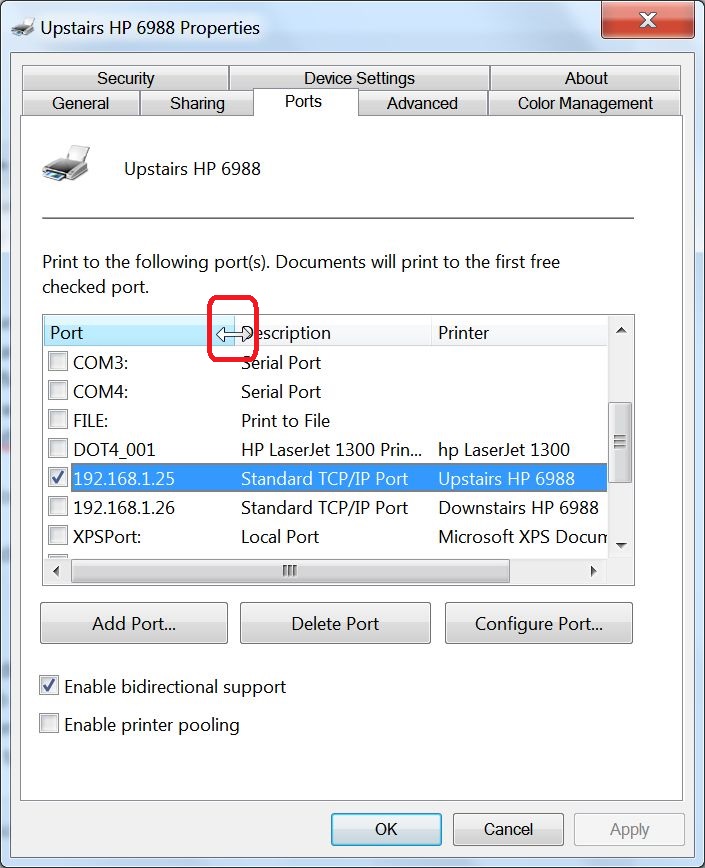
    2. On the "Ports" tab, look at the line that is checked and highlighted for the IP address; you probably will have to click and drag on the faint vertical line in the header row between "Port" and "Description" in order to see the entire IP address. (See screenshot below).
    3. Cancel out of Printer properties at this point
    B.  Determine the IP address that is configured on the printer

    1. Do this using the printer's front panel controls.  The ENVY 7855 can print both a "Wireless Test Report" and a "Network Configuration Page."  Because I'm not certain of what information is on either of these reports, I'm giving instructions for both of them.  These are from pages 117-119 of your printer's User Guide:  http://h10032.www1.hp.com/ctg/Manual/c05634824
    2. Wireless Test Report
      • From the printer control panel, touch or swipe down the tab at the top of the screen to open the Dashboard, touch the Wireless button (antenna), and then touch the Settings icon (gear).
      • Touch Print Reports
      • Touch Wireless Test Report
    3. Network Configuration Page
      • From the printer control panel, touch or swipe down the tab at the top of the screen to open the Dashboard, touch Setup (gear), touch Reports, and then touch Network Configuration Page.

    C.  Determine the network configuration of the Windows 7 computer

    1. Open a Command Prompt (click Start, type Command Prompt in the Search box, and press Enter)
    2. Type the following in the black Command Prompt window and press Enter after each line  

                      ipconfig /all > "%userprofile%\Desktop\ipinfo.txt"

    notepad "%userprofile%\Desktop\ipinfo.txt"
    
    exit
    
    1. In the open Notepad window, click Edit > Select All (or press CTRL+A) then click Edit > Copy (or press Ctrl+C)
    2. In the body of your Question, Right-click > Paste (or press CTRL+V) the data from the Notepad window
    3. Close Notepad and delete ipinfo.txt from your Desktop

    In summary, please include the following data in your reply:

    1. The IP address (or other information) from the "Port" column of the line that is checked and highlighted in the "Printer properties" applet
    2. From either the "Wireless Test Report" or "Network Configuration Page," the printer's IP address, Default Gateway, and "IP Setting" (from the User Guide, this should either be "Automatic" or "Manual")
    3. The output from the ipconfig /all command
    0 comments No comments
  4. Anonymous
    2021-01-24T03:40:02+00:00

    That is correct, the new one is HP ENVY Photo 7855 All-in-One Printer

    The old one is a HP Photosmart C-4780.  It worked fine wirelessly on both computers before the Comcast guy hooked up the new modem.  Afterwards, we had to hard wire it to my wife's computer, and it worked fine there that way, but would no longer work wirelessly.  I could not print on it from my computer at all, but I could access my files through our local network and print them from my wife's computer. 

    The old printer showed up Devices and printers on my old computer, and on hers, until we disconnected it and hooked up the new one today, and then the icon disappeared and the new one appeared on mine, though it still shows up on hers.  

    The error I get when trying to print to the new printer from my computer is "Windows cannot connect to printer.  Operation could not be completed.  Error Code 0x0000000a"  Even though it shows up on my computer.  However, it doesn't have the line "make this the default printer" Instead, it has "Troubleshooter" but that works on it a bit and then goes nowhere. 

    My wife can also print to the new printer from her laptop which is a Chrome Book. 

    Thank you.

    0 comments No comments
