Share via

Error/Missing DLL on RegSvr32

Anonymous
2021-02-20T12:26:04+00:00

so I'm trying to fix my Windows Defender 
my windows defender "Start Action" and "Offline Scan" Doesnt work
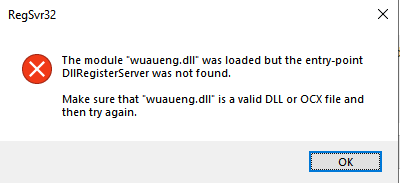
then I found this Topic to "Re-Register DLL" but I just get this error message 

I already tried to run sfc /scannow , DISM both on Safe Mode and normal mode, and both of them don't detect any corrupted file 

Pardon for bad English

Windows for home | Windows 10 | Security and privacy

Locked Question. This question was migrated from the Microsoft Support Community. You can vote on whether it's helpful, but you can't add comments or replies or follow the question.

0 comments No comments

7 answers

Sort by: Most helpful
  1. Anonymous
    2021-02-20T19:22:47+00:00

    so I'm trying to fix my Windows Defender 
    my windows defender "Start Action" and "Offline Scan" Doesnt work
    then I found this Topic to "Re-Register DLL" but I just get this error message 
    Image
    I already tried to run sfc /scannow , DISM both on Safe Mode and normal mode, and both of them don't detect any corrupted file 

    Pardon for bad English

    1 person found this answer helpful.
    0 comments No comments
  2. Anonymous
    2021-02-20T13:02:32+00:00

    Hi RandomGaming,

    I'm Paul, an Independent Advisor. I hope I can help you with your concern.

    I suggest that you perform a repair/in-place upgrade to the latest Windows version to repair the corrupted or missing system files.

    Follow the instructions below.

    A. Downloading the Windows 10 ISO file.

    1. Download the tool (https://go.microsoft.com/fwlink/?LinkId=691209), and select Run. You need to be an administrator to run this tool.
    2. If you agree to the license terms, select Accept.
    3. On the What do you want to do? page, select Create installation media for another PC and then select Next.
    4. Select the language, edition, and architecture (64-bit or 32-bit) for Windows 10. (Select the same as the currently installed system on your PC)
    5. In "Select which media you want to use", Select ISO file then click Next.
    6. Select the download location then click Save.
    7. Windows 10 ISO file will be downloaded,

    B. Repair Upgrade installation.

    1. Right-click Windows 10 ISO file and click Mount.
    2. Open/run the Setup.exe.
    3. The preparation starts
    4. To get important updates, select Download and install updates. (Wait while checking for updates).
    5. Accept the terms of the license agreement
    6. The installation is ready to be applied, verify the information and ensure that "Keep personal files and applications is checked".
    7. Click on Install to start the upgrade.

    I hope this helps. Feel free to ask back any questions and keep me posted.

    1 person found this answer helpful.
    0 comments No comments
  3. Deleted

    This answer has been deleted due to a violation of our Code of Conduct. The answer was manually reported or identified through automated detection before action was taken. Please refer to our Code of Conduct for more information.


    Comments have been turned off. Learn more

  4. Anonymous
    2021-02-20T17:12:45+00:00

    Yes, You can use the USB installation media to perform a repair upgrade.

    1. Start your Computer.
    2. Connect the USB flash drive that contains the Windows setup.
    3. Open the USB drive.
    4. Open/run the Setup.exe.
    5. The preparation starts
    6. To get important updates, select Download and install updates. (Wait while checking for updates).
    7. Accept the terms of the license agreement
    8. The installation is ready to be applied, verify the information and ensure that "Keep personal files and applications is checked".
    9. Click on Install to start the upgrade.
    10. Wait for the installation to finish.

    I hope this helps. Feel free to ask back any questions and keep me posted.

    0 comments No comments
  5. Anonymous
    2021-02-20T15:33:28+00:00

    I have Win 10 setup on my usb drive, can i use that to fix my win 10?

    Without re install the whole OS

    0 comments No comments