Exchange | Exchange Server | Management
The administration and maintenance of Microsoft Exchange Server to ensure secure, reliable, and efficient email and collaboration services across an organization.
This browser is no longer supported.
Upgrade to Microsoft Edge to take advantage of the latest features, security updates, and technical support.
' cx='32' cy='32' r='32' /%3E%3Ctext x='50%25' y='55%25' dominant-baseline='middle' text-anchor='middle' fill='%23FFF' %3EDB%3C/text%3E%3C/svg%3E)
Hello,
We've recently encountered a http 500 error when logging into one of our exchange servers (it is hosted in aws running on Windows Server 2019).
I've tried replacing the certificates on the server a couple of times, I've made sure that the bindings are set correctly and I've deleted and recreated the ecp and owa directories. I've ran the UpdateCas and UpdateConfig powershell scripts multiple times, since the server is virtualised I've also tried assigning more resources to it and the error still occurs.
We're also running in a hybrid environment.
Any help would be greatly appreciated.
The administration and maintenance of Microsoft Exchange Server to ensure secure, reliable, and efficient email and collaboration services across an organization.
Answer accepted by question author
I've managed to fix it
Looks like the other exchange server we had decided to freeze for some unknown reason, once I had restarted it, changed the certificates to match the ones of the other server, everything decided to work.
' cx='32' cy='32' r='32' /%3E%3Ctext x='50%25' y='55%25' dominant-baseline='middle' text-anchor='middle' fill='%23FFF' %3EAS%3C/text%3E%3C/svg%3E)
Method 1: Step by Step Solution for HTTP 500 Error
Step 1: Go to Search bar and type "Exchange Managmenent Shell".
Step 2: A new window will appear named as: Administrator: Exchange Managmenent Shell.
Step 3: It will start connecting to your local EAC ip.
Step 4: After connecting, type Remove-OwaVirtualDirectory ‘win2\owa
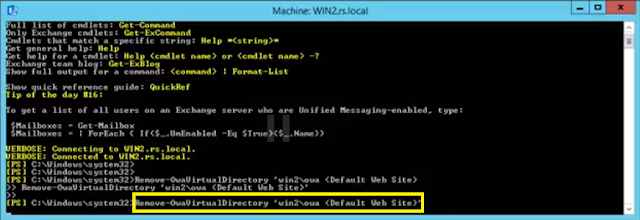
Step 5: Message will appear “Are you sure you want to perform this action? Outlook Web App virtual directory “win2\owa ” is being removed.
Step 6: Type y.

Step 7: Type New-OwaVirtualDirectory – Website Name ‘Default Web site’.
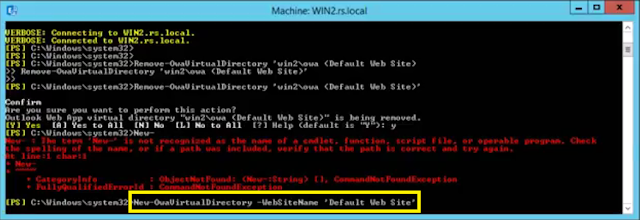
Step 8: Restart your Computer.
Step 9: Now re-login. Exchange Server http 500 Error will be fixed.
Method 2: How to Fix 500 internal server error in Microsoft Exchange
Active Directory Service Information
Tools that could be beneficial: http://test exchange connectivity.com helps to test the connectivity between the exchange server and the device.
Exchange Remote Content Analyzer: Helps to determine the connectivity issues between the exchange server and the deployments easily.
I have tried recreating the virtual directories before and it didn't work unfortunately.
I tried the other 2 fixes that you have suggested and neither of those have worked either
' cx='32' cy='32' r='32' /%3E%3Ctext x='50%25' y='55%25' dominant-baseline='middle' text-anchor='middle' fill='%23FFF' %3EJS%3C/text%3E%3C/svg%3E)
Hi @Dan Brown
Do you mean you deployed your Exchange 2013 on Windows server 2019? If so, that's not supported. Please correct me if I have any misunderstanding about your description.
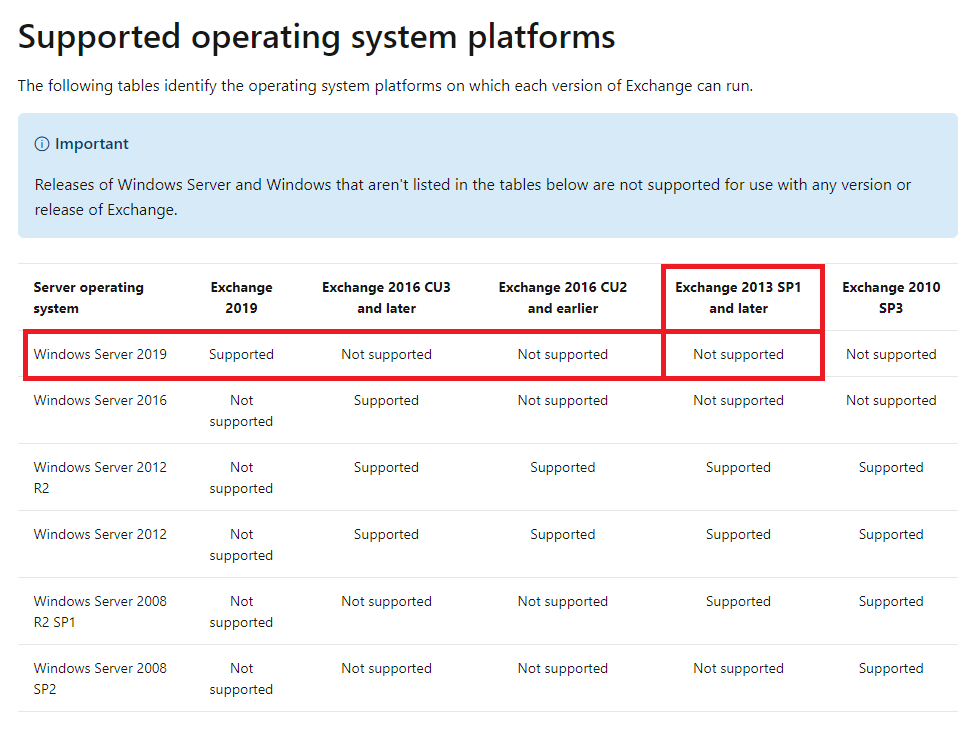
In addition, when does this issue occur? What changes have been made in your environment recently which may lead to this issue(such as installing the security update and so on...)?
Have you checked whether users can log into OWA correctly? You could then check the application logs recorded in event viewer to see if any error.
Please also note that your CU12 is a quite old version, it's better to upgrade to the latest two versions(CU23 or CU22) for better support.
Below are some related links about the issue for your reference:
Can't sign in to Outlook on the web or EAC if Exchange Server OAuth certificate is expired
EXCHANGE 2013 ECP FAILS WITH 500 UNEXPECTED ERROR AFTER RUNNING HYBRID CONFIGURATION WIZARD WITH OFFICE 365
Please Note: Since the web site is not hosted by Microsoft, the link may change without notice. Microsoft does not guarantee the accuracy of this information.
If an Answer is helpful, please click "Accept Answer" and upvote it.
Note: Please follow the steps in our documentation to enable e-mail notifications if you want to receive the related email notification for this thread.
We actually upgraded the server to 2019 (the upgrade happened months ago and went without any issues), exchange was originally deployed on a MS Server 2012 R2 operating system and the issue itself started about 2 weeks ago.
The OWA encounters the same problem, luckily since we use O365 because of the hybrid environment users aren't actually affected by this, the issue is more of an admin problem (we have been able to work around it so far).
We have been doing security updates across our windows infrastructure (which includes turning off TLS 1.0, TLS 1.1 and old SSL versions). I did apply these changes to the server, it worked for about a week and then we started getting the http 500 error. I did revert the changes and the same issue still occurs.
Hi @Dan Brown
Could you please provide the result running the command below? And also check the application log to get more information.
(Get-AuthConfig).CurrentCertificateThumbprint | Get-ExchangeCertificate | Format-List