I've the issue with my connection, when i'm browsing with browser using Microsoft Edge, Google Chrome, Opera Browser, or Internet Explorer, i have a problem! My internet connection has disabled automatically. When i'm trying to re-connect to wi-fi, the notification appears "Unable to connect to this network", this is the image :
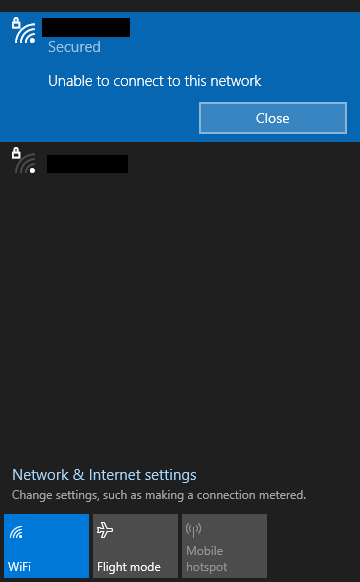
When i'm trying to disable the wireless adapter for 10 seconds and turn it on again, the result also remains the same.
When i'm trying to running the troubleshooter wireless adapter, i found them, this is the proof :
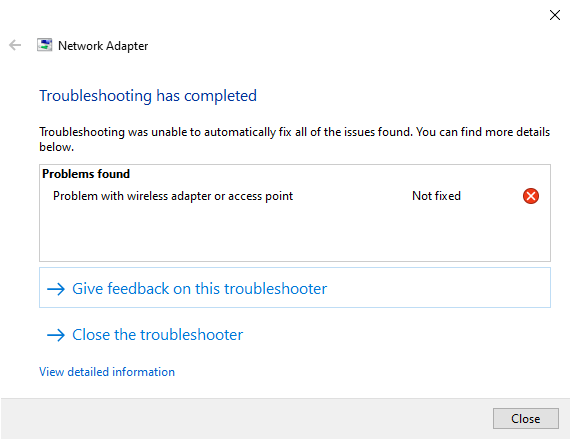
but, when i'm try to restart my pc, hibernate, or sleep during ± 3 hours, it's really work!
i'm suspicious of WI-FI wireless adapter driver...
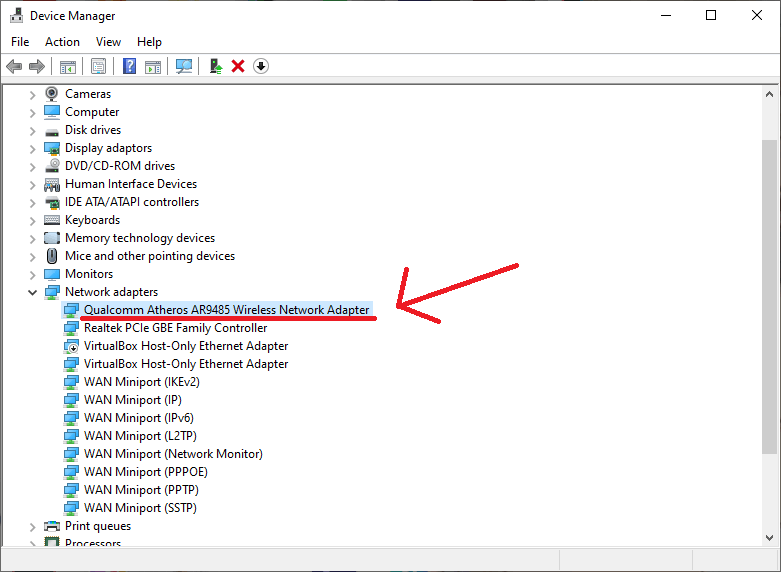
this is the troubleshoot report :
PrintNetwork Adapter Publisher details
Issues found
Problem with wireless adapter or access pointProblem with wireless adapter or access point Not fixed Not Fixed
Reset the wireless adapter Completed
Investigate router or access point issues Completed
Issues found Detection details
6 Problem with wireless adapter or access point Not fixed Not Fixed
Reset the wireless adapter Completed
InformationalNetwork Diagnostics Log
File Name: 2C11FA86-5EDB-4882-8282-E3F0B159EF2A.Repair.1.etl
Investigate router or access point issues Completed
If you're connected to a hotspot or domain network, contact the network administrator. Otherwise: 1. Unplug or turn off the device. 2. Once all of the lights on the device are off, wait at least 10 seconds. 3. Turn the device back on or plug it back into the power outlet. To restart a router or access point that has a built-in battery, press and quickly release the Reset button.
InformationalNetwork Diagnostics Log
File Name: 88114E6D-528F-4162-816A-4F2C779DAF0E.Repair.4.etl
Detection details Expand
InformationalDiagnostics Information (Network Adapter)
Details about network adapter diagnosis:
Network adapter Wi-Fi driver information:
Description . . . . . . . . . . : Qualcomm Atheros AR9485 Wireless Network Adapter
Manufacturer . . . . . . . . . : Qualcomm Atheros Communications Inc.
Provider . . . . . . . . . . . : Microsoft
Version . . . . . . . . . . . : 3.0.2.201
Inf File Name . . . . . . . . . : C:\WINDOWS\INF\athw8x.inf
Inf File Date . . . . . . . . . : 07 December 2019 09:07:47
Section Name . . . . . . . . . : ATHR_DEV_OS61_11861A3B.ndi
Hardware ID . . . . . . . . . . : pci\ven_168c&dev_0032&subsys_662711ad
Instance Status Flags . . . . . : 0x180200a
Device Manager Status Code . . : 0
IfType . . . . . . . . . . . . : 71
Physical Media Type . . . . . . : 9
InformationalDiagnostics Information (Wireless Connectivity)
Details about wireless connectivity diagnosis:
Information for connection being diagnosed
Interface GUID: 83c452ec-cc12-46f1-9570-342b82e5fadf
Interface name: Qualcomm Atheros AR9485 Wireless Network Adapter
Interface type: Native WiFi
Connection incident diagnosed
Auto Configuration ID: 15
Connection ID: 19
Connection status summary
Connection started at: 2021-05-31 18:51:06-024
Profile match: Success
Pre-Association: Success
Association: Fail
Security and Authentication: Not started
List of visible access point(s): 1 item(s) total, 1 item(s) displayed
BSSID BSS Type PHY Signal(dB) Chnl/freq SSID
3C-84-6A-20-81-A0 Infra <unknown> -95 10 PBD B5/6
Connection History
Information for Auto Configuration ID 15
List of visible networks: 1 item(s) total, 1 item(s) displayed
BSS Type PHY Security Signal(RSSI) Compatible SSID
------------------------------------------------------------------------------
Infra <unknown> Yes 4 Yes PBD B5/6
List of preferred networks: 3 item(s)
Profile: HOME
SSID: HOME
SSID length: 4
Connection mode: Infra
Security: Yes
Set by group policy: No
Connect even if network is not broadcasting: No
Connectable: No
Reason: 0x00028003
Profile: HotSpot
SSID: HotSpot
SSID length: 7
Connection mode: Infra
Security: No
Set by group policy: No
Connect even if network is not broadcasting: No
Connectable: No
Reason: 0x00028001
Profile: --- (*censored*)
SSID: --- (*censored*)
SSID length: 7
Connection mode: Infra
Security: Yes
Set by group policy: No
Connect even if network is not broadcasting: No
Connectable: Yes
Information for Connection ID 19
Connection started at: 2021-05-31 18:51:06-024
Auto Configuration ID: 15
Profile: --- (*censored*)
SSID: --- (*censored*)
SSID length: 7
Connection mode: Infra
Security: Yes
Pre-Association and Association
Connectivity settings provided by hardware manufacturer (IHV): No
Security settings provided by hardware manufacturer (IHV): No
Profile matches network requirements: Success
Pre-association status: Success
Association status: Fail 0x00038002
Association reason code: 0x00000002
Information for Auto Configuration ID 14
List of visible networks: 2 item(s) total, 2 item(s) displayed
BSS Type PHY Security Signal(RSSI) Compatible SSID
------------------------------------------------------------------------------
Infra <unknown> Yes 100 Yes --- (*censored*)
Infra <unknown> Yes 4 Yes PBD B5/6
List of preferred networks: 3 item(s)
Profile: HOME
SSID: HOME
SSID length: 4
Connection mode: Infra
Security: Yes
Set by group policy: No
Connect even if network is not broadcasting: No
Connectable: No
Reason: 0x00028002
Profile: HotSpot
SSID: HotSpot
SSID length: 7
Connection mode: Infra
Security: No
Set by group policy: No
Connect even if network is not broadcasting: No
Connectable: No
Reason: 0x00028001
Profile: --- (*censored*)
SSID: --- (*censored*)
SSID length: 7
Connection mode: Infra
Security: Yes
Set by group policy: No
Connect even if network is not broadcasting: No
Connectable: No
Reason: 0x00028006
Information for Connection ID 18
Connection started at: 2021-05-31 18:50:05-089
Auto Configuration ID: 14
Profile: --- (*censored*)
SSID: --- (*censored*)
SSID length: 7
Connection mode: Infra
Security: Yes
Pre-Association and Association
Connectivity settings provided by hardware manufacturer (IHV): No
Security settings provided by hardware manufacturer (IHV): No
Profile matches network requirements: Success
Pre-association status: Success
Association status: Fail 0x00038002
Association reason code: 0x00000002
Information for Auto Configuration ID 13
List of visible networks: 2 item(s) total, 2 item(s) displayed
BSS Type PHY Security Signal(RSSI) Compatible SSID
------------------------------------------------------------------------------
Infra <unknown> Yes 98 Yes --- (*censored*)
Infra <unknown> Yes 4 Yes PBD B5/6
List of preferred networks: 3 item(s)
Profile: HOME
SSID: HOME
SSID length: 4
Connection mode: Infra
Security: Yes
Set by group policy: No
Connect even if network is not broadcasting: No
Connectable: No
Reason: 0x00028002
Profile: HotSpot
SSID: HotSpot
SSID length: 7
Connection mode: Infra
Security: No
Set by group policy: No
Connect even if network is not broadcasting: No
Connectable: No
Reason: 0x00028001
Profile: --- (*censored*)
SSID: --- (*censored*)
SSID length: 7
Connection mode: Infra
Security: Yes
Set by group policy: No
Connect even if network is not broadcasting: No
Connectable: No
Reason: 0x00028006
Information for Connection ID 17
Connection started at: 2021-05-31 18:50:04-120
Auto Configuration ID: 13
Profile: --- (*censored*)
SSID: --- (*censored*)
SSID length: 7
Connection mode: Infra
Security: Yes
Pre-Association and Association
Connectivity settings provided by hardware manufacturer (IHV): No
Security settings provided by hardware manufacturer (IHV): No
Profile matches network requirements: Success
Pre-association status: Success
Association status: Fail 0x00038002
Association reason code: 0x00000002
Information for Connection ID 16
Connection started at: 2021-05-31 18:49:12-390
Auto Configuration ID: 13
Profile: --- (*censored*)
SSID: --- (*censored*)
SSID length: 7
Connection mode: Infra
Security: Yes
Pre-Association and Association
Connectivity settings provided by hardware manufacturer (IHV): No
Security settings provided by hardware manufacturer (IHV): No
Profile matches network requirements: Success
Pre-association status: Success
Association status: Fail 0x00038002
Association reason code: 0x00000002
InformationalDiagnostics Information (Wireless Connectivity)
Details about wireless connectivity diagnosis:
For complete information about this session see the wireless connectivity information event.
Helper Class: Auto Configuration
Initialise status: Success
Information for connection being diagnosed
Interface GUID: 83c452ec-cc12-46f1-9570-342b82e5fadf
Interface name: Qualcomm Atheros AR9485 Wireless Network Adapter
Interface type: Native WiFi
Result of diagnosis: Problem found
Issue referred to: RNWF MSM Helper Class
Root cause:
Windows could not connect to "--- (*censored*)"
You can try to connect again.
Repair option:
Resetting your wireless network adapter
This will disable and then enable the network adapter "Wi-Fi" on this computer.
InformationalDiagnostics Information (Wireless Network Adapter)
Details about wireless network adapter diagnosis:
For complete information about this session see the wireless connectivity information event.
Helper Class: Native WiFi MSM
Initialise status: Success
Information for connection being diagnosed
Interface GUID: 83c452ec-cc12-46f1-9570-342b82e5fadf
Interface name: Qualcomm Atheros AR9485 Wireless Network Adapter
Interface type: Native WiFi
Profile: --- (*censored*)
SSID: --- (*censored*)
SSID length: 7
Connection mode: Infra
Security: Yes
Connect even if network is not broadcasting: No
Result of diagnosis: Problem found
Root cause:
Wireless association to "--- (*censored*)" failed
A response was not received from the router or access point.
Detailed root cause:
Wireless association to this network failed. Windows did not receive any response from the wireless router or accesspoint.
Repair option:
Look for causes of low wireless signal quality
The signal is weak due to distance or interference.
Windows Help and Support can provide more information about this problem.
InformationalNetwork Diagnostics Log
File Name: 2C11FA86-5EDB-4882-8282-E3F0B159EF2A.Diagnose.0.etl
InformationalOther Networking Configuration and Logs
File Name: NetworkConfiguration.cab
Collection information
Computer Name: --- (*censored*)
Windows Version: 10.0
Architecture: x64
Time: 31 May 2021 18:51:53
Publisher details Expand
Windows Network Diagnostics
Detects problems with network connectivity.
Package Version: 4.0
Publisher: Microsoft Windows
Network Adapter
Find and fix problems with wireless and other network adapters.
Package Version: 3.0
Publisher: Microsoft Corporation
Laptop that i use :
Laptop Name/Product : ASUS
Laptop Type : X450CA
OS : Windows 10
Version : 21h1
Build : 19043.1023
Can you fix it, or search the WI-FI wireless adapter network driver that's compatible for this laptop? Sorry i'm bad English, Thanks.
' cx='32' cy='32' r='32' /%3E%3Ctext x='50%25' y='55%25' dominant-baseline='middle' text-anchor='middle' fill='%23FFF' %3EA%3C/text%3E%3C/svg%3E)
