*NOTE: After disabling Microsoft Text Input Application you may not be able to use windows shortcuts such as Win+Shift+S (for screenshotting) or Win+V (to open clipboard).
Step 1: Go to task manager.
Step 2: Expand ''Microsoft Text Application''.
Step 3: Right click the expanded process.
Step 4: Click on ''Open File Location''.
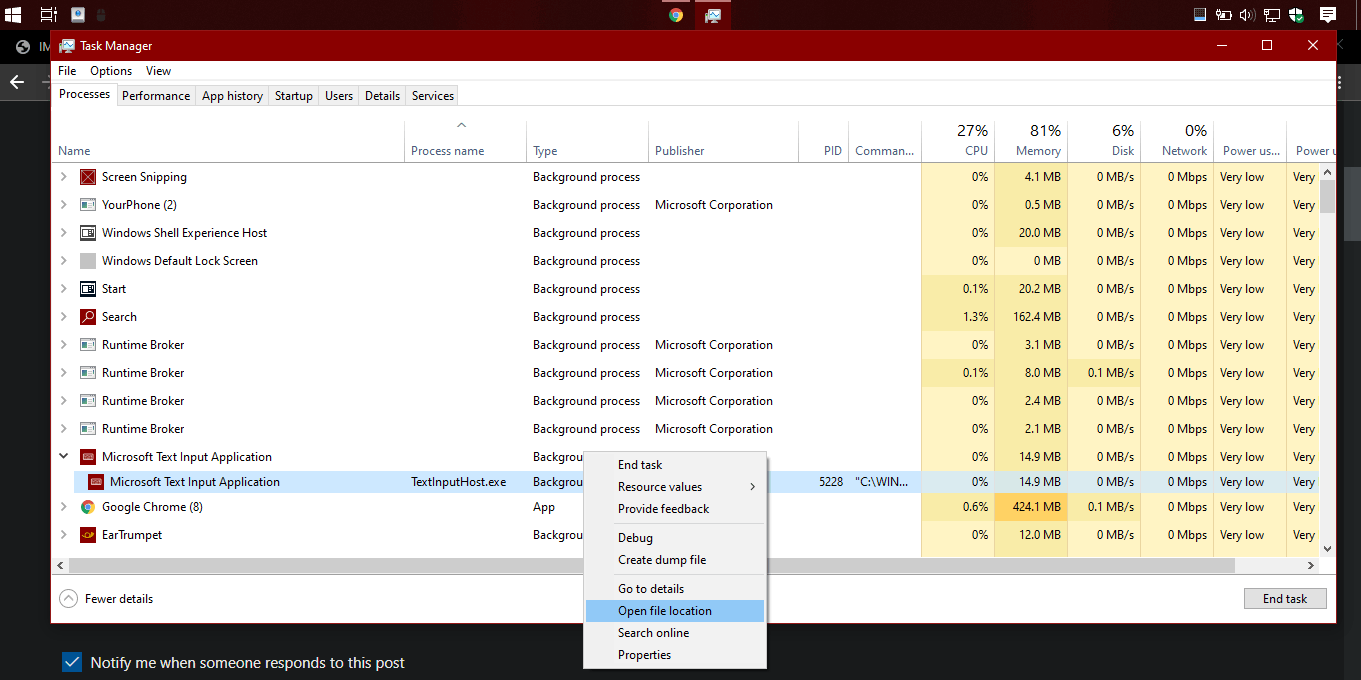
Step 5: Windows Explorer will open and you will see the location of the file in the form of a folder
[Also do not close Task manager].
Step 6: On the highlighted folder, press F2 on the keyboard and make sure that you copy the name of the folder, and just to be sure, right click and copy the entire folder.
Step 7: Paste the folder somewhere (for example in you downloads folder) just in case.
Do the following Step Quickly and Carefully.
Step 8: Using Task Manager, end the process and add any letter (more preferably a short word) so that you remember what you added and press Enter.
Please do tell me if you found this helpful.
' cx='32' cy='32' r='32' /%3E%3Ctext x='50%25' y='55%25' dominant-baseline='middle' text-anchor='middle' fill='%23FFF' %3EA%3C/text%3E%3C/svg%3E)
