Share via

Windows 10 Boot, Repair, Reset Fail After ACPI.sys File Error

Anonymous
2021-09-19T23:26:01+00:00

Hello, I'll try to be as detailed as possible, as my hard drive is accessible, and the files can be seen. There is no physical problem and I do not want to lose all of my data with a clean install. It is also my fault for not having automatic system restore points enabled, but if I can recover from this I have definitely learned my lesson!

I want to preface this by saying I have searched these forums and found people with similar issues with the same file, but none of the solutions have worked for me. One thread even linked to a Bleeping Computer forum post where somebody attached a clean ACPI.sys file from a working machine to replace anyone's with issues. They did not provide any instructions on how to do this when the system won't boot. Since I cannot boot into Windows, I'm not sure how I would even be able to move this file from a USB flash drive into the system via command prompt.

___________________________________________________

I have an ACER NITRO 5 gaming laptop with Windows 10 home. I was recently updating my Intel graphics drivers when my computer did a usual reboot, and at the login screen I got a message saying my pin wouldn't work. Reboot to fix. After that, I was stuck in a repair loop that kept failing.

My first step was to disable the automatic repair upon booting. Once I did this, I was able to see what the error was. Reference the image below:
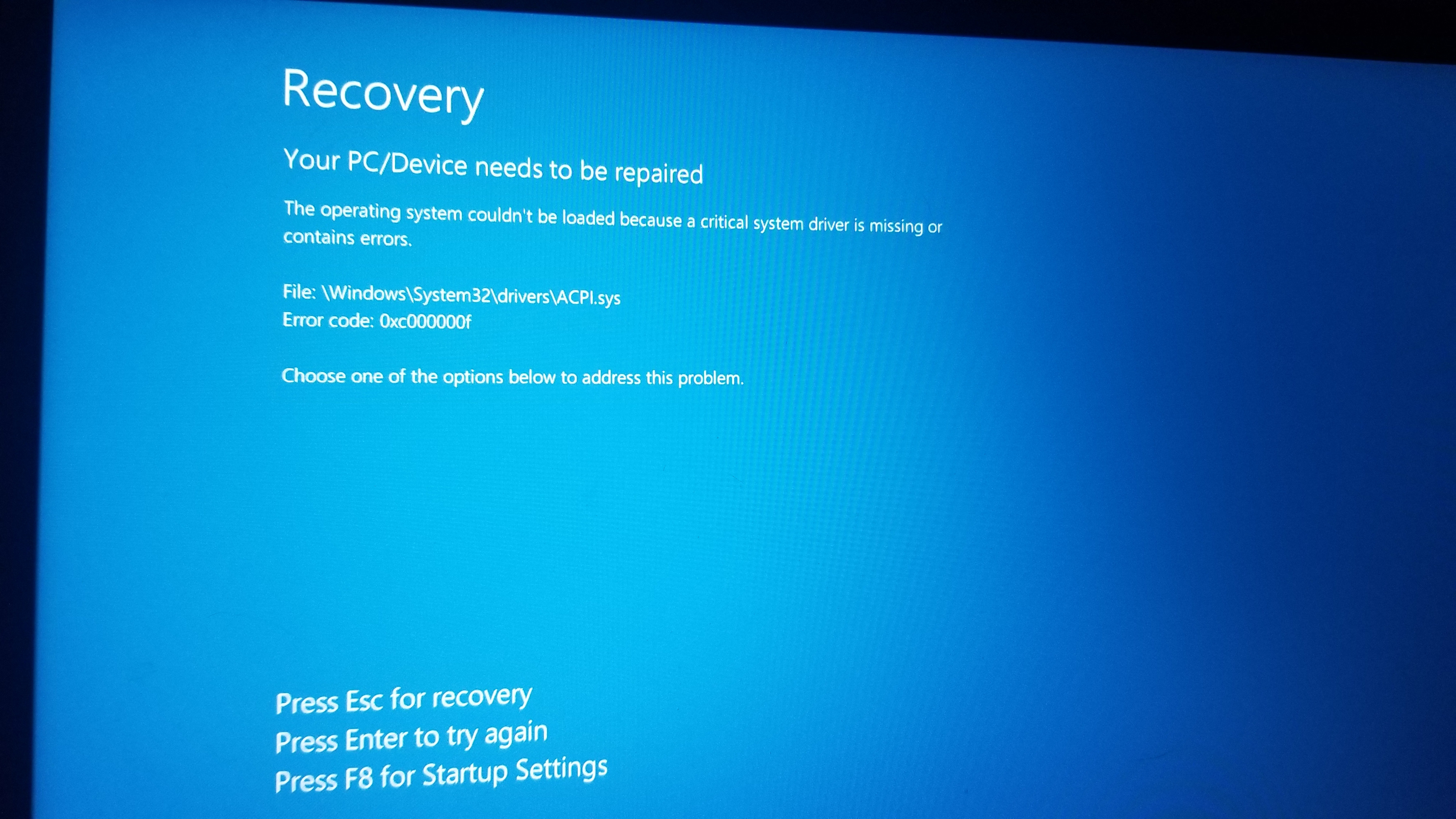
The file does exist on my system. I am able to access and view my whole drive via the command prompt and notepad.exe trick.

___________________________________________________

I can boot into recovery normally. Safe mode, etc. will NOT work.

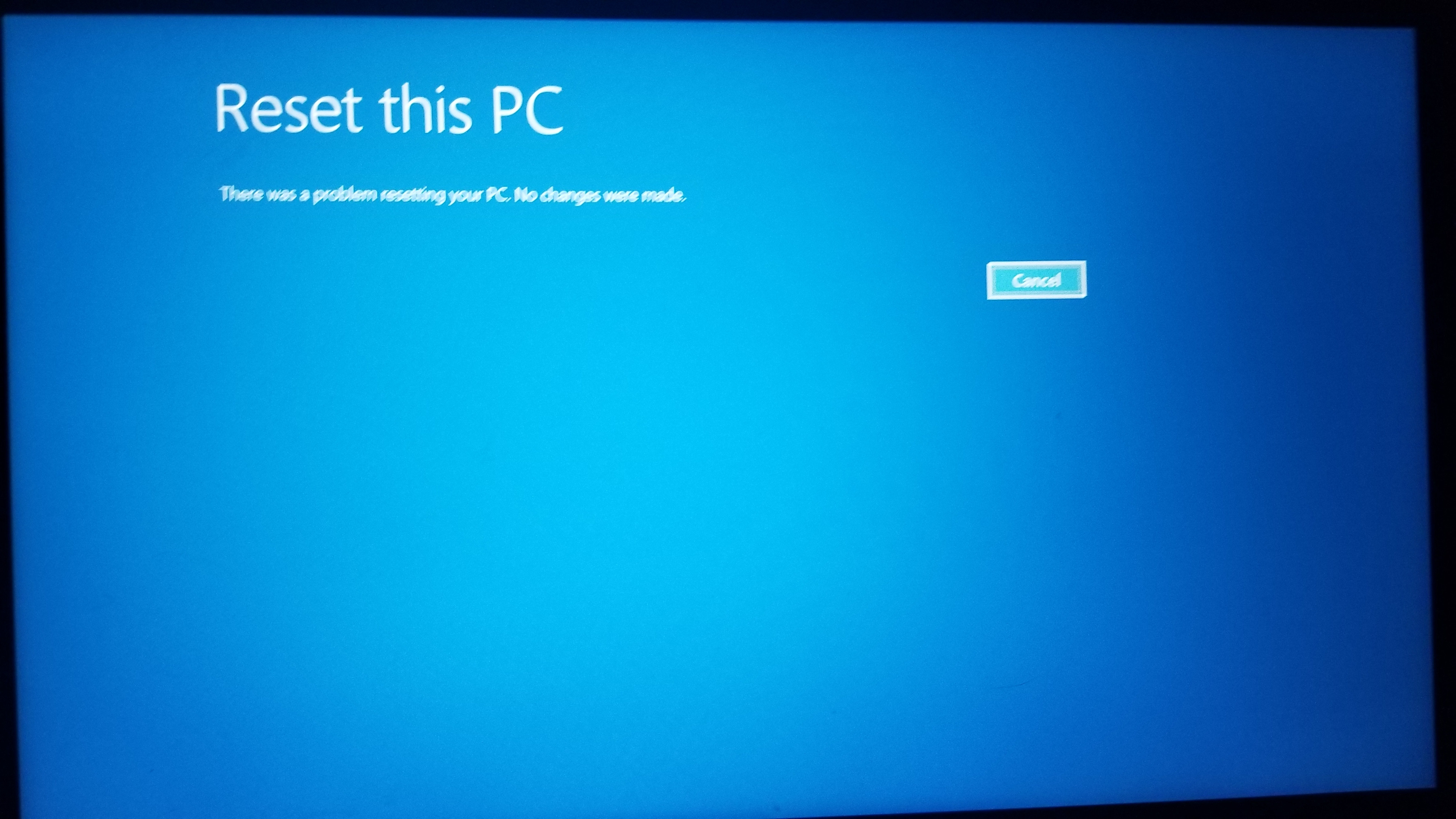
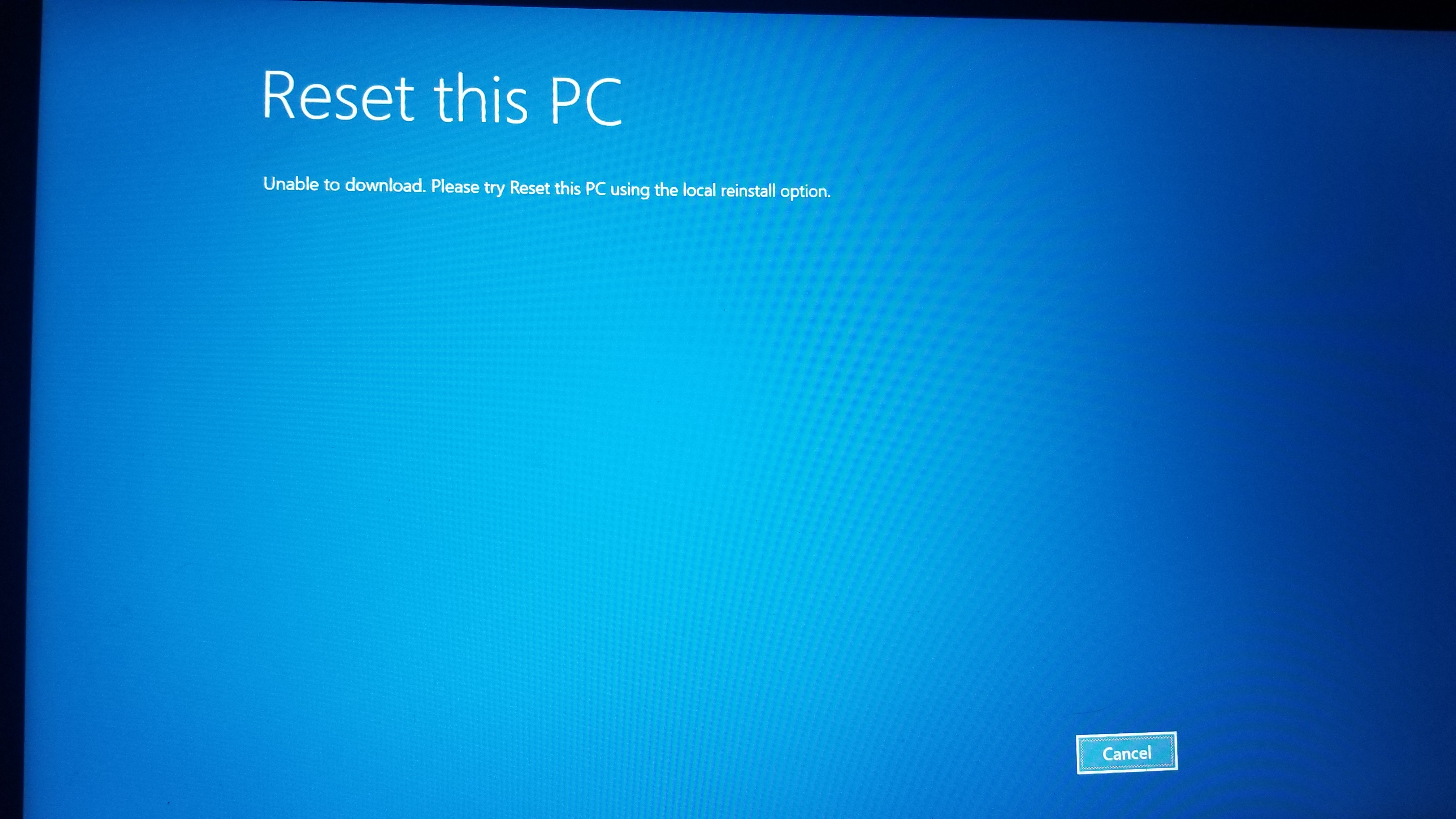
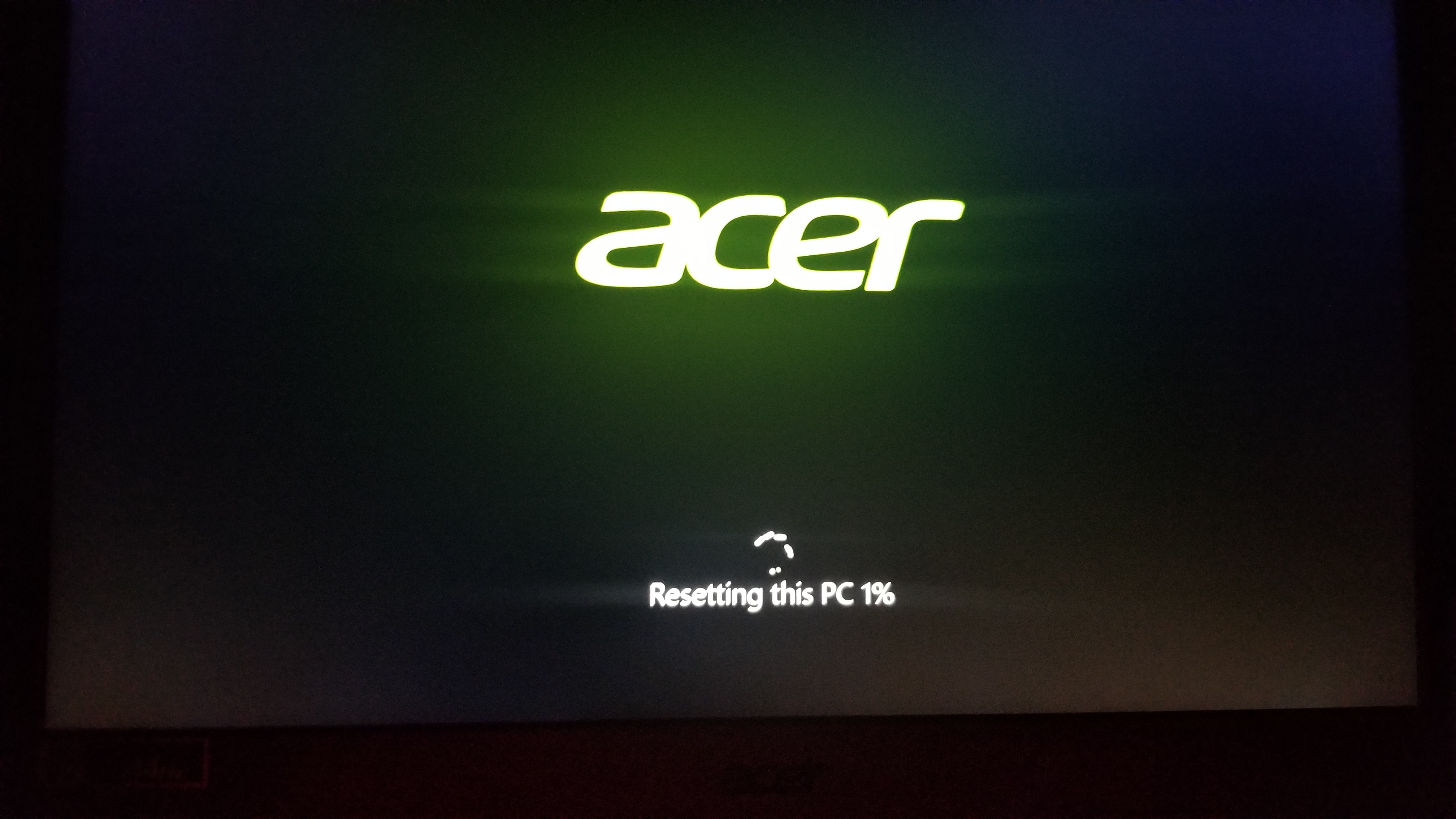
When in recovery, a reset while keeping files FAILS each time for cloud and local install. Reference the images below:
___________________________________________________

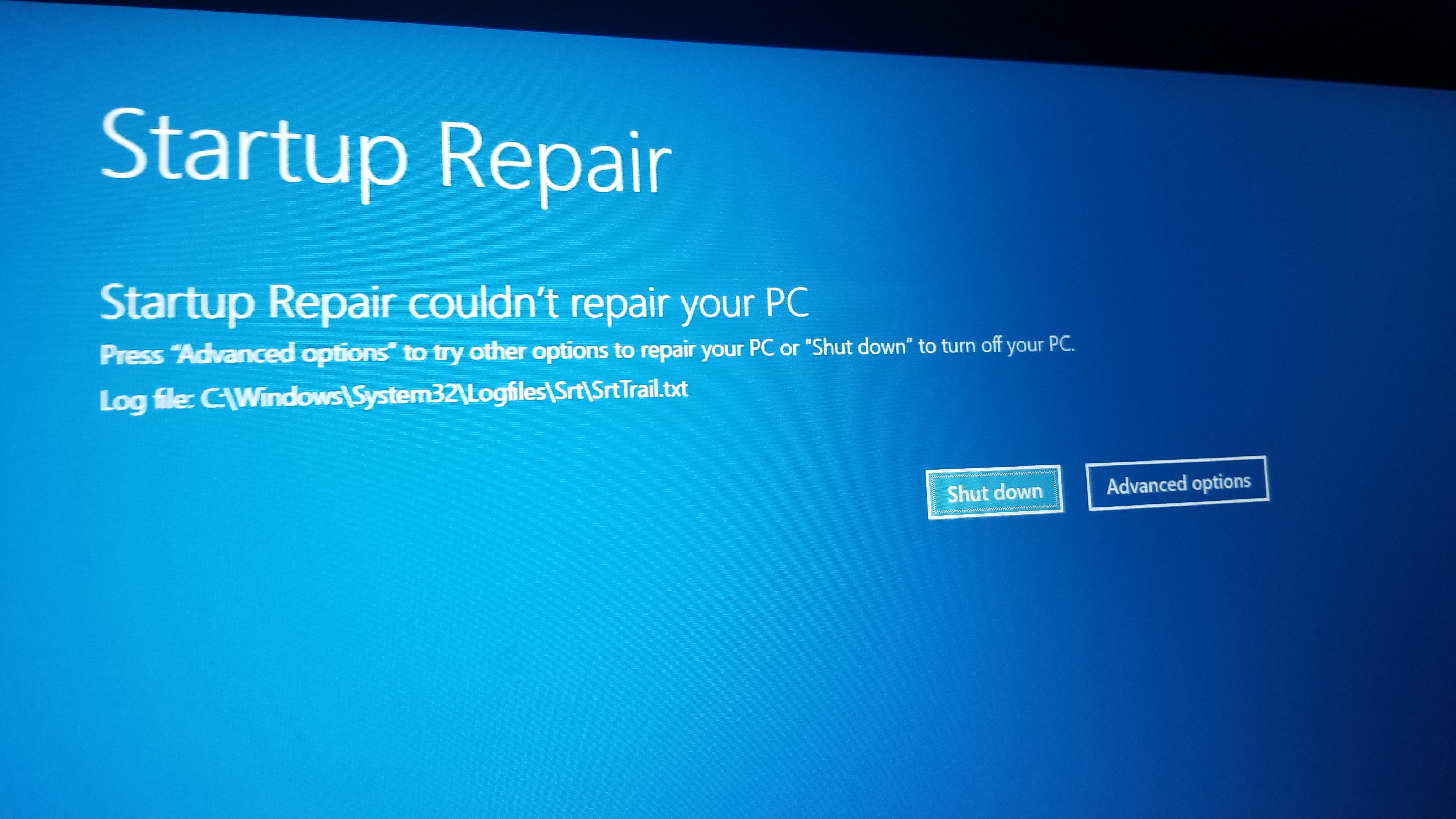
Startup repair also continues to fail:
___________________________________________________

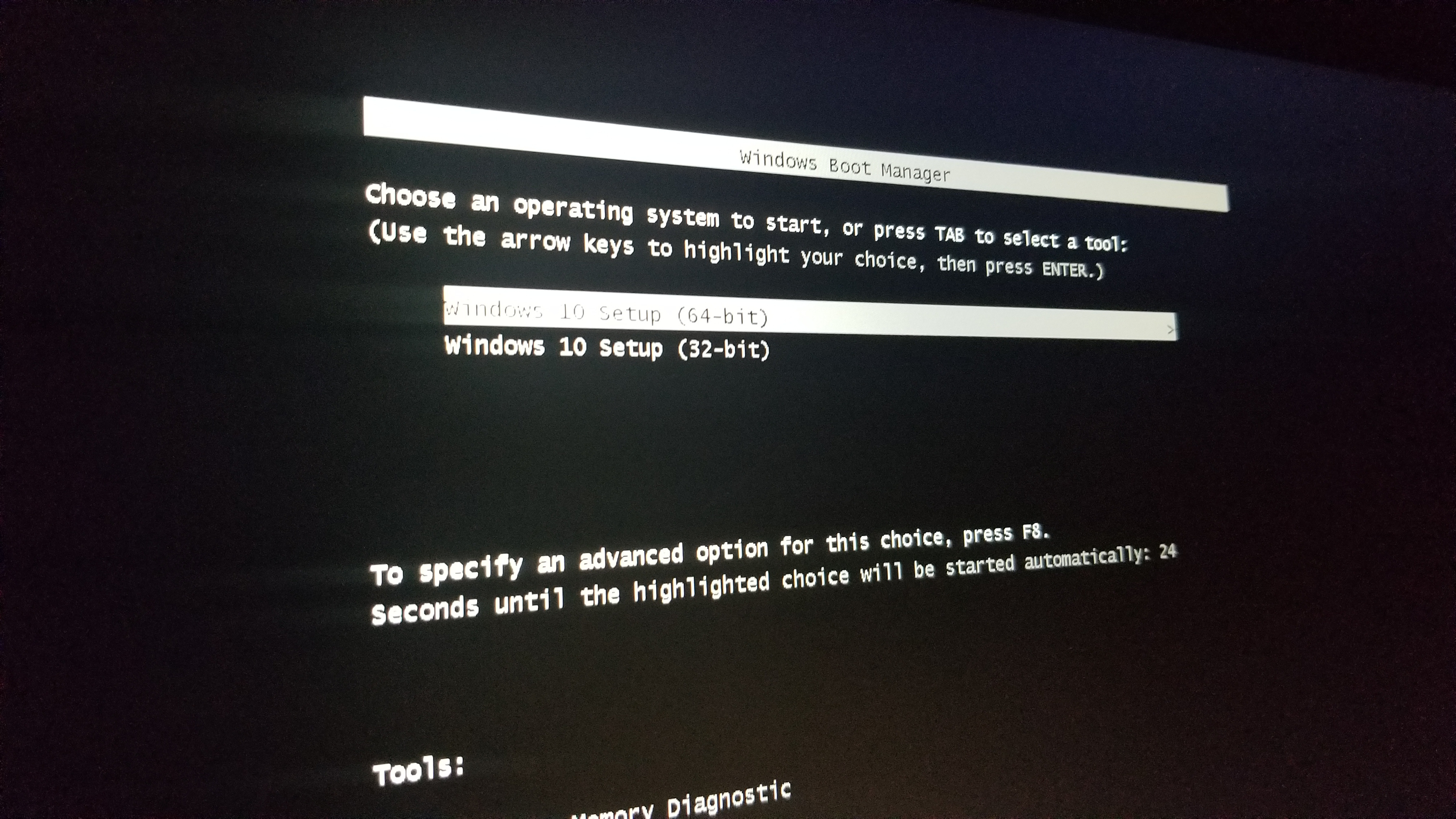
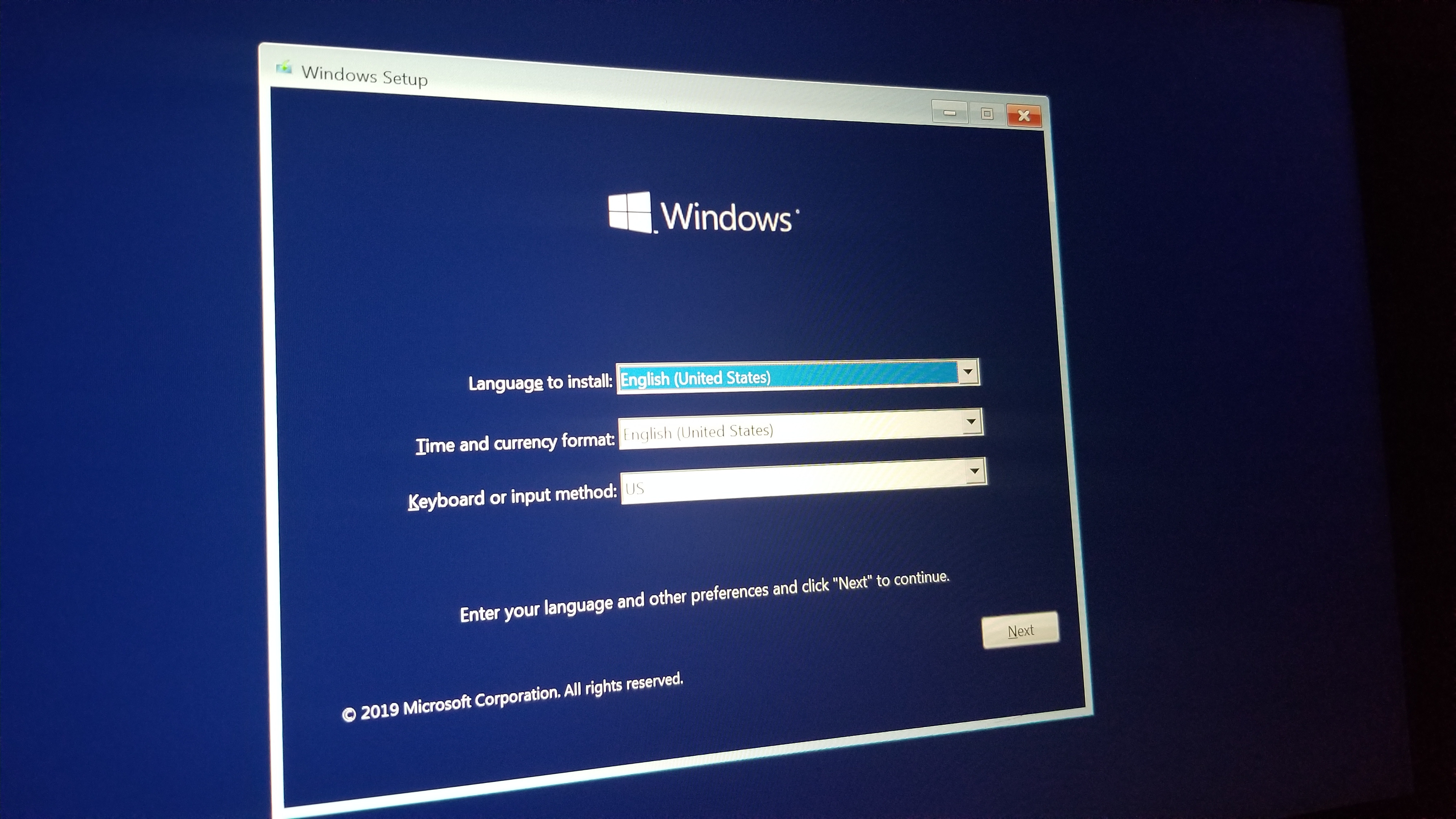
I have a Windows 10 recovery USB, and I can boot directly to it, or access it from recovery. Reference the images below:
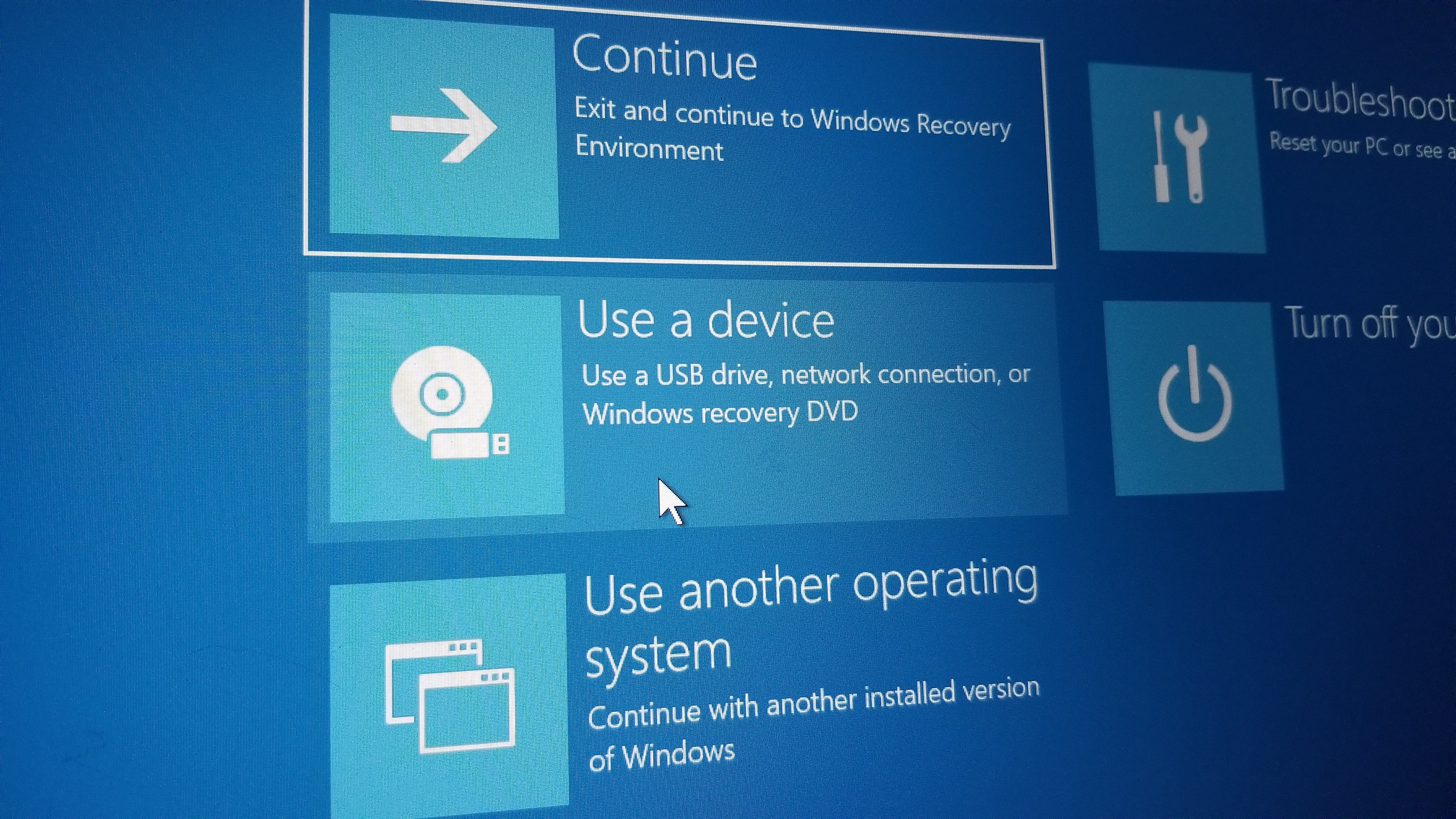
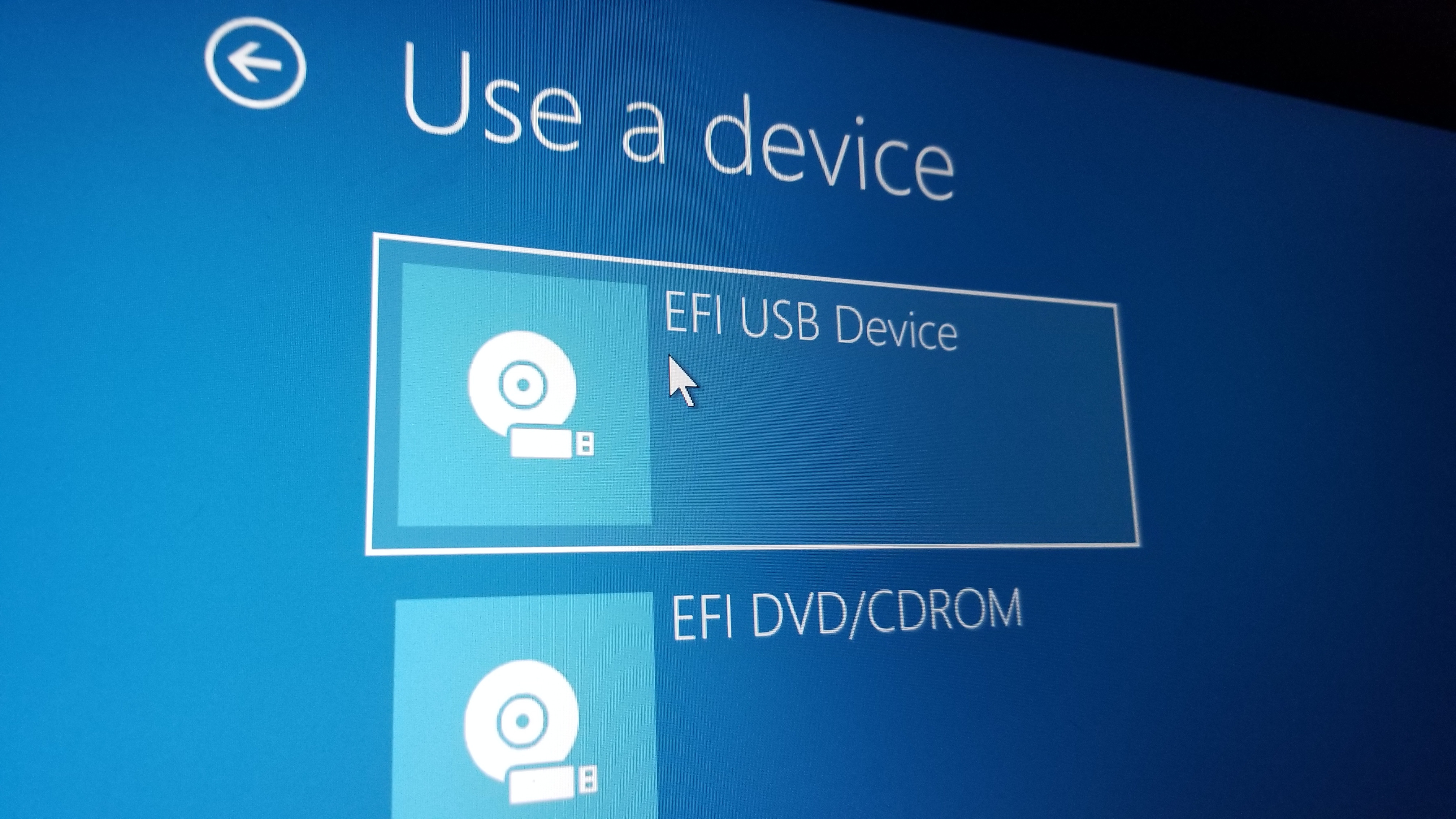
___________________________________________________

However, when I click REPAIR from the USB, it just takes me back to the system repair where I can select a USB device again. I cannot run startup repair from the USB directly. Reference the images below:
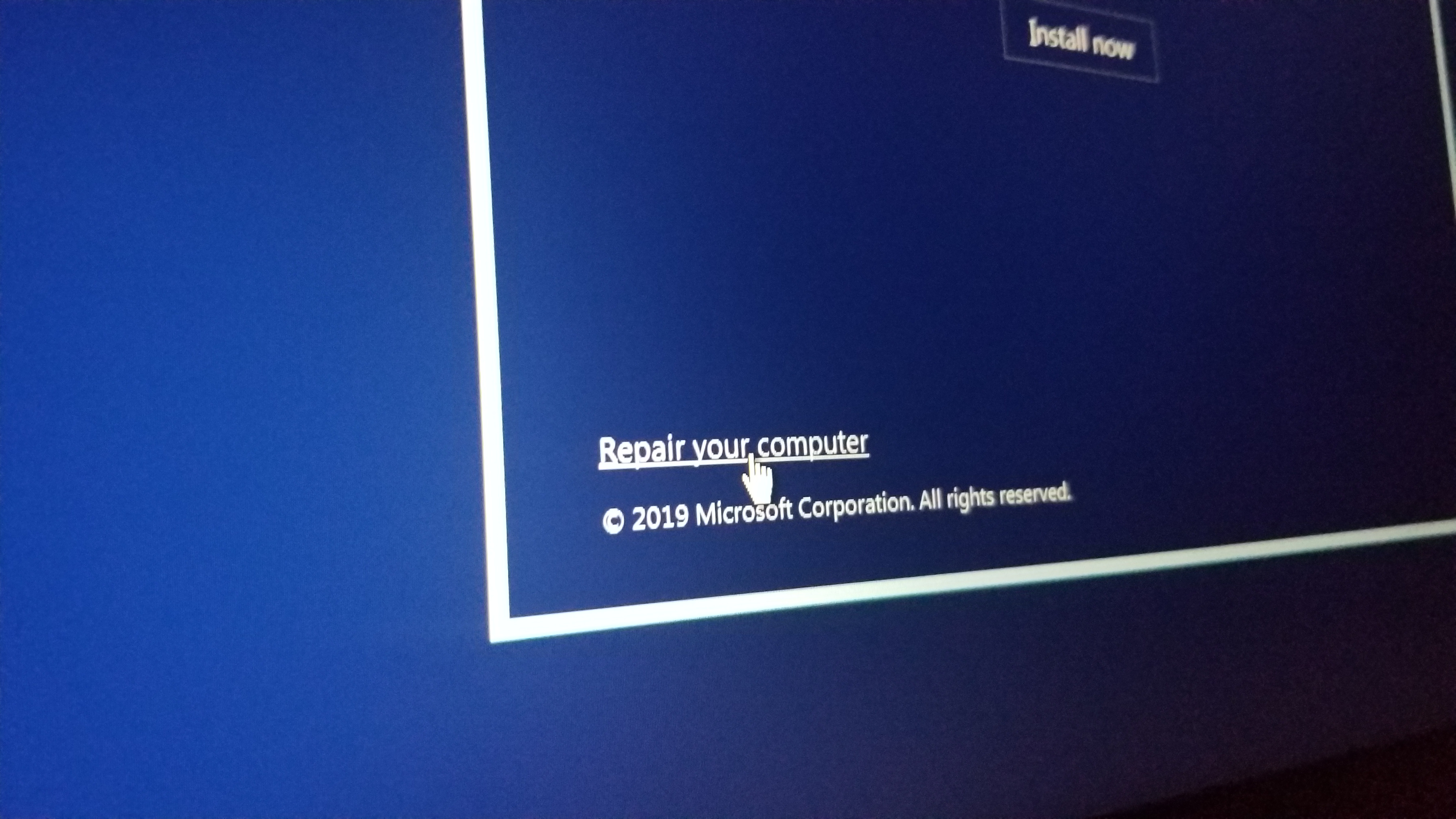
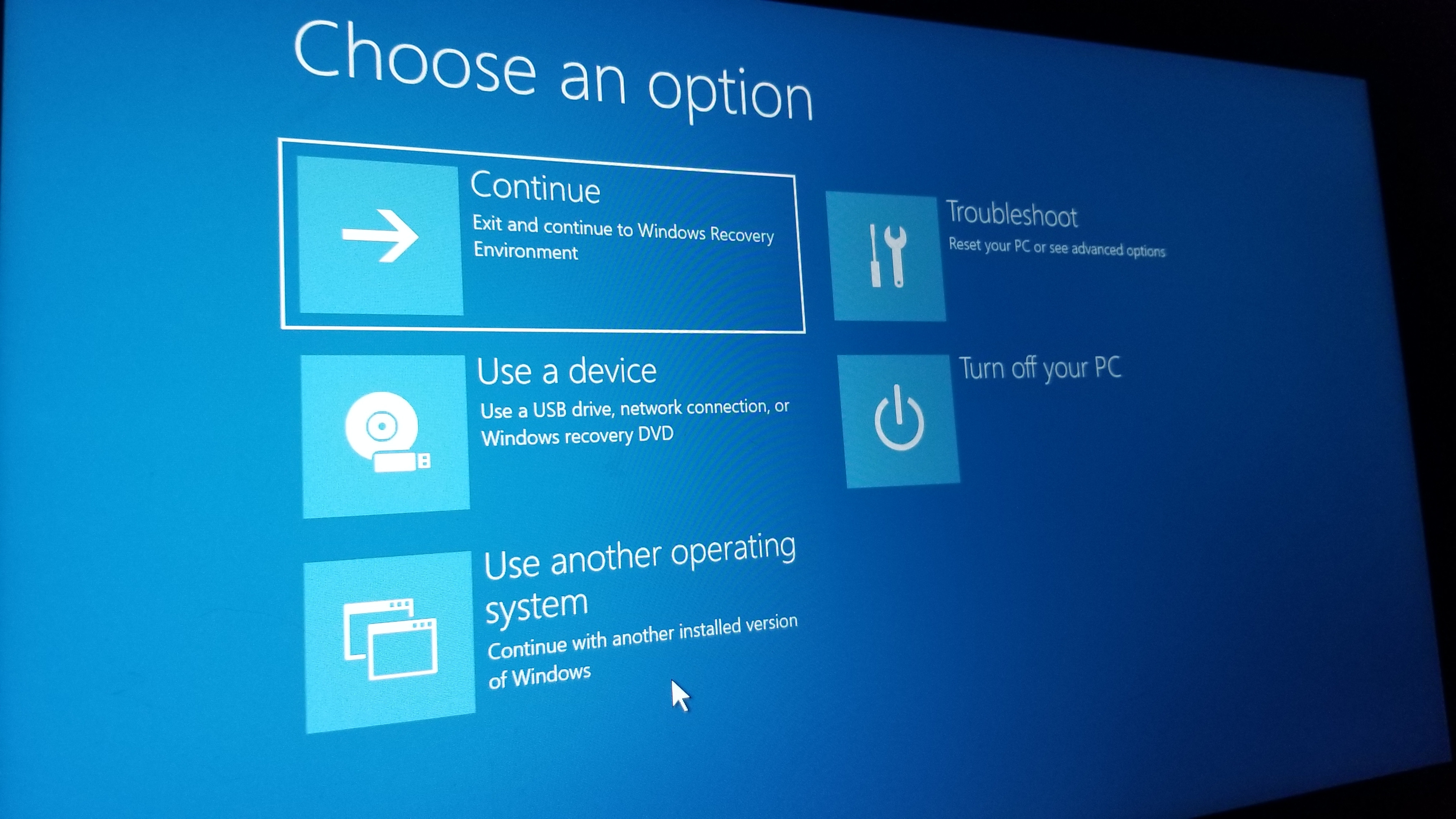
___________________________________________________

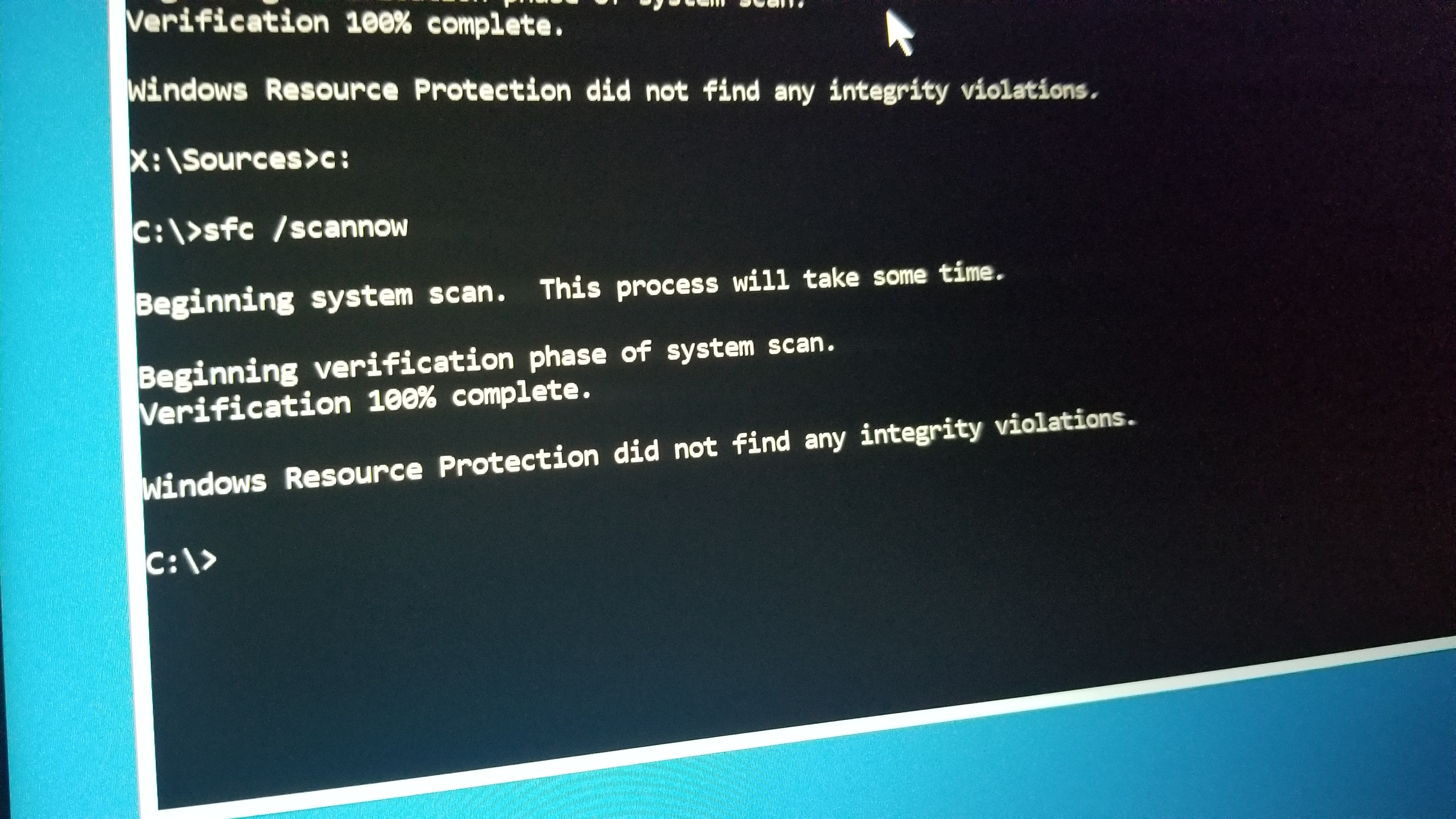
I ran sfc /scannow on x:\sources and c:. Reference the images below:
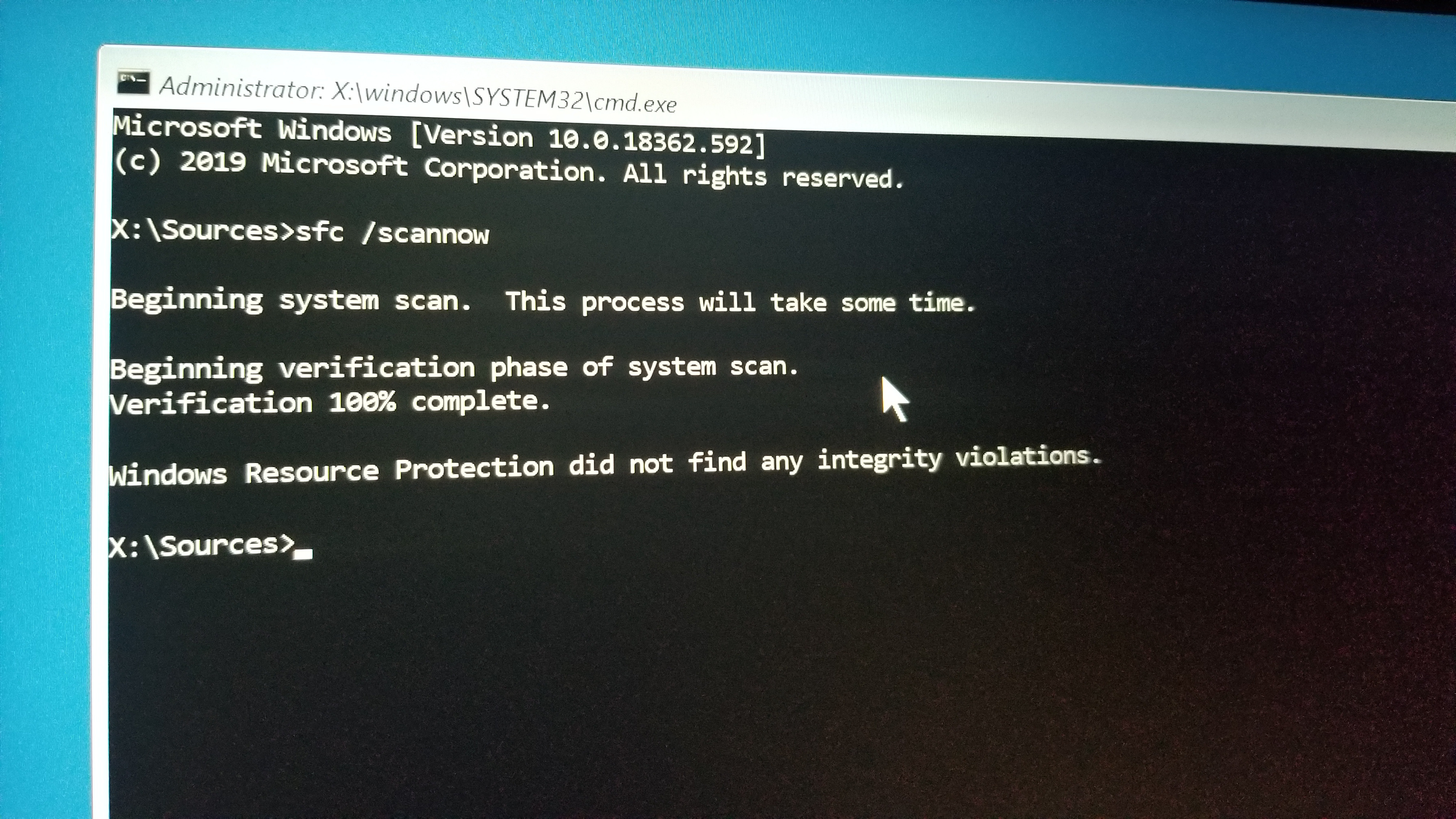
Each time, there were no integrity violations.

___________________________________________________

Then, I tried bootrec commands. Reference the image below:
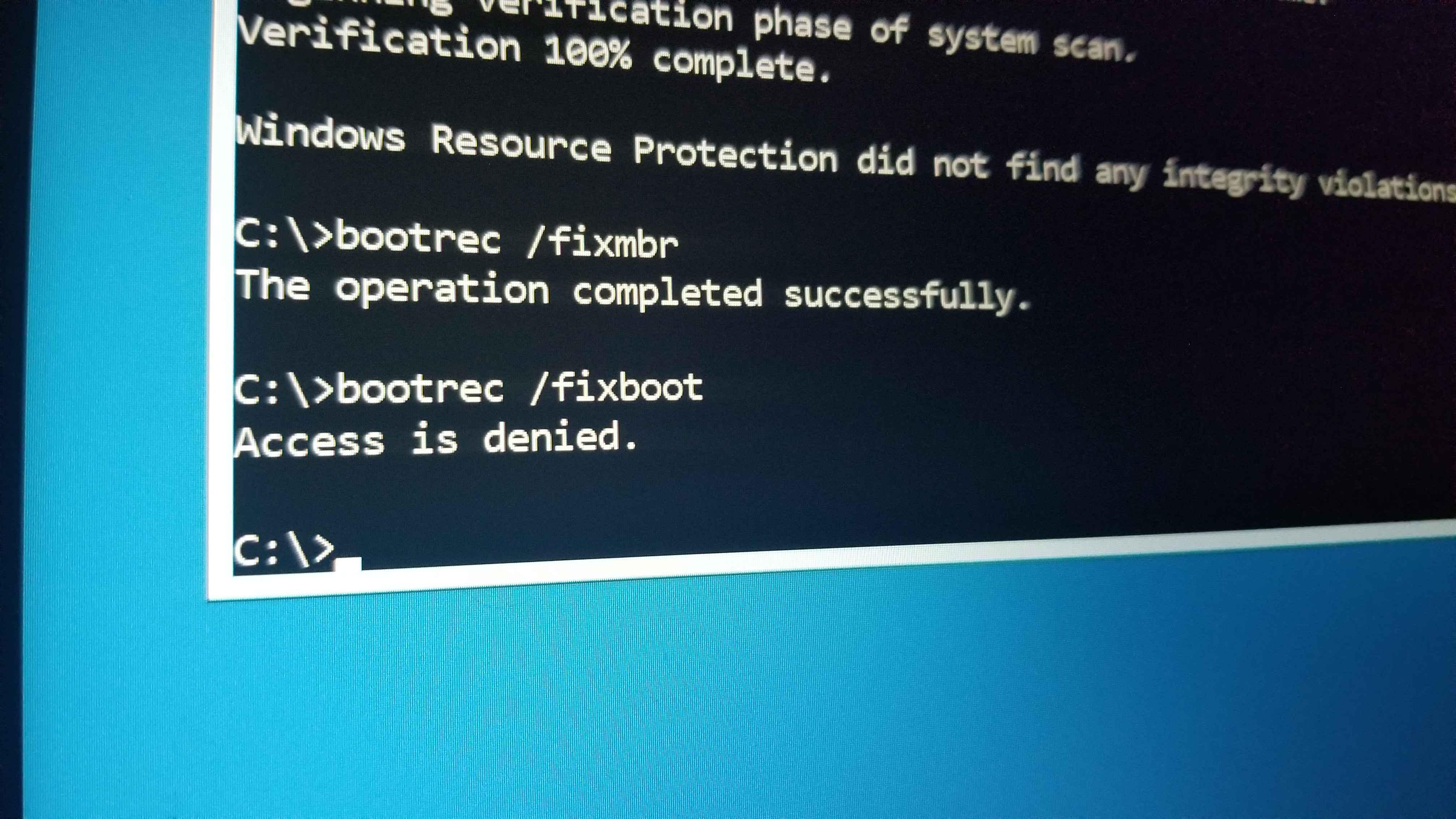
___________________________________________________

Then I tried chkdsk with the usual repair commands but I ended up with a log error each time. I ran a regular chkdsk without extra command just to show you the error. Reference the image below:
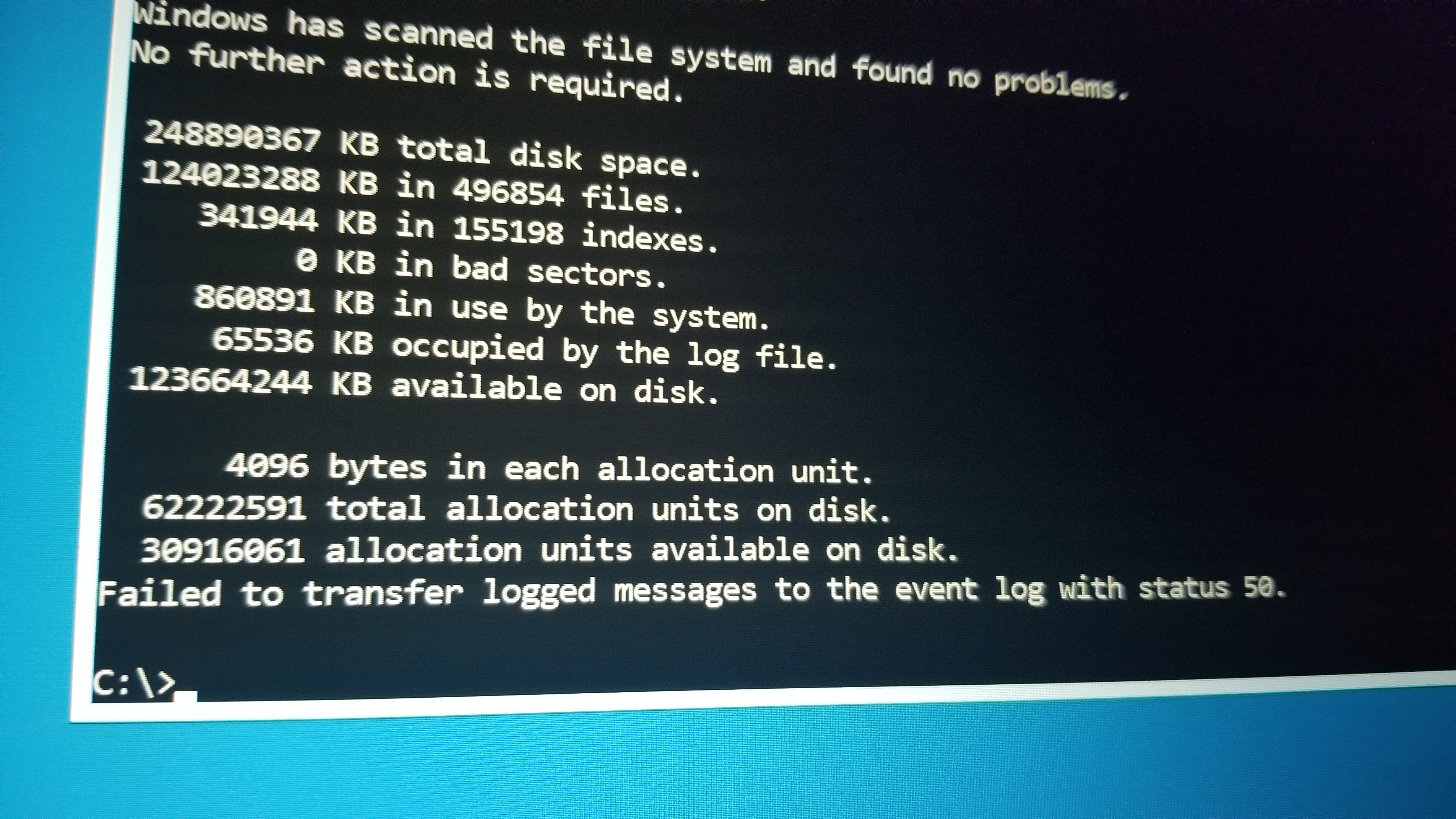
No matter what chkdsk commands I use, it always ends with, "Failed to transfer logged messages to the event log with status 50."

___________________________________________________

Is my only option doing a clean/custom install from my USB drive? Even though all of my files are on the drive and can be accessed via cmd - notepad.exe? Any help would be greatly appreciated. I have tried every solution except a clean/custom install.

Windows for home | Windows 10 | Performance and system failures

Locked Question. This question was migrated from the Microsoft Support Community. You can vote on whether it's helpful, but you can't add comments or replies or follow the question.

0 comments No comments

7 answers

Sort by: Most helpful
  1. Anonymous
    2021-09-20T12:33:54+00:00

    Hello. I mentioned this in my post, that I have ran the usual chkdsk commands and it always ends with zero errors. No matter what chkdsk commands I use, it also always ends with, "Failed to transfer logged messages to the event log with status 50."

    UPDATE:

    I have decided that the best and easiest option was to just perform the Windows installation directly from my recovery USB. The methods I have tried and researched have done nothing, but I was able to preserve MOST of my data with the Windows.old folder option. I was unable to repair, reset, or restore anything with my Recovery partition, as well as the USB. Installation was my only option.

    For people that may see this thread in the future, I could not figure out how to run DISM OFFLINE (since I cannot boot into the OS) and use my recovery USB as the source for repair files. My recovery USB is aftermarket, so it contains 64 bit and 32 bit folders as well as the usual SETUP.exe, so I was unsure of how to navigate the drive (D: in my case) to point the DISM tool to the correct source for repairs. When I tried to run DISM offline on my C drive (main Windows installation directory) to check the files, restore health, etc. it always came back saying the image could not be found - this could have been user error.

    I am currently getting my computer setup as usual from a fresh install, drivers installed etc. and I will MOST DEFINITELY enable automatic restore points after this one!

    Was this answer helpful?

    2 people found this answer helpful.
    0 comments No comments
  2. Igor Leyko 110.8K Reputation points Independent Advisor
    2021-09-20T00:25:27+00:00

    Hi,

    My name is Igor, I have 12 Microsoft MVP awards. It's a pleasure for me to help others and I'll do all my best to help you. I'm sorry you have a problems.

    You may try DISM command from recommendations at https://support.microsoft.com/en-us/help/402603...

    And please check if there is a BIOS update, the problem may be BIOS related.

    Was this answer helpful?

    1 person found this answer helpful.
    0 comments No comments
  3. Igor Leyko 110.8K Reputation points Independent Advisor
    2021-09-20T20:20:03+00:00

    You may run DISM from recovery environment as described at https://support.microsoft.com/en-us/help/402603...

    If you'll have some problems please show photo of command window with command and results.

    Note, it is needed to boot from Windows installation media.

    Was this answer helpful?

    0 comments No comments
  4. Igor Leyko 110.8K Reputation points Independent Advisor
    2021-09-20T12:01:16+00:00

    Please run chkdsk c: /r /f command and see if some errors will be found.

    Try recommandations from https://docs.microsoft.com/en-us/answers/questi...

    Was this answer helpful?

    0 comments No comments
  5. Anonymous
    2021-09-20T00:41:46+00:00

    Thanks for the DISM suggestion! I have tried it and still ended up with a corruption error for my C: drive (which is where my system OS is installed).

    Reference the image below:

    Image

    However, I found this article on how to fix this insufficient scratch error:

    https://www.wintips.org/fix-dism-error-the-scratch-directory-size-might-be-insufficient-to-perform-this-operation/

    I will attempt this next and update with results later.

    DISM UPDATE:

    I have followed the above steps in the linked article to create a new scratch folder and run DISM through there on my C drive, but I still end up with the error, "The component store has been corrupted. The DISM log file can be found at x:\windows\logs\DISM\dism.log"

    I also have several BIOS updates available for my model directly under 'BIOS/Firmware' on this page: https://www.acer.com/ac/en/US/content/support-product/8305?b=1&pn=NH.Q7JAA.009&sn=03806528934

    EDIT:

    I have updated my BIOS to the latest version released by ACER via USB and command prompt from recovery. However, nothing has changed.

    Everything is still as it was, listed above. Unable to Repair, Recover, Reset, etc. with the same driver ACPI.sys file boot issue.

    Was this answer helpful?

    0 comments No comments