I recently would like to make use of our old computer as test computer for applications and websites. Before I decided to upgrade this computer, the computer is in Windows 7 Professional, 64-bit version. I decided to upgrade this computer to Windows 10 64-bit directly. However it did not work CMPXCHG16B error but checked my processor, it supports CMPXCHG16B. So what I planned to do was upgrade to Windows 10 32-bit then upgrade again to Windows 10 64 bit.
Currently, the computer's specifications are as follows:
Device name DESKTOP-LOOE7CL
Processor Intel(R) Core(TM)2 Duo CPU E8400 @ 3.00GHz 3.00 GHz
Installed RAM 5.00 GB (3.62 GB usable)
System type 32-bit operating system, x64-based processor
Pen and touch No pen or touch input is available for this display
The installed Windows specification are as follows:
Edition Windows 10 Pro N
Version 21H1
Installed on 4 Sep 2021
OS build 19043.1165
Experience Windows Feature Experience Pack 120.2212.3530.0
Other details:
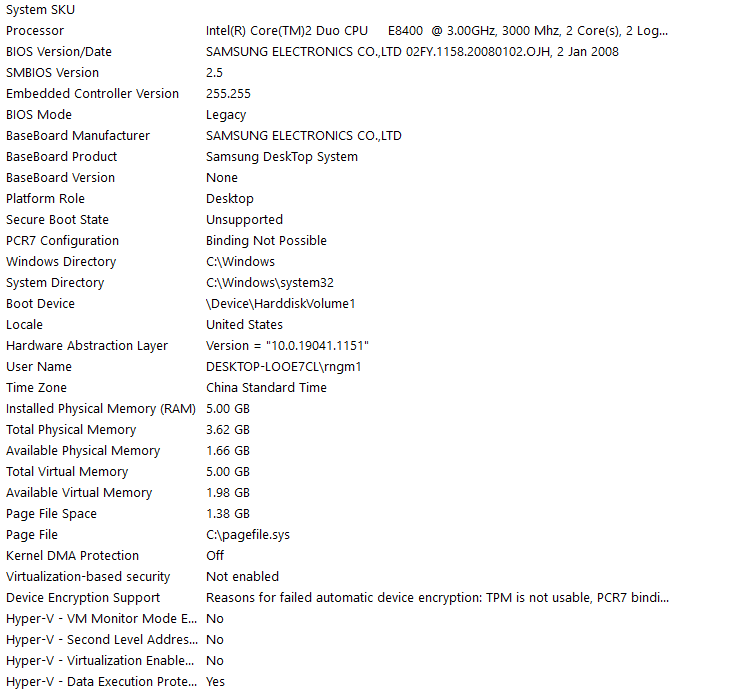
Methods I tried when upgrading to Windows 10 64-bit:
Method 1:
- Used the Media Creation Tool 21H1.
- Selected "Create installation media (USB flash drive, DVD, or ISO file) for another PC" option
- Selected the architecture as "64-bit (x64)"
- Used an empty 16 gb flash drive
- Restarted the computer then pressed f2 for the BIOS then made the flash drive first in the boot order
- Tried both Enabled and Disabled "No Execute Memory Protection"
A blinking "_" line on the top left most of the screen will appear. After that the windows logo will appear for 1 second then will return to "_" line screen. After some time, It will only show the Windows logo. I tried to leave it for 10 hours but nothing happened.
Method 2:
- Downloaded the ISO of Windows 10 64-bit from Media Creation Tool 21H1.
- Used Rufus Tool 3.14
- Made the partition scheme as "MBR," and Target System as "BIOS or UEFI" Made the File System as "NTFS," and Cluster Size as "4096 bytes (Default)" Advanced Format Options are : "Quick Format" and "Create extended label and icon files"
- Restarted the computer then pressed f2 for the BIOS then made the flash drive first in the boot order
- Tried both Enabled and Disabled "No Execute Memory Protection"
The "Press any key to boot from USB/DVD" will appear then a blinking "_" line on the top left most of the screen follows. After that the windows logo will appear for 1 second then will return to "_" line screen. The windows logo will appear again after 5 seconds then the whole system will restart (loop)
Method 3:
Now, I tried
- Downgrading to Windows 7-64 bit from Windows 10 32-bit through directly opening the ISO file
- Directly opened the ISO of Windows 10-64 bit file and click setup from there.
Both resulted to "This app can't run on your PC."
Method 4:
I thought maybe the BIOS needs some update.
- Downloaded "Samsung Update" from the Microsoft Store. Did not work because it needs x64 architecture
- Downloaded previous versions of "Samsung Update" from the Samsung website. Did not work because it prompts "Windows 10 recommends using Samsung Update from the Microsoft Store."
What could possibly be the reason why I can't progress until the "Windows Setup" menu?
Thank you for any help :)
' cx='32' cy='32' r='32' /%3E%3Ctext x='50%25' y='55%25' dominant-baseline='middle' text-anchor='middle' fill='%23FFF' %3EA%3C/text%3E%3C/svg%3E)
