Share via

[Win10, Win11] Kernel DMA Protection and Device Encryption support is off, even with Intel Virtual Tech enabled.

Anonymous
2021-10-08T23:25:21+00:00

Computer Configuration

Lenovo Legion Y740, Intel core i7 9750H, 17.3" 144Hz GSync, RTX 2080MQ, 16GB RAM, 1TB SSD, Windows 11 Home 21H2 (Build 22000.194)

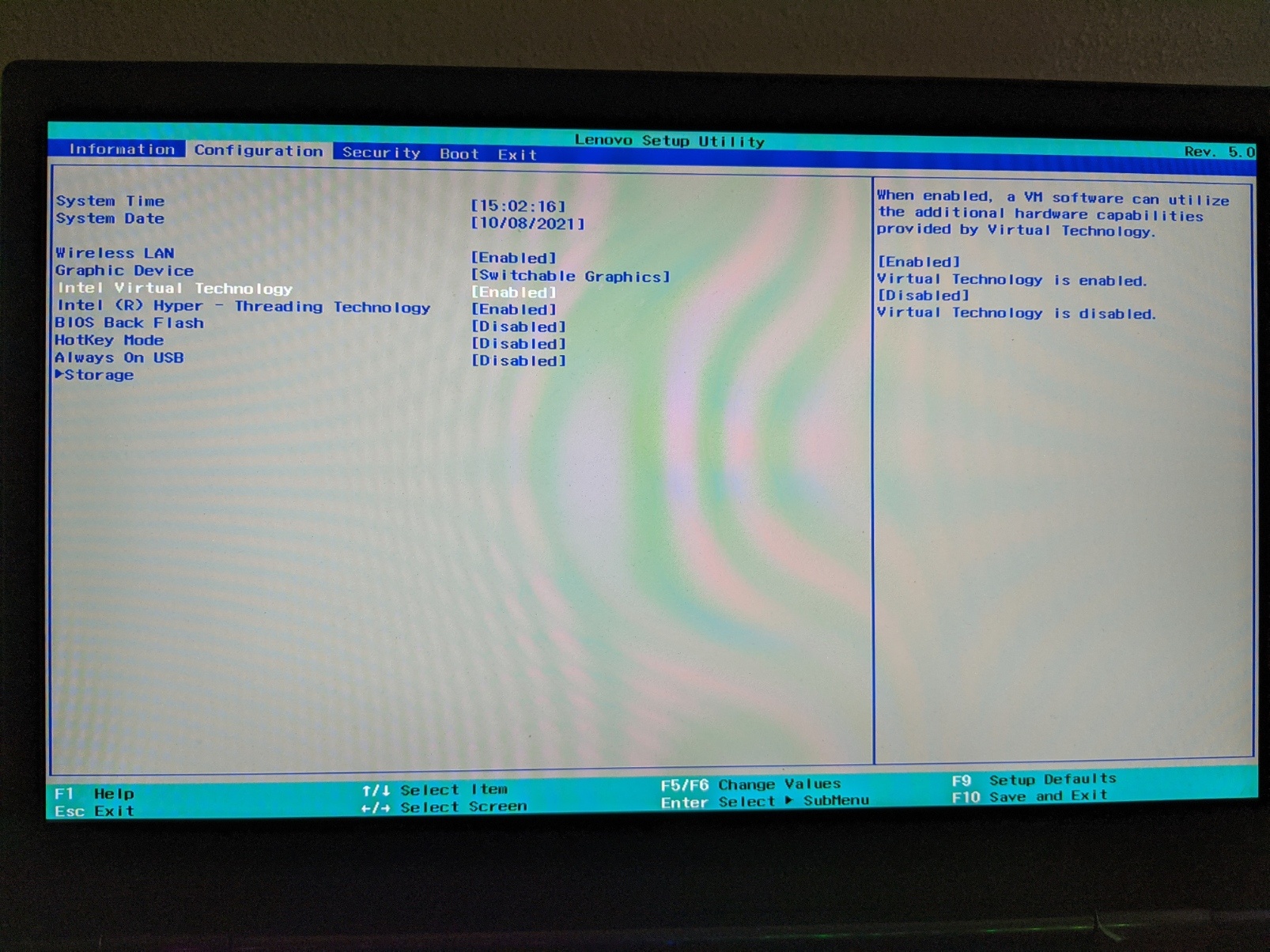
Intel Virtual Technology: Enabled

Intel Hyper-Threading Technology: Enabled

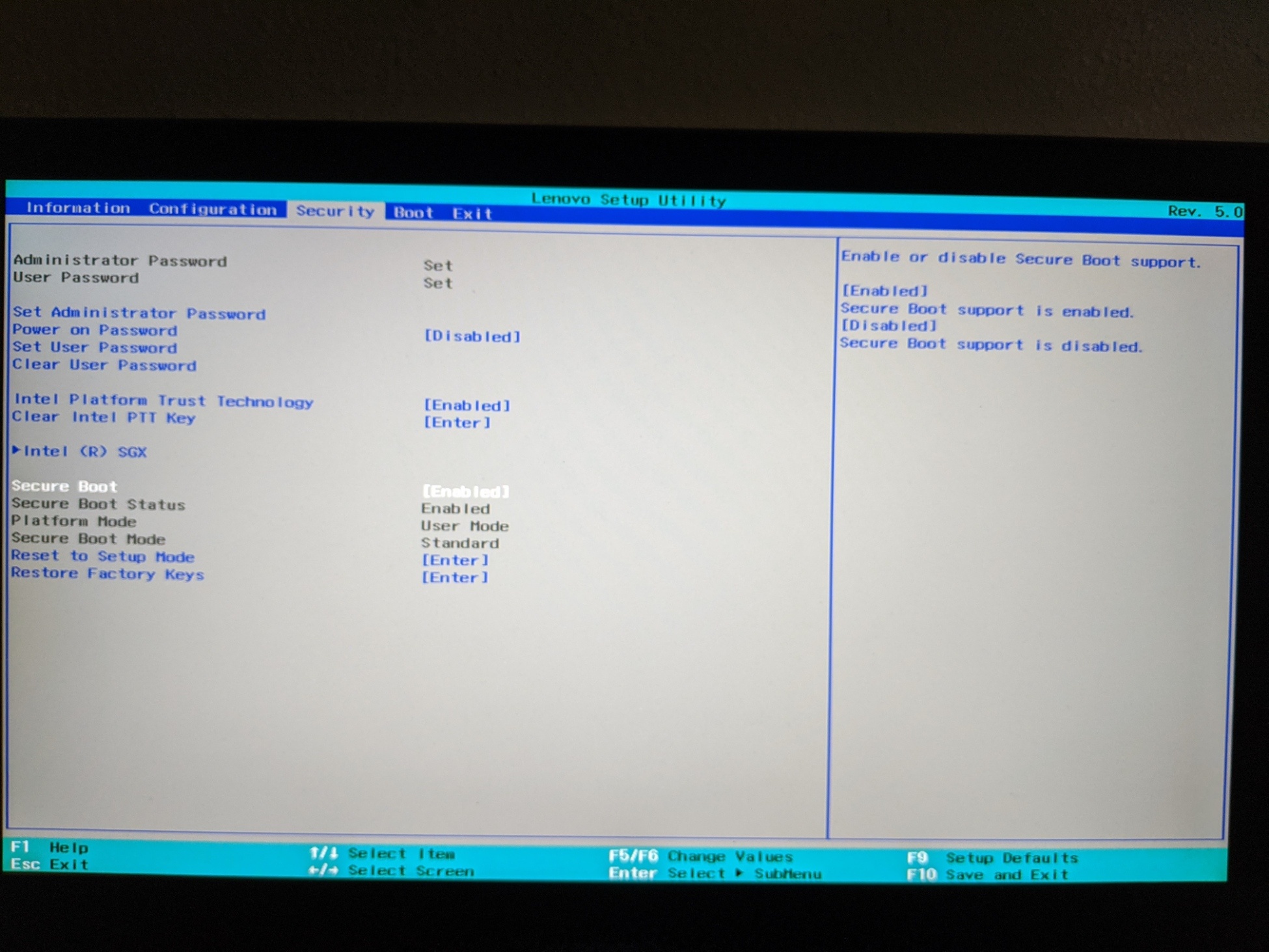
Secure Boot: Enabled

(p.s. - my system had official support for upgrade to Windows 11. It's not "unsupported".)

Problem

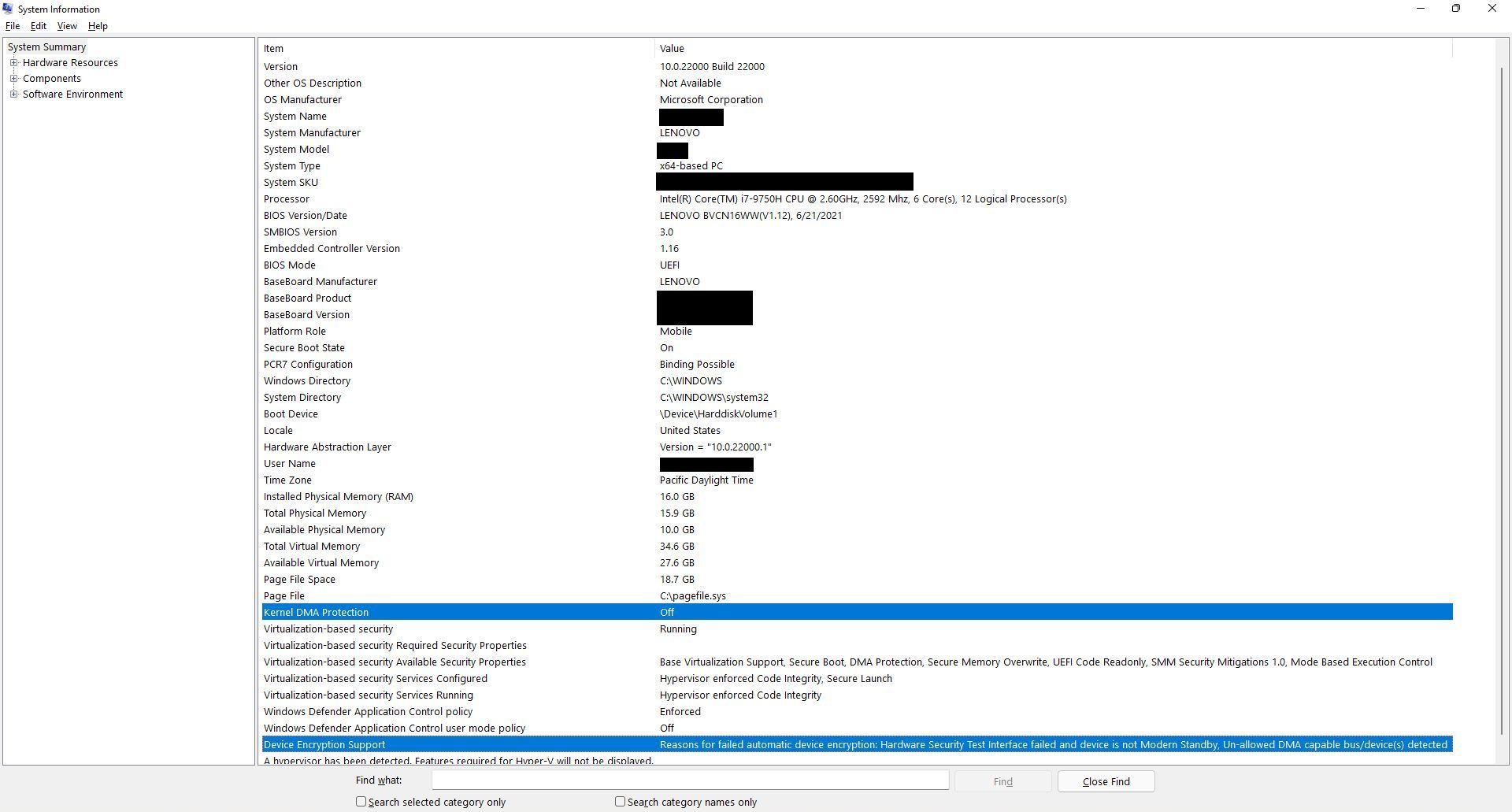
On msinfo32, I see the following -

Kernel DMA Protection: Off

Device Encryption Support: Reasons for failed automatic device encryption: Hardware Security Test Interface failed and device is not Modern Standby, Un-allowed DMA capable bus/device(s) detected

Troubleshoot Done so far

I found this MS page, that says

If the current state of Kernel DMA Protection is OFF and Hyper-V - Virtualization Enabled in Firmware is NO:

  • Reboot into BIOS settings
  • Turn on Intel Virtualization Technology.
  • Turn on Intel Virtualization Technology for I/O (VT-d). In Windows 10 version 1803, only Intel VT-d is supported. Other platforms can use DMA attack mitigations described in BitLocker countermeasures.
  • Reboot system into Windows.

I checked in my BIOS and "Intel Virtualization Technology" is already enabled. I disabled -> rebooted -> enabled -> rebooted; just in case. Still had same situation at the end.

Screenshots
Looking for

Any help enabling Kernel DMA Protection and Device Encryption support. Thanks for reading and any possible guidance.

Windows for home | Windows 11 | Security and privacy

Locked Question. This question was migrated from the Microsoft Support Community. You can vote on whether it's helpful, but you can't add comments or replies or follow the question.

0 comments No comments

6 answers

Sort by: Most helpful
  1. Anonymous
    2021-10-09T13:20:29+00:00

    Hey there Legend!

    I just saw that you're using Windows 11 Home, and Home version doesn't support BitLocker and Encrypting File System support, reason why DMA Kernel Protection may not be turning on. Make sure that you use a TPM 2.0 module (Windows + R > tpm.msc).

    You'd need to upgrade to Windows 11 Pro to use said feature :(

    Stay safe under these rough times, and have a lovely weekend!

    1 person found this answer helpful.
    0 comments No comments
  2. VARADHARAJAN K 9,676 Reputation points Volunteer Moderator
    2021-10-13T16:19:28+00:00

    If your system comes Thunderbolt 3 port and did you installed a special type of driver .inf file in which one setting must be included in inf file.

    for information see How can I check if a certain driver supports DMA-remapping? in below site https://docs.microsoft.com/en-us/windows/security/information-protection/

    Also read this https://thunderbolttechnology.net/security/Thunderbolt%203%20and%20Security.pdf

    0 comments No comments
  3. Anonymous
    2021-10-09T18:35:55+00:00

    Hi.

    Windows 10 and 11 home do support Encrypting File System support though. See this page from MS Docs.

    Beginning in Windows 8.1, Windows automatically enables BitLocker Device Encryption on devices that support Modern Standby. With Windows 11 and Windows 10, Microsoft offers BitLocker Device Encryption support on a much broader range of devices, including those that are Modern Standby, and devices that run Windows 10 Home edition or Windows 11.

    And I do have TPM 2.0, and the status is "TPM is ready for use". Windows Security also says "Your device meets the requirements for enhanced hardware security." (that means this.)

    I'm guessing my issue right now is "devices that support Modern Standby", as powercfg /a says my laptop is currently supporting standard standby (S3) only, not modern standby (S0).

    Found an article that said "set HKEY_LOCAL_MACHINE\SYSTEM\CurrentControlSet\Control\Power\CsEnabled to 0." I did that, but it had no effect.

    0 comments No comments
  4. Anonymous
    2021-10-09T02:04:55+00:00

    Thanks for the tip, Miguel. I carried out the steps and these are the four that stayed in the AllowedBuses -

    "Intel(R) 300 Series Chipset Family LPC Controller (HM370) - A30D"

    "Intel(R) PCI Express Root Port #13 - A334"

    "Intel(R) PCI Express Root Port #17 - A340"

    "Intel(R) PCIe Controller (x16) - 1901"

    Just for my understanding though, am I whitelisting an insecure thing here? As in, Windows knows these are unsecure settings, but I'm whitelisting them?

    And, even after this, I still have -

    Kernel DMA Protection: Off

    Device Encryption Support: Reasons for failed automatic device encryption: Hardware Security Test Interface failed and device is not Modern Standby

    0 comments No comments
  5. Anonymous
    2021-10-09T00:21:10+00:00

    Hey there!

    My name is Miguel Ángel and I'm an independent advisor, also a Microsoft user just like you! I'll try to help you today with your issue.

    It seems like there's some kind of outdated driver that is not allowed by DMA, so we need to check which is it, update it and then allow it manually via the registry editor if it's not yet fixed.

    There's a guide from XDA with a PowerShell script that usually works when these issues come up on most users: https://forum.xda-developers.com/t/fix-un-allow... . Take a look at it, and let me know how it goes :)

    I'll wait for your reply! Don't worry, everything will be okay!


    Note: This is a non-Microsoft website. The page appears to be providing accurate, safe information. Watch out for ads on the site that may advertise products frequently classified as a PUP (Potentially Unwanted Products). Thoroughly research any product advertised on the site before you decide to download and install it. All files have been analysed for malware with VirusTotal, and have shown a positive output, being completely safe to install.

    0 comments No comments