Share via

MS Surface Pro 7 - Update to windows 11 stuck at 61%

Anonymous
2021-11-10T18:17:05+00:00

Hi i am having problems with my Surface Pro 7.

Under Updates o got notification that device meets prerequisites for Windows 11 and option to upgrade.

After download update process is stuck at 61% for hours, days. I tried repeating the update procedure with clearing C:\windows\software distribution folder.. disabling sound devices under device manager..

same issue all the time.

Can you please help me?

Windows for home | Windows 11 | Install and upgrade

Locked Question. This question was migrated from the Microsoft Support Community. You can vote on whether it's helpful, but you can't add comments or replies or follow the question.

0 comments No comments

5 answers

Sort by: Most helpful
  1. Anonymous
    2021-11-12T18:47:03+00:00

    Hello BlazKoritnik1,

    Thank you for the update.

    We are really glad to know that you have successfully upgraded to the latest version of Windows.

    You may also send a feedback or suggestions to help us improve your Windows 11 experience by following the steps on this link: Send feedback to Microsoft with the Feedback Hub app

    We value your feedback, click Yesor Noto help us improve the support experience.Voting responses will also be beneficial to more Community members reading here.

    Thank you for giving us the opportunity to work with you regarding this concern.  

    Best regards, 

    Mara May MMicrosoft Community Advocate

    Was this answer helpful?

    2 people found this answer helpful.
    0 comments No comments
  2. Anonymous
    2021-11-11T23:27:50+00:00

    Hello BlazKoritnik1,

    Thank you for your prompt response.

    It seems that the issue is really complex and needs advanced troubleshooting.

    The next step that we are going to do is to perform an in-place upgrade using the ISO file. This process won't affect your personal files and apps. However, we highly suggest to backup your files first just in case something wrong happens during the installation.

    You may check this link on how to Back up your Documents, Pictures, and Desktop folders with OneDrive

    Please follow the steps below to upgrade Windows using the ISO file

    1. Go to Windows download site Download Windows 11
    2. Select Windows 11 on the drop-down, then click Download button
    3. Select product language
    4. Click 64-bit Windows 11 English
    5. Save the ISO file to your PC. Wait for the download to complete.

    Once the download is finish, go to the downloaded file and initiate the installation.

    1. You can go to location where the file is saved.
    2. Right click the ISO file > Open with File Explorer
    3. Double click the .exe (executable file) and run it within Windows. You don't need to create a bootable media or put it to a USB flash drive.
    4. Follow the on-screen instructions until you get to the installation screen.
    5. Wait for the installation to finish. Normally, it will take an hour to finish.
    6. After completing the steps to install Windows 10, please check that you have all the necessary device drivers installed. To check for updates now, select the Start button, and then go to Settings > Update & Security > Windows Update, and select Check for updates. You may also wish to visit your device manufacturer’s support site for any additional drivers that may be needed.

    We look forward for your response. If you have other clarifications about this matter, you can get back to us by replying to this post.  

    Thank you for choosing Microsoft. Have a great day and stay safe! 

    Best regards, Mara May MMicrosoft Community Advocate

    Was this answer helpful?

    1 person found this answer helpful.
    0 comments No comments
  3. Anonymous
    2021-11-11T18:41:19+00:00

    Hi BlazKoritnik,

    Thank you for reaching Microsoft Community.

    I hope you are doing well. We understand that you are having trouble upgrading your Surface Pro 7 device from Windows 10 to Windows 11. We really appreciate your time in bringing this concern to our attention and for trying few troubleshooting from your end. Probable causes could be software conflict especially to non-Microsoft services, corrupted update components, or faulty and missing system elements.

    Below are the troubleshooting that we can do to fix this:

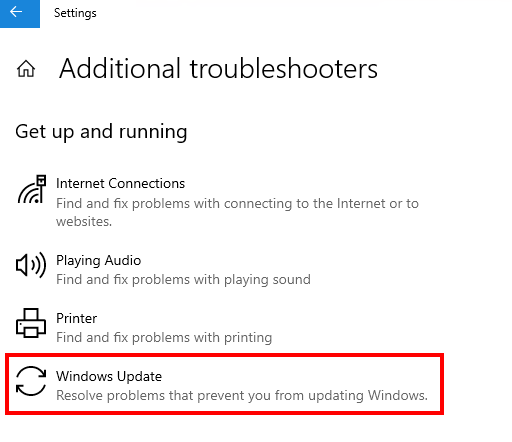
    Method 1: Run Windows update troubleshooter

    • Open Settings > Update and Security
    • Click Troubleshoot > Additional troubleshooter
    • Select Windows Update

    Method 2: Perform clean boot

    This is to temporarily disable third party services to make sure they are not blocking the installation of updates.

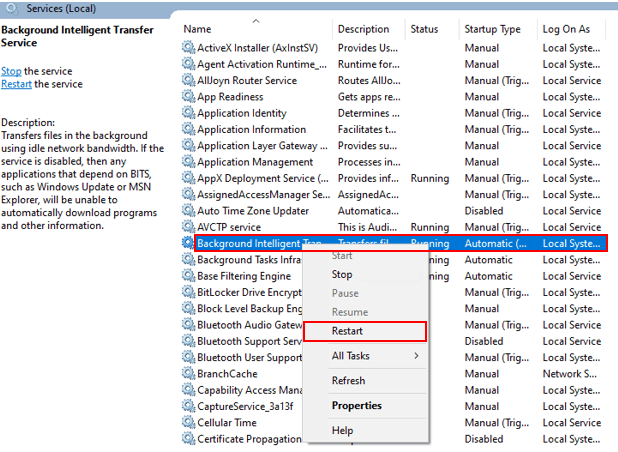
    Method 3: Restart Windows Update components

    • Open Run by pressing Windows Key + R
    • Type services.msc
    • Restart services (Background Intelligent Transfer Service, Cryptographic Services, and Windows update)
    Method 4: Upgrade using Windows 11 Installation Assistant

    Follow the on-screen instructions and wait until the installation is finish.

    This process usually takes 30 mins to an hour.

    Please let us know if you need further help after all the steps above. 

    I hope I was able to help you today.

    Thank you for choosing Microsoft. Have a great day and stay safe! Best regards,Mara May MMicrosoft Community Advocate

    Was this answer helpful?

    1 person found this answer helpful.
    0 comments No comments
  4. Anonymous
    2021-11-12T16:30:36+00:00

    Hi Mara,

    Thank you for your help. Upgrade using ISO file worked. On first try it hanged on 31%. I repeated procedure with clean boot and it successfully completed.

    Now everything works normal. All the applications.

    Thanks again and best regards.

    Was this answer helpful?

    0 comments No comments
  5. Anonymous
    2021-11-11T20:34:07+00:00

    Hi, thank you for you reply and hints.

    I tried all 4 methods:

    First 3 did not help, same Update stuck at 61%.

    Method 4 did not succeeded, got an error Something went wrong, Error Code: 0x8007007f

    Br, Blaz

    Was this answer helpful?

    0 comments No comments