Share via

The request failed due to a fatal device hardware error

Anonymous
2022-06-19T13:46:04+00:00

Hello,

I have a Samsung SSD.

The SSD drive works perfect as an internal main disk of a laptop. The SSD runs Windows 10.

Yet when I take this disk and put in a USB external case.

  • I hear windows acknowledging the connection when connecting the USB to the laptop
  • Yet windows explorer does not open. No drive letter is assigned.

When I open disk management. I see the disk as disk 1 and the only thing I can do is to initialize it. Yet when doing I get the error form the title of this post.

As no drive letter is assigned I cannot run CHKDSK.

When putting another SSD drive in the casing, it works as expected. So it is not the casing.

The drivers are up to date.

Any ideas?

Please no copy paste answers, I have read them. they did not work.

Thank you

Windows for home | Windows 10 | Files, folders, and storage

Locked Question. This question was migrated from the Microsoft Support Community. You can vote on whether it's helpful, but you can't add comments or replies or follow the question.

0 comments No comments

13 answers

Sort by: Most helpful
  1. Anonymous
    2023-08-25T21:15:01+00:00

    Yep that was the source of the problem for me, the interfaces were just incompatible. So before buying an external case that works as an M.2 SSD to USB adapter, check the interface of your SSD and check that the external case explicitly supports it, because it will probably only support SATA or NVME, not both.

    Was this answer helpful?

    7 people found this answer helpful.
    0 comments No comments
  2. Anonymous
    2022-06-20T18:06:37+00:00

    Hi Mosken,

    thank you for your quick reply which is very to the point.

    That is a pleasure.

    I will answer your questions.

    According to your description, I knew that your SSD has a fatal error while connecting to the computer through the hard drive enclosure. Is that right?

    I don't know. I only have this error message I receive (see title) this would suggest a hardware problem, but it would not be the first hardware error message that is triggered by a software error.

    First have you tried connecting the SSD to the original computer again after this error (installed on the drive, not via USB) and see if you can boot again. Because according to the error message, it cannot be ruled out that the hardware problem is the hard disk itself.

    Yes I have and as an internal disk I have no errors.

    Then have you tried using a different port when connecting with the enclosure, or connecting to a different computer.

    Different port yes. Different computer: yes. Even my Android phone.

    Then please confirm in Device Manager that the SSD is correctly recognized as a disk drive and that there is no yellow exclamation mark on the device's icon (because this means the device is not correctly recognized or there is a problem with the driver).

    in the device manager under 'Disk Drives' the USB SSD drive is correctly displayed. No yellow exclamation mark.

    Then try the command below to view the status information of the disk. Please run Power Shell as an administrator ("Win" logo key + "Q", enter "Power Shell ", select "Run as administrator"), and enter the following command.

    Get-PhysicalDisk
    

    With this command only the Disk 0, the internal disk of my laptop is listed. Not the problematic SSD USB external Drive (Disk 1).

    Thank you for your help.

    Bart

    Was this answer helpful?

    3 people found this answer helpful.
    0 comments No comments
  3. Anonymous
    2022-06-20T03:38:29+00:00

    Hi BDesco,

    Welcome to post in Microsoft Community. I'm Mosken, let me help you figure it out.

    According to your description, I knew that your SSD has a fatal error while connecting to the computer through the hard drive enclosure. Is that right?

    First have you tried connecting the SSD to the original computer again after this error (installed on the drive, not via USB) and see if you can boot again. Because according to the error message, it cannot be ruled out that the hardware problem is the hard disk itself.

    Then have you tried using a different port when connecting with the enclosure, or connecting to a different computer.

    Then please confirm in Device Manager that the SSD is correctly recognized as a disk drive and that there is no yellow exclamation mark on the device's icon (because this means the device is not correctly recognized or there is a problem with the driver).

    Then try the command below to view the status information of the disk. Please run Power Shell as an administrator ("Win" logo key + "Q", enter "Power Shell ", select "Run as administrator"), and enter the following command.

    Get-PhysicalDisk
    

    The above steps are provided based on the information I have learned so far, I wish that will be helpful to you. If your problem still cannot be solved by these steps, you could tell me the specific situation in the next reply. I will continue to assist you in solving the problem.

    Best Regards, Mosken- MSFT | Microsoft Community Support Specialist

    Was this answer helpful?

    3 people found this answer helpful.
    0 comments No comments
  4. Anonymous
    2022-06-26T18:05:27+00:00

    Hi Mosken,

    Thanks.

    Some quotes from your message and replies.

    "What I'm not sure about: does it work when you connect it to another computer or phone as an external hard drive,"

    No

    "is there a different tip"

    you mean if I have a hint for you? No, sorry.

    "Can you take a screenshot of the disk management page when the SSD is connected to the computer as an external disk,"

    "Or you can install the SSD into the computer, boot from the original system, try to backup the data you need or the entire disk, then unmount it, then connect it to the new system as an external hard drive, then try to format/initial the disk."

    This is what I have done before posting the question. I cannot format (disk not visible in explorer). I tried to initialize from withinh Disk management: see my original post.

    Reinserting the SSD in the original system, is planned for next weekend.

    Was this answer helpful?

    2 people found this answer helpful.
    0 comments No comments
  5. Anonymous
    2022-06-22T01:42:16+00:00

    Hi BDesco,

    From your reply I can confirm the following information:

    1. Installed on the original device can be started again, no error, perfect
    2. When connected to the current computer through an external hard drive enclosure, it is correctly recognized in the device manager
    3. Power shell command does not list the SSD

    What I'm not sure about: does it work when you connect it to another computer or phone as an external hard drive, or is there a different tip?

    Then, in the original system in the SSD, whether Bitlocker encryption or file system encryption is enabled(as shown in the figure below).

    If Bitlocker encryption is enabled, there is a lock symbol in the disk icon.

    file system encryption
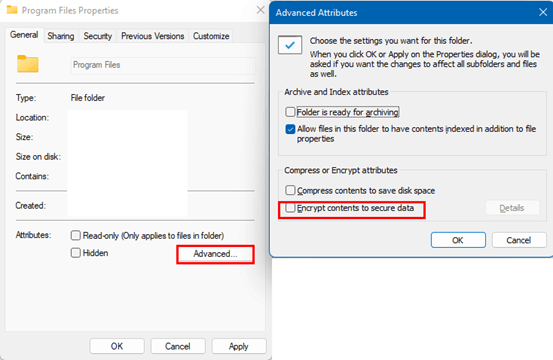
    And what was the version and filesystem format of the original system? Usually Windows system supports NTFS, FAT 32, FAT 16, exFAT, REFS and other file system formats. You can right-click the system partition > Properties > General tab while booting from that SSD and see the type of file system.

    Can you take a screenshot of the disk management page when the SSD is connected to the computer as an external disk, and only send the relevant information to me in the next reply, so as to solve the problem faster and better.

    Or you can install the SSD into the computer, boot from the original system, try to backup the data you need or the entire disk, then unmount it, then connect it to the new system as an external hard drive, then try to format/initial the disk.

    Best Regards,

    Mosken- MSFT | Microsoft Community Support Specialist

    Was this answer helpful?

    1 person found this answer helpful.
    0 comments No comments
