Share via

Headset microphone is not being detected by Windows 11

Anonymous
2022-06-18T16:12:20+00:00

I have a Logitech G335 headset with a built-in microphone. The headset is connected to the only headset port on my laptop (Predator Helios 300 - PH317-54, Windows 11), which, next to it, has a symbol of a headset with a microphone clearly visible. The headphones are detected, labeled "Headphones" in this picture (don't worry about the default devices, the sound ends up going to the headphones):
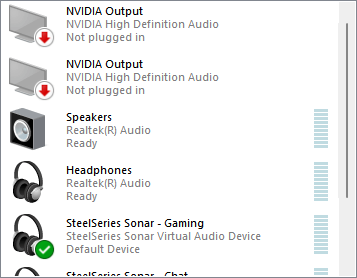
But, in the Recording tab, this happens:
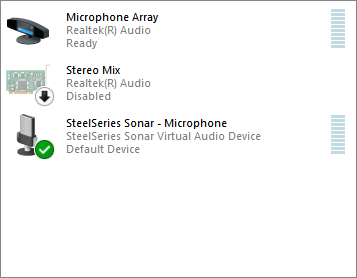
The microphone doesn't even show up as unplugged, it's simply not there.

I'm currently using the Microphone Array as my input device, but the input sounds horrible, and any sound, no matter how silent it is, is heard.

I have tried uninstalling and reinstalling drivers, troubleshooting.

I'm not sure if the issue was there when my computer was on Windows 10, but I would have tried downgrading if it would have let me keep my data.

Edit: I also remember that it used to ask me what type of audio device I was plugging in whenever I plugged in my headset, but it doesn't do that anymore.

Windows for home | Windows 11 | Devices and drivers

Locked Question. This question was migrated from the Microsoft Support Community. You can vote on whether it's helpful, but you can't add comments or replies or follow the question.

0 comments No comments

Answer accepted by question author

  1. JosephT71 9,210 Reputation points
    2022-06-18T22:05:51+00:00

    Plug in your headset, then go to Realtek Audio Console and select "headset".

    That's it, you are using your headset mic. It is not a separate item.

    Lightly tap your headset mic, the microphone array signal meter will jump --- thus verifying that you are using your headset mic.

    10+ people found this answer helpful.
    0 comments No comments

3 additional answers

Sort by: Most helpful
  1. Rodrigo Queiroz 77,500 Reputation points Independent Advisor
    2022-06-18T19:11:49+00:00

    Hi Iland.exe,

    I'm Rodrigo and I will help you.

    On the Start Menu, search for Realtek Audio Console, on the app, go to Device advanced settings and turn on the option "Enable jack detection when device is plugged it" plug your headset, and the notification with the option to select what device did you connect should appear.

    3 people found this answer helpful.
    0 comments No comments
  2. Anonymous
    2022-06-18T22:13:53+00:00

    Thank you so much, you just ended my 12 hour search session on how to get this done!

    I didn't even bother checking that option when trying out the earlier reply.

    Thanks again

    1 person found this answer helpful.
    0 comments No comments
  3. Deleted

    This answer has been deleted due to a violation of our Code of Conduct. The answer was manually reported or identified through automated detection before action was taken. Please refer to our Code of Conduct for more information.


    Comments have been turned off. Learn more

