Share via

Laggy System (High CPU usage of ntoskml.exe!SeAccessCheckWithHint+0x1c790)

Anonymous
2022-08-01T10:41:15+00:00

Hey all,

since last Tuesday, 26 July 2022 my OS has been lagging (hangs for 1-2 seconds then returns to normal). After trying all the usual fixes the issue still persisted and as of yet I have not been able to fix the issue.

It is likely similar to an older issue related to ntoskml.exe!SeAccessCheckWithHint+0x1c620.

First things first my system specs are:

  • Intel i7-6700k
  • 16GB RAM
  • NVIDIA GTX 1080
  • Z170A GAMING PRO CARBON
  • Windows 10 Pro 21H2 Build 19044.1826 Experience Pack 120.2212.4180.0

Next, I want to characterize these events:

After booting these events do not happen directly. They are preceded the first time by a spike in CPU usage by a process with start address nvlddmkm.sys!nvDumpConfig+0x49f510. All 'spikes' exhibit a CPU usage in the range of 7.5-18%. The lags themselves are accompanied by high CPU usage of a process with start address ntoskml.exe!SeAccessCheckWithHint+0x1c790. The usage is however not necessarily restricted to a single thread of this process but can be distributed over multiple threads. The events exhibit clustering behavior, i.e. if an event happens it is likely that the next event is in close temporal proximity. The events do not create any Errors or Warnings that can be read in the Event Manager.

On a less technical level, the whole system freezes for a short amount of time (1-2 seconds). Keyboard inputs and mouse movements are preserved and executed after the freeze resolves. However, the release of a mouse click is not preserved (for example from dragging around windows on the desktop).

Now to what I have already tried to resolve this issue:

  • Restarting the System.
  • Running sfc and dism scans/cleanups.
  • Rolling back Windows updates.
  • Updating all drivers (manually)
  • Stopping services known to lead to problem in particular cases
  • Updating the Chipset drivers.
  • Using the Media Creation Tool to repair install Windows
  • Uninstalling programs that are known to cause problems (Acronis, Cisco Any Connect, ...)
  • [Thisthread suggested that the problem is connected to the sleep function and/or Cisco WebEx is a problem. So I turned off the sleep function and uninstalled the program.]
  • Starting the system with the safeboot configuration (with and without networking). This either resolved the issue or delayed the trigger of the event so long that I rebooted the system with normal startup. This lead me to the assumption that a driver might be the issue and I the noticed the preceding spike of nvlddmkm.sys. This lead me to do the following:
    • Reinstalling the NVIDIA driver (via GeForce Experience).
    • Removing the driver entirely with DDU and reinstalling.
    • Rolling back the driver to an older version where the issue was not present.

These last fixes related to the graphics driver seemed to have worked at first but simply delayed the time until the first event happened.

The only recommended thing I have not tired is to completely wipe and reinstall Windows which I am not willing to do at the moment due to a thesis I am in the process of finishing.

I have also opened a ticket with the NVIDIA support but no word back as of yet.

I would be glad to receive any ideas on how to proceed or if this is a wider known issue.

Thanks for any help in advance.

dododoner

Windows for home | Windows 10 | Performance and system failures

Locked Question. This question was migrated from the Microsoft Support Community. You can vote on whether it's helpful, but you can't add comments or replies or follow the question.

0 comments No comments

3 answers

Sort by: Most helpful
  1. Anonymous
    2022-08-09T09:02:50+00:00

    Hi dododoner,

    From the PSR you provided I noticed that you are using an extended monitor. I suggest you try disconnecting the external monitor and check if it works fine.

    Then did you reinstall the NVIDIA graphics driver with the external screen connected? If so, I recommended you manually reinstall the graphics driver again after disconnecting the external screen.

    Then can you describe specifically the PSR in your last response was trying to convey.

    Please feel free to tell me the progress, I will provide further technical support.

    Best Regards,

    Mosken-MSFT | Microsoft Community Support Specialist

    Was this answer helpful?

    0 comments No comments
  2. Anonymous
    2022-08-02T08:24:04+00:00

    Hi Mosken,

    thank you for your answer.

    Yes, I have been experiencing short periods of unresponsiveness of the OS despite trying all the listed attempts at resolving the issue.

    I have also performed all the proposed steps and the problem has not been resolved.

    Here is a PSR of dragging a Process Explorer Window during which an event occurred.

    dododoner

    Was this answer helpful?

    0 comments No comments
  3. Anonymous
    2022-08-02T03:48:18+00:00

    Hi dododoner,

    Welcome to Microsoft Community. I'm Mosken, let me help you.

    According to your description, I knew that your Windows 10 Pro had recently experienced a short delay, even though you have tried repair commands, reinstalled all device drivers, restarted related services, etc., but it still failed. Is that right?

    First, about ntoskml.exe, the program is a Windows system process that provides the executive and kernel layers of Windows NT with sufficient kernel space.

    Next, I suggest that you try disabling your integrated graphics. "Win" + "X" > "Device Manager" > "Display adapters", double click to expand the entry you will see all your display adapters, then right click your integrated graphics card > "Disable device".

    Then you may try clean system update cache. Please run Command Prompt as an administrator ("Win" logo key + "Q", enter "cmd", select "Run as administrator"), and enter the following commands one by one.

    net stop wuauserv
    
    net stop bits
    
    net stop cryptsvc
    
    rd /s /q c:\Windows\SoftwareDistribution
    
    rd /s /q %temp%
    
    rd /s /q c:\Windows\temp
    
    net start wuauserv
    
    sc config wuauserv start=auto
    
    net start bits
    
    sc config bits start=auto
    
    net start cryptsvc
    
    sc config cryptsvc start=auto
    

    You may also try turning off Delivery Optimization (Win + I open Settings> Update & Security > Advanced Options > Other Options > Delivery Optimization > Allow downloads from other PCs*)*, it is recommended that you try to turn off this function and check if it works, maybe you need to restart the system.

    And try to set virtual memory to be automatically managed by the system. Win + R to open "Run", enter "sysdm.cpl", press Enter to open 'System Properties"> "Advanced" tab > "Performance" > "Settings"> "Advanced" tab"> "Virtual memory"> "Change" , check "Automatically manage paging file size for all drives", and press Enter to confirm.

    Then try disable "Get tips, tricks, and suggestions as you use Windows", shown as below.
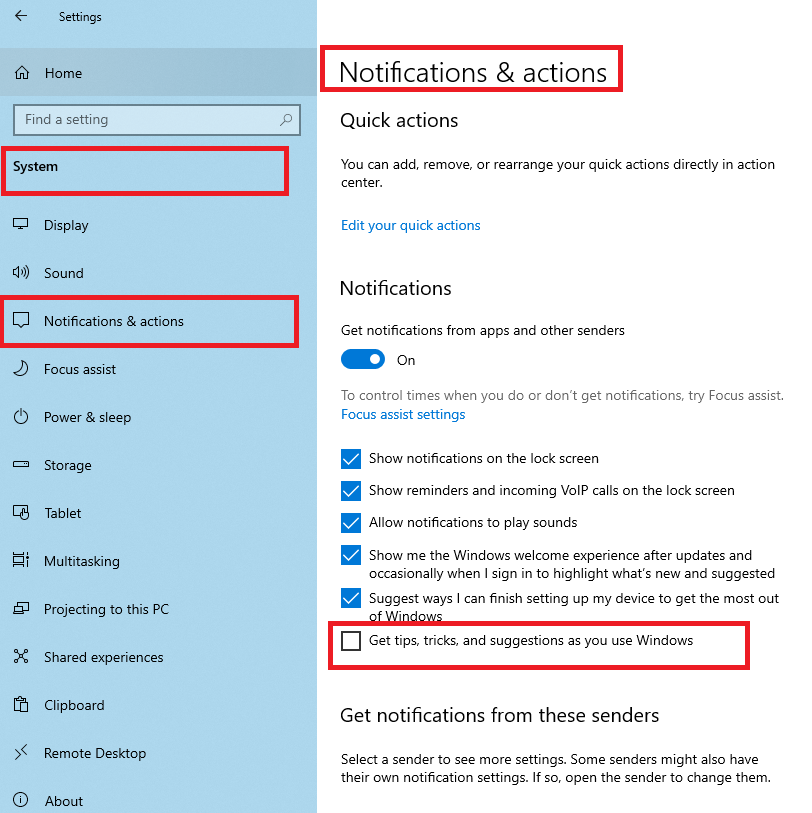
    Additionally, you may try to perform a clean boot, because this mode disables third-party services, which could help rule out the interference of third-party software. You can visit **** How to perform a clean boot in Windows (microsoft.com) for specific steps.

    Disclaimer: A “clean boot” starts Windows with a minimal set of drivers and startup programs. It helps to determine whether a background program is interfering with your game or program and to isolate the cause of a problem.<br><br>These steps of "clean boot" might look complicated at first glance. However, to avoid any trouble for you, please follow them in order and step-by step so that it will help you get you back on track.

    The above steps are provided based on the information I have learned so far, and hope that could help you a little. If the problem still exists, please provide us a full PSR from the beginning, through the whole process, and until the error message is displayed, so we can further investigate.

    Best Regards,

    Mosken-MSFT | Microsoft Community Support Specialist

    Was this answer helpful?

    0 comments No comments
