Share via

After Windows Update, Nvidia Installer cannot continue(...This graphics driver could not find compatible graphics hardware)

Anonymous
2022-08-02T14:26:43+00:00

Hello,

My Gaming Laptop(Acer Predator Helios 300) is new and barely 7 months old. When I'm working inside of Unity or Maya or Connect an external display, the computer kept crashing into Blue Screen of Death. The last time it happened I checked the problem details under Windows Reliability and saw that it gave an error code 116. I used the code to search for solutions and updated the Intel and Nvidia Graphics driver on my computer to the latest one based on the information I found online.

A while ago, while trying to put another Window of a second instance of the VLC media player beside the one on a TV connected to my computer via HDMI, it crashed into Blue Screen of Death.

Below is the link to the minidump file from the last BSOD and the previous ones. https://1drv.ms/u/s!AvUIWHvsWcUFq0epYd0L7bLzdw7V

I was advised to "Clean uninstall the currently installed NVidia driver using DDU then download and install the available driver from the PC manufacturer's/NVidia support website."

After doing a clean uninstall of the NVidia driver using DDU and installing the available driver from the NVidia support website, the problem still persisted. So, I did another clean uninstall of the currently installed Nvidia and Intel drivers using DDU. Upon coming back from Safe Mode, Windows Update showed that I had some Updates. I agreed to install those updates and to my surprise, that windows update installed the versions of the Nvidia and Intel drivers that originally came with the Laptop(See Screenshot below).

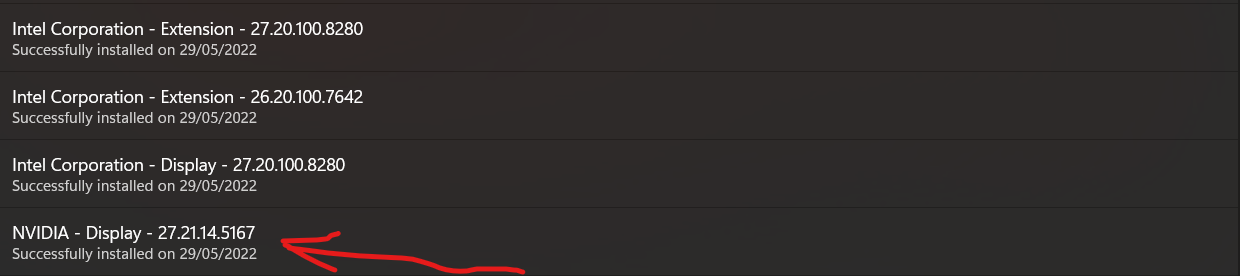
After windows did the installation of the updates, I went to Device Manager and only found the Intel drivers installed under the Display adapter. Nvidia wasn't there(See screenshot below) even when I show all hidden devices, it still did not show Nvidia under Display adapter, Other devices or anywhere else either.

I went to the NVidia support website and downloaded the latest version of Nvidia Drivers but when I run it to install, I get the error "This Nvidia graphics driver is not compatible with this version of windows. This graphics driver could not find compatible graphics hardware"(See screenshot below)
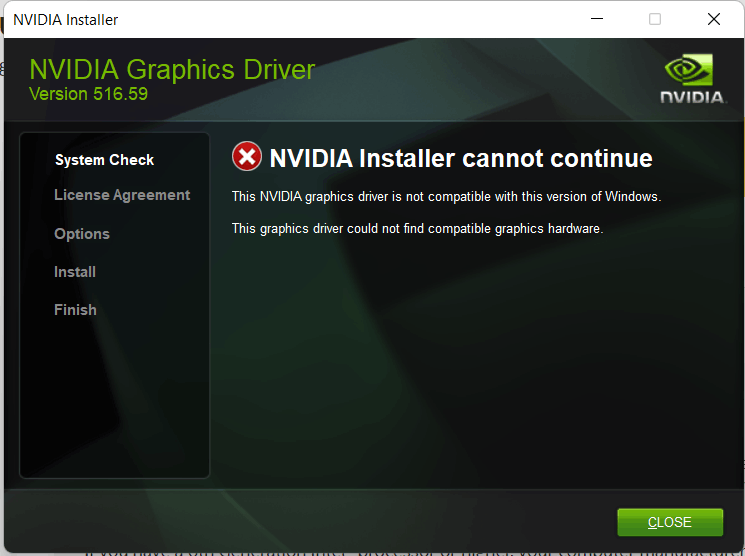
This has been happening since that windows update on 29th May 2022. I can't install any version of NVidia drivers, and my card doesn't show in the device manager. I've updated my Windows from Windows 10 to 11, but it still didn't solve this issue. I've followed all the instructions seen online about "Nvidia Installer cannot continue" none solved my issue.

I tried everything today again before posting this question here. Still no solution.

I'll be glad if you can provide me with insight into the issue.

Thank you for your time.

Windows for home | Windows 11 | Devices and drivers

Locked Question. This question was migrated from the Microsoft Support Community. You can vote on whether it's helpful, but you can't add comments or replies or follow the question.

0 comments No comments

13 answers

Sort by: Most helpful
  1. Anonymous
    2022-08-02T15:41:39+00:00

    Hi LuizScruz,

    Thank you for replying. I'm grateful.

    I removed the NVidia and Intel drivers again using DDU.

    I downloaded GeForce Experience and tried installing it, but it gave the error "Nvidia Geforce Experience requires an Nvidia GPU..."(See screenshot below)

    I downloaded the Intel Driver & Support Assistant to check for Intel driver updates and it only showed updates for the Intel Display and doesn't show anything for Nvidia(See screenshot below)

    And the NVidia Driver Installer is still giving the same error as before.

    What shall I do?

    Thank you for your time.

    Was this answer helpful?

    2 people found this answer helpful.
    0 comments No comments
  2. Anonymous
    2022-08-03T15:25:52+00:00

    Dear Jehoshaphatia,do you remember having done any procedure to disable the NVIDIA video card?

    Initially I suggest that you try the following;

    Click on the Windows search bar and type: msconfig press Enter;

    Activate the Selective startup option and check the options: Load system services and Load startup items;

    Click Apply and restart the PC;

    Go to Device Manager and check if NVIDIA graphics card is displayed;

    Hope this helps, see you soon!

    Was this answer helpful?

    0 comments No comments
  3. Anonymous
    2022-08-03T13:57:45+00:00

    Hi LuizScruz,

    Thank you for helping out.

    Below is the screenshot of the devices listed in (>) Display adapters; after installing the Intel drivers.

    Thank you for your time.

    Was this answer helpful?

    0 comments No comments
  4. Anonymous
    2022-08-02T17:39:55+00:00

    Dear Jehoshaphatia,download and install any Intel drivers found;

    After installing the Intel drivers do the following;

    Right click on the start menu and go to Device Manager;

    Click (>) Display adapters to expand the session;;

    Send a screenshot of the devices listed in (>) Display adapters;

    See you soon!

    Was this answer helpful?

    0 comments No comments
  5. Anonymous
    2022-08-02T15:08:10+00:00

    Hello Jehoshaphatia, welcome to the Microsoft community, I'll be happy to help you today;

    I understand that you're having trouble updating your NVIDIA and Intel drivers;

    Initially I suggest pausing Windows Update updates for 7 days to prevent drivers from being installed automatically;

    Remove NVIDIA and INtel drivers again using DDU;

    Now download GeForce Experience and try to update drivers there:

    https://www.nvidia.com/en-us/geforce/geforce-ex...

    Download the Intel:registered: Driver & Support Assistant (Intel:registered: DSA) to check for Intel driver updates:

    https://www.intel.com/content/www/us/en/support...

    Check that the drivers are now updated correctly;

    Hope it works, see you soon!

    Was this answer helpful?

    0 comments No comments
