Share via

Windows 11 - Unable to add a printer

Anonymous
2022-01-19T23:23:14+00:00

I was having a problem sending print jobs to one of my printers, so I decided to remove and re-add the printer. I had no problem removing the printer from the system, but I'm not able to add it back again. When I go to Settings>Bluetooth & devices>Printers & scanners and click on the "Add device" button, the button dims, and I get the spinning circle, but nothing else happens. I tried re-installing Windows 11, but no dice. I tried restarting with only Microsoft services running, also to no avail. I tried going through the "Devices and Printers" control panel - also does nothing. I tried using the printer setup installer, but it gets to the "Searching for Printer" window and never finds anything.

System Info:

Windows 11 ver. 21H2, OS build 22000.318

Printer: Dell E310dw

Windows for home | Windows 11 | Devices and drivers

Locked Question. This question was migrated from the Microsoft Support Community. You can vote on whether it's helpful, but you can't add comments or replies or follow the question.

0 comments No comments

31 answers

Sort by: Most helpful
  1. Anonymous
    2022-05-06T11:52:00+00:00

    Well i am at and endpass, i am absolutely buggered. Have seen all the "solved" solutions, not one worked, i am in the middle of uninstalling updates to see if that will sort it. I need access to my cd printer and that isnt happening, even with the "latest" drivers, the print spooler keeps stopping, that tells you its something to do with the windoze operating system itself. And i shouldnt have to keep manually starting the print spooler, and i cannot even get my canon printer to install because of it.

    Looks like its back to win 10, again. The first time was due to the slow down for amd cpus and now a basic operation of a computer system.

    Time wasted and takes so long to install the software and set it all up.... Microsoft have NOT learnt their lesson from past cockups.

    Was this answer helpful?

    30+ people found this answer helpful.
    0 comments No comments
  2. Anonymous
    2022-01-22T20:17:42+00:00

    Thank you for taking the time to reply. Let me begin by reiterating that this is not a problem I am having with a printer that is currently installed in the system; it started out that way, but it's become a different problem. It's not just that I can't reinstall the problem printer - I can't install any printer.

    Anyway, here's a rundown of the results of your suggested remedies:

    Option 1 - I can't really say what the final results of this step are. I started the troubleshooter about 15 minutes ago, and it seems to be hung up on "Checking the Spooler service..."

    Option 2 - There is no Print queue listed for the printer in question, which is not surprising, since (as mentioned in my OP) I uninstalled the printer.

    Option 3 - There was one Cumulative Update available since my OP. I installed it, restarted, and still have the problem.

    As for the suggested support link, I had pretty much completed the first 2½ steps on my own (as detailed in my OP):

    Step 1 Unplug and restart your printer - check

    Step 2 Check cables or wireless connection - My computer is connected to my home network, I can print to my other printer, so the computer to network connection is OK. My other computers can print to the "problem" printer, so the printer to network connection is also OK.

    Step 3 Uninstall and reinstall your printer - This is the crux of the problem. I had no problem uninstalling the printer; the problem is I can't reinstall it. From the support link (BTW, this link ins for Windows 10, so there are some minor differences):

    Reinstall a wireless printer

    1. Select the Start  button, then select Settings  > Devices  > Printers & scanners.
      Open Printers & scanners settings
    2. Select Add a printer or scanner. Wait for your device to find nearby printers, choose the one you want, and then select Add device.

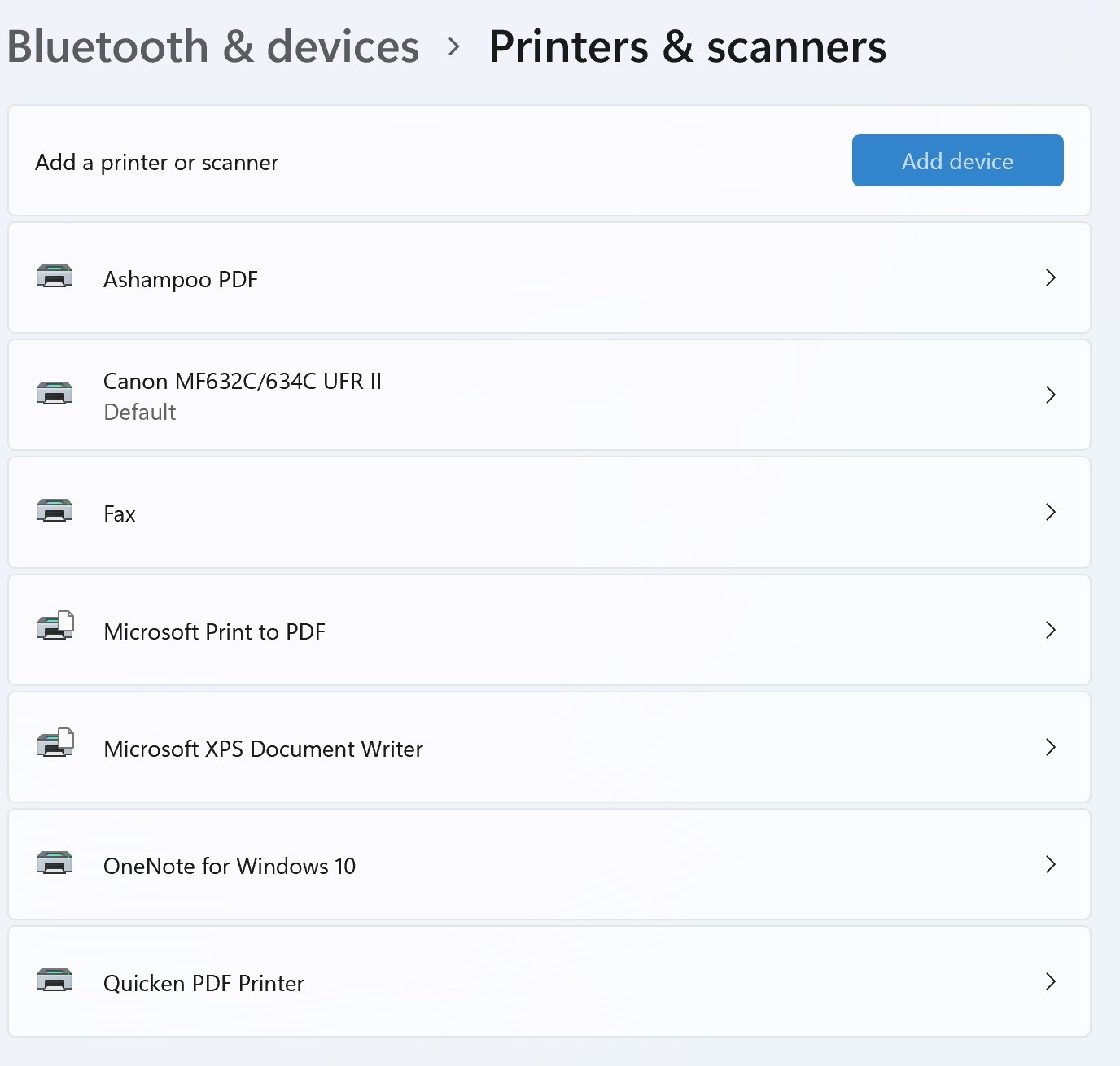
    For that matter, I can't install any printer because the "Add device" button does nothing but hang up the settings window. (Notice the dimmed-out "Add device" button.)
    Was this answer helpful?

    20+ people found this answer helpful.
    0 comments No comments
  3. Anonymous
    2022-04-22T22:22:21+00:00

    Thanks for the reply - sounds great, but where is this guide?

    Was this answer helpful?

    20+ people found this answer helpful.
    0 comments No comments
  4. Anonymous
    2022-09-09T20:43:14+00:00

    ROLL BACK TO W10 THATS THE ONLY FIX

    Was this answer helpful?

    20+ people found this answer helpful.
    0 comments No comments
  5. Anonymous
    2022-01-20T03:30:52+00:00

    Hello, I'm Louie, and I'm happy to help you today. Hope you're doing well and safe there. I understand that you're having trouble with your printer.

    You may try the following solutions below:

    Option 1

    • Open up a Run dialog box by pressing Windows key + R. Next, type ‘ms-settings:troubleshoot‘ inside the text box and press Enter to open up the Troubleshoot tab of the Settings app.
    • Once you’re inside the Troubleshoot tab, click on Other Troubleshooters from the menu on the right-hand side.
    • Once you’re inside the Other Troubleshooters menu, click on the Run button associated with the Printer.
    • At the initial screen, wait until the scan is complete. If a viable issue is identified, you will be presented with a screen when you can apply the recommended fix.
    • If a viable recommended fix is pushed forward by the troubleshooter, click on Apply this fix to enforce it.

    Note: Depending on the fix that gets recommended, you might be required to do some manual steps – just follow the on-screen instructions.

    • Reboot your PC and see if you are now able to connect to your network printer.

    Option 2

    • Press Windows key + X to open the Power User Menu.
    • Press M key on the keyboard to open Device Manager.
    • Once you’re inside Device Manager, scroll down through the list of installed devices and expand the Print queues section.
    • Next, right-click on the printer that you’re having issues with and choose Update driver from the context menu.
    • At the next screen, click on Search automatically for updated driver software.
    • Wait until the scan is complete. If a new driver version is found, follow the on-screen instructions to download & install it on your computer.
    • Restart your device.

    Option 3

    • Press Windows key + R to open up a Run dialog box. Next, type ‘ms-settings:windowsupdate’ inside the text box and press Enter to open up the Windows Update tab of the Settings menu on Windows 11.
    • Once you’re inside the Windows Update screen, move down to the right-hand section and click on Check for Updates to check if the hotfix is ready to be installed.
    • If a new update is waiting to be installed, click on Install Now and wait patiently until the new hotfix gets installed locally.
    • Once the update is installed, reboot your PC and attempt to connect your network printer once again after your computer boots back up.

    I would also suggest you to try the steps provided on the support link below to fix issues with your printer:

    https://support.microsoft.com/en-us/help/401540...

    Hope this helps and looking forward for good results.

    Sincerely,

    Louie

    Was this answer helpful?

    10+ people found this answer helpful.
    0 comments No comments
