Share via

Operation has been cancelled due to restrictions in effect on this Computer. Please contact your system administrator

Anonymous
2022-08-16T20:28:16+00:00

"Operation has been cancelled due to restrictions in effect on this Computer. Please contact your system administrator". This message is popped when I am trying to run any administrative tools. I have came across this problem very recently. I also made another local account where this problems are not present. I don't want to delete my current account since it has got many important files saved and programs installed.

I have already searched the internet about the problem, the solutions which i found consisted of changing group policy. I cannot open group policy application. Do help me.

Screenshots are given :-

Additionally I am posting a link to the screen recording : https://vimeo.com/740132026

Windows for home | Windows 10 | Security and privacy

Locked Question. This question was migrated from the Microsoft Support Community. You can vote on whether it's helpful, but you can't add comments or replies or follow the question.

0 comments No comments
Answer accepted by question author
  1. Anonymous
    2022-08-17T07:04:28+00:00

    Hi

    Thanks for your reply.

    I am glad that your problem has been solved.

    In the future, if you encounter any difficult problems while using Microsoft products and services, you are welcome to consult the Microsoft community again, and we will try our best to help you.

    Thank you very much for your trust and support of Microsoft, and I sincerely wish you a happy life and success in your work!

    Best regards

    Derrick Qian | Microsoft Community Support Specialist

    1 person found this answer helpful.
    0 comments No comments

3 additional answers

Sort by: Most helpful
  1. Anonymous
    2022-10-26T03:23:25+00:00

    You will need to check for two specific group policies

    Policies location:

    Group policy > User Configuration > Administrative Templates > System

    Check:

    • Don't run specified Windows applications
    • Run only specified Windows applications

    In my case:

    I had "Run only specified Windows applications" Enabled to ONLY allow excel.exe (see below)

    Luckily I had an RMM agent that allowed remoting into a root environment on the computer to fix the group policy issue

    If it weren't for this I'm not sure how I would access group policy

    Some ideas could be:

    • If domain joined/AAD joined, create a GPO to disable this policy and push out to this computer. Reboot to allow the computer to refresh/apply domain policies
    • Get access to an elevated cmd environment
    • Nuke/reinstall windows (last resort) but recover HDD files (if any) first.

    0 comments No comments
  2. Anonymous
    2022-08-17T06:57:17+00:00

    Sir the problem was not fixed according to the way you proposed since the group policy editor was not accessible after rebooting.

    But I found the solution to my problem and I was able to get the group policy editor along with running administrative tools using the method given in this link below.

    Windows 11 cannot find Gpedit.msc? Apply these fixes (windowsreport.com)

    [I only used method 1 from the blog "Enable Group Policy Editor with a batch file"]

    Thanks for your time.

    0 comments No comments
  3. Anonymous
    2022-08-17T01:58:02+00:00

    Hi

    Welcome to Microsoft community.

    If you can't access group policy at present, you can also try to create a local document and save it as a registry file in reg format, and then double-click it to modify your registry.

    Right click the desktop menu to create a new text document. Then copy and paste the following command into the document.

    Windows Registry Editor Version 5.00

    [-HKEY_LOCAL_MACHINE\SOFTWARE\Microsoft\Windows\CurrentVersion\policies]

    [-HKEY_CURRENT_USER\SOFTWARE\Microsoft\Windows\CurrentVersion\policies]

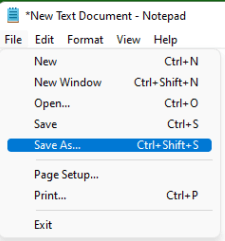
    Then click the file option in the upper left corner and save as.
    Image

    Modify the suffix name**(.reg)** and ANSI format as follows, click save, and then double-click to run it. If the display is successful, the registry modification is completed. Then restart your computer to check.

    Image

    Disclaimer: Generally, modifying registry subkeys or workgroups is intended for advanced users, administrators, and IT Professionals. It can help fix some problems, however, serious problems might occur if you modify the registry incorrectly. Therefore, make sure that you follow these steps carefully. For further protection, back up the registry before you modify it. Then, you can restore the registry if a problem occurs. For more information about how to back up and restore the registry, click here to view the articleHow to back up and restore the registry in Windows (microsoft.com)

    Best regards

    Derrick Qian | Microsoft Community Support Specialist

    0 comments No comments
