Share via

Restore Windows Media Player on a Windows 10 Home PC

Anonymous
2022-12-10T14:14:27+00:00

Can I restore Windows Media Player using, C:\Program Files (x86)\Windows Media Player\setup_wm.exe?

Ruth

Windows for home | Windows 10 | Windows update

Locked Question. This question was migrated from the Microsoft Support Community. You can vote on whether it's helpful, but you can't add comments or replies or follow the question.

0 comments No comments

3 answers

Sort by: Most helpful
  1. Ramesh 176.1K Reputation points Volunteer Moderator
    2022-12-10T14:35:43+00:00

    To install Windows Media Player, open Settings, and click Apps.

    Click Optional Features.

    Click "Add a Feature".

    Select Windows media player from the list and click Install.

    (or)

    Run OptionalFeatures.exe

    Expand "Media Features"

    Enable "Windows Media Player"

    Click OK.

    7 people found this answer helpful.
    0 comments No comments
  2. Ramesh 176.1K Reputation points Volunteer Moderator
    2022-12-11T15:28:44+00:00

    Ruth,

    Right-click Start, click Run.

    Type optionalfeatures.exe and click OK.

    Enable "Windows Media Player"
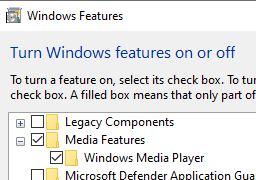
    If the option is already enabled. it means WMP is installed on the computer. See if you can start WMP by running "C:\Program Files\Windows Media Player\wmplayer.exe".

    If that doesn't help, uninstall WMP and reinstall it.

    • In the OptionalFeatures dialog, uncheck "Windows Media Player" and click OK. You may be asked to restart Windows.
    • After a restart, re-open the OptionalFeatures dialog and enable "Windows Media Player" and click OK.
    5 people found this answer helpful.
    0 comments No comments
  3. Anonymous
    2022-12-11T15:19:18+00:00

    Ramesh

    Where do I: Run OptionalFeature.exe?

    I don't know what you mean - Expand Media Features.

    On my screen  Media Features has a check mark.  I clicked on it and nothing changed.
    

    How do I enable Windows Media Player?

    Ruth

    3 people found this answer helpful.
    0 comments No comments
