Share via

How can I remove some of the default Windows keyboard shortcuts?

Anonymous
2023-01-26T10:23:29+00:00

There are many actions in windows, already bound to default shortcuts, that I will never use, for example:

Wint+W - The worst one, opens the widget panel, that I have already removed through group policy
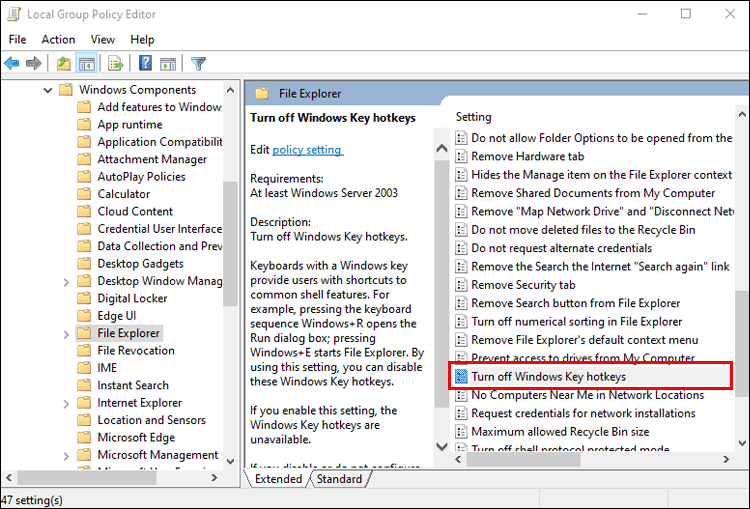
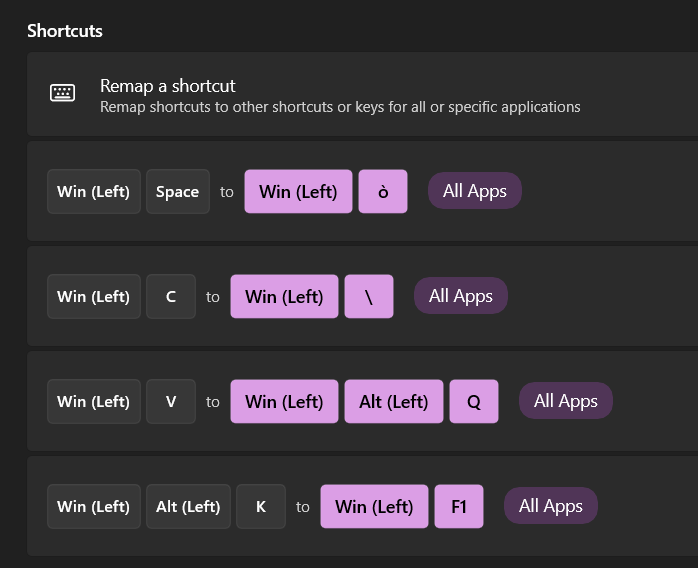
Win+C - Open "Chat", (I wonder who the hell uses it), luckily it can also be disabled through group policy
Win+T - Cycle through all the icons in the taskbar, terrible if you have multiple monitors, and doesn't work in reverse with shift (like other tab commands)

Win+F - Open the feedback hub

Win+Alt+D - Pops up the calendar

Win+B - Focus the expand arrow of the taskbar (tray icons menu)

Win+K - Cast, I use it once a year (maybe) and not on my desktop PC
Win+Q / Win+S - Open the search menu, I dont' understand the difference between the two, I usually just press the win key alone

Win+. / Win+è - Open the emoji panel, it's ok but I don't need the same shortcut twice

Win+Space - Change the keyboard language

Win+Alt+K - Mutes the microphone on windows 11, but it only works for Teams in practice, I remapped it to PowerToys Mute that is global

All the solutions I found are not real solutions, for example:

  • Disabling every shortcut through group policies (I tried it but it is not applicable, I'm too used to some shortcuts and I don't want to remove them)
  • Using PowerToys to remap the default shortucts to very improbable shortcuts, and then use those inside other programs as shortcuts, this is what I'm currently using but it's really nonsense..
Even if I have to go through all the registry and change every key one by one I would do it, but please tell me where do I have to look for!

Windows for home | Windows 11 | Input and language

Locked Question. This question was migrated from the Microsoft Support Community. You can vote on whether it's helpful, but you can't add comments or replies or follow the question.

0 comments No comments

5 answers

Sort by: Most helpful
  1. Anonymous
    2023-01-26T19:33:14+00:00

    Since you are a developer, and we don't handle developer-level questions here at all in this basic consumer forum

    I don't think this question is only interesting at developer level, and I don't think I'm the only one with this issue. For the Chat and Widget I found a solution by myself that didn't require any additional software and I put it on StackExchange, but for the other shortcuts I though this could be the right place.

    I'll try to ask on the Microsoft developer forum too.

    Thanks for your time.

    2 people found this answer helpful.
    0 comments No comments
  2. Anonymous
    2023-01-26T11:20:58+00:00

    Thank you, Greg, for your answer!

    How are these shortcuts interfering with performance? If not I'd leave them alone as it could cause unintended consequences.

    I use a lot of shortcuts to do stuff, I also have custom keys on my keyboard mapped differently for each application, but sometimes I work remotely and I have not access to that keyboard and I have to rely on regular keystrokes.
    To remember all these keyboard I try to assign the command to a letter that resembles me what the command does, for example I discovered that Windows+Alt+D was occupied by the calendar shortcut because I wanted to use it to paste the current Date (I do rename a lot of files)

    If you need the shortcuts to be freed up for something else, usually the app will install them.

    Apparently keystrokes that include the Win key are not overridden by programs, I am an Unreal Engine dev and in the commands, the Win key is not even selectable, also it could be pressed accidentally and that's why many "gaming keyboards" have a button to disable it.

    Thanks for the links, unfortunately they all refer to the first solution I posted (Disabling all shortcuts), and that's not an option.
    I should have also mentioned AutoHotKey in my list, but I really don't like it, and considering it would do the same as PowerToys (that I also use for other purposes) I don't want to run another software just for this)

    1 person found this answer helpful.
    0 comments No comments
  3. Anonymous
    2023-01-26T20:18:33+00:00

    Marco, it is interesting to many of us. But the level of expertise is entirely different here from a developer's forum where you could get more interactive feedback from peers on it.

    I always try to put myself in the customer's shoes to think "where would I take this to know I'd get the best expertise on it" and have 14 years in forums to draw ideas from which are hopefully beneficial to others.

    0 comments No comments
  4. Anonymous
    2023-01-26T19:22:09+00:00

    Since you are a developer, and we don't handle developer-level questions here at all in this basic consumer forum, I would ask this at one of the developers' forums here:

    https://social.msdn.microsoft.com/Forums/en-US/...

    https://stackoverflow.com/

    https://developer.microsoft.com/en-us/windows/s...

    https://www.quora.com/What-are-the-top-10-websi...

    I hope it helps.

    0 comments No comments
  5. Reported
    Anonymous
    2023-01-26T11:03:15+00:00

    Hi Marco. I'm Greg, here to help you with this.

    How are these shortcuts interfering with performance? If not I'd leave them alone as it could cause unintended consequences.

    If you need the shortcuts to be freed up for something else, usually the app will install them.

    If not then you can remove and manage Windows 11 default hotkey shortcuts using these methods:

    https://www.makeuseof.com/windows-10-disable-ke...

    https://superuser.com/questions/1744717/how-to-...

    https://www.xda-developers.com/windows-11-keybo...

    https://www.youtube.com/watch?v=_fd-9gM-Ac8

    https://www.youtube.com/watch?v=Wn6chBzdULs

    Feel free to ask back any questions. Based on the detailed results you post back, I will have other suggestions if necessary.

    ______________________________________________

    Standard Disclaimer: There are links to non-Microsoft websites. The pages appear to be providing accurate, safe information. Watch out for ads on the sites that may advertise products frequently classified as a PUP (Potentially Unwanted Products). Thoroughly research any product advertised on the sites before you decide to download and install it.

    0 comments No comments
