Share via

Language Pack Download Stuck.

Anonymous
2023-02-04T16:47:31+00:00

I've already read and tried the methods I've seen on other threads about this issue, but none of the fixes seems to work.

I've been trying to install the Japanese Language Pack for about 6 hours now to no avail.

Yes, my Microsoft license does have multi-language support (I've got 3 languages installed so far Eng, Esp (Mex), Esp (Chile))

So far I've tried to run an sfc scan and rebooting, problem persist

I've also tried deleting the SoftwareDistribution files and reboot again, but the problem persist

I've updated to the lastest version of Win 11 and once again rebooted, but the problem persist

I've also ran the DISM commands on cmd and rebooted once more, but guess what? the problem persist.

I also tried to download it in safe mode with Network options, but that wasn't possible.

I won't be doing a clean install of windows just for a language pack, that's just absurd and not an actual solution.

I find insulting the fact that the world most used PC OS can't do something as basic as downloading a language pack without a problem, an even more frustrating is the fact that Microsoft doesn't offer any alternative to install a language pack and instead chooses to gatekeep the feature by only allowing it via the settings menu which doesn't work as intended. Even with windows updates you had the alternative to download manually an update from the official source, but here there's no alternative to make things work, which is infuriating.

Please, let me know if there's any alternative method to install the japanese language pack or any other fix I might try.

Thanks in advantage.

Windows for home | Windows 11 | Install and upgrade

Locked Question. This question was migrated from the Microsoft Support Community. You can vote on whether it's helpful, but you can't add comments or replies or follow the question.

0 comments No comments

19 answers

Sort by: Most helpful
  1. Anonymous
    2023-06-15T22:05:36+00:00

    Hi everyone,

    I have the exact same issue... Still, I found a workaround:

    While the module has been installed, do not download the Basic Typing, Handwriting and Speeching.

    Instead:

    1. Click on the 3 dots next to the label "Microsoft Input Method Editor".
    2. Then go to keyboard options.
    3. Select the first (main) option.
    4. In the compatibility section, switch on the "previous version" button.

    The previous IME menu should appear when clicking on the tray icon.

    Was this answer helpful?

    1 person found this answer helpful.
    0 comments No comments
  2. Anonymous
    2023-02-07T08:37:57+00:00

    Hi Ringo Günther,

    The new error code seems to point to a Windows Update issue.

    You mentioned that you tried SFC and DISM methods, please note that generally speaking, SFC and DISM commands are used in combination.

    Since I don't know the completeness of your previous solutions, the following content will include some of the methods you mentioned earlier.

    Method 1: Manually set Startup type of Windows Update related services.

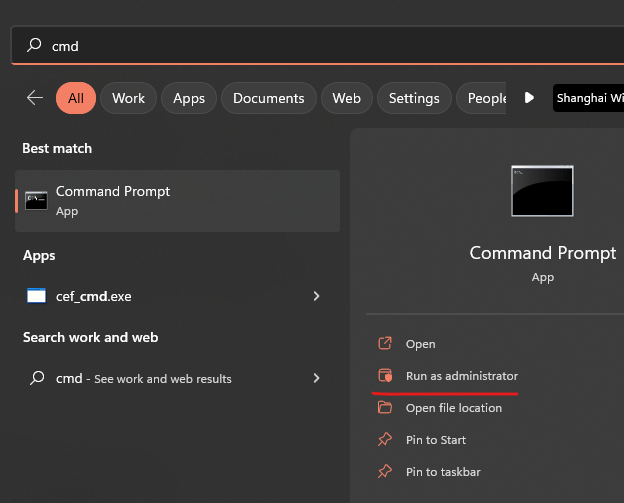
    In the search box on the taskbar, type cmd.

    Find Command Prompt in the search results and select Run as administrator.  (Select Yesor Continue, when prompted by the User Account Control.) 
    In the Administrator: Command Prompt window, type the following commands and then press Enterkey after each one:

    SC config wuauserv start= auto

    SC config bits start= auto

    SC config cryptsvc start= auto
    SC config trustedinstaller start= auto

    Restart your computer and try to update again.

    Method 2: Rename software distribution folders

    In the search box on the taskbar, type command prompt , then select Run as administrator from the list of options. Select Yes . Next, in the window that appears, type the following commands one at a time, including the spaces as shown. After you type each command, press Enter. Then let each command complete before you type the next command.

    net stop bits

    net stop wuauserv

    ren %systemroot%\softwaredistribution softwaredistribution.bak

    ren %systemroot%\system32\catroot2 catroot2.bak

    net start bits

    net start wuauserv

    After all these commands are completed, close the Command Prompt window and restart your computer.

    Method 3: Use System File Checker.

    • In the search box on the taskbar, type command prompt, and right-click or press and hold Command Prompt (Desktop app) from the list of results. Select Run as administrator, and then selectYes.
    • Type DISM.exe /Online /Cleanup-image /Restorehealth (note the space before each "/"), and then press Enter. (Note: This step may take a few minutes to start and complete.)
    • After you see a message that says "The operation completed successfully," type sfc /scannow (note the space between "sfc" and "/") and press Enter.
    • After you see a message that says, "Verification 100% complete," type exit and press Enter.

    Method 4: Try to see if the issue recurs under the new user profile.

    Method 5: Perform an in-place upgrade or repair upgrade.

    I can understand your idea that you don't want to perform a clean installation of Windows, and I've found other ways to fix Windows for you.

    Disclaimer: Please back up all your important data before performing it.

    If there is anything not clear, please do not hesitate to let me know.

    Best Regards,

    Kyo - MSFT | Microsoft Community Support Specialist

    Was this answer helpful?

    0 comments No comments
  3. Anonymous
    2023-02-06T01:36:58+00:00

    Hi Ringo Günther,

    Thank you for getting back to us.

    What is your specific network environment? Have you used tools like game accelerators, VPNs?

    Have you tested for this issue in other non-American languages? For example, Korean and Vietnamese in Asia?

    Are there other available Windows devices in your current network environment? If so, does the problem still occur when you download Japanese using the device?

    In my test, I was able to successfully download Japanese and use it normally.

    Perhaps you might consider performing a clean boot to rule out third-party interference and temporarily disable Windows Firewall and then test if the problem recurs.

    How to perform a clean boot in Windows - Microsoft Support

    Disclaimer: A “clean boot” starts Windows with a minimal set of drivers and startup programs. It helps to determine whether a background program is interfering with your game or program and to isolate the cause of a problem.

    These steps of "clean boot" might look complicated at first glance. However, to avoid any trouble for you, please follow them in order and step-by step so that it will help you get you back on track.

    Turn Microsoft Defender Firewall on or off - Microsoft Support

    Disclaimer: Follow these steps to temporarily turn off real-time Microsoft Defender antivirus protection in Windows Security. However, keep in mind that if you do so, your device may be vulnerable to threats. So please turn on it immediately once issue fixed.

    If there is anything not clear, please do not hesitate to let me know.

    Best Regards,

    Kyo - MSFT | Microsoft Community Support Specialist

    Was this answer helpful?

    0 comments No comments
  4. Anonymous
    2023-02-05T08:25:03+00:00

    Hello Kyo,

    Thank you for your response.

    I would have to dive deep into my browsing history in order to get all the threads I've searched info about this (My web browser history is flooded with Microsoft boards right now) However I still do have these 2 ones open.

    https://answers.microsoft.com/en-us/windows/forum/all/windows-10-stuck-at-downloading-language-pack/ce220458-3ea4-48a3-a9c1-eb74eec92a2b https://answers.microsoft.com/en-us/windows/forum/all/win-10-language-pack-stuck-at-downloading/2e86d790-1f77-48d6-8d01-c20a24137154

    I'm running Windows 11 with the latest 22H2 update, according to winver it's 22H2(Os Build 22621.1194).

    The settings menu, as well as trying to install the language pack via PowerShell doesn't provide any info, the download just get stuck at around 70%.

    I've also talked with customer support and they told me to try rebooting my PC and leave the "Updates are on your way" screen until it's gone. I don't know how long it took, since I just left it that way and went to sleep, however, once I woke up and checked, the basic typing, handwritting and speech were still missing.

    I've just tried out what you suggested, but sadly, the results are the same.

    Image

    Was this answer helpful?

    0 comments No comments
  5. Anonymous
    2023-02-05T07:12:58+00:00

    Hi Ringo Günther,

    Welcome to Microsoft Community.

    I can understand your feelings.

    Regarding language pack, there is no separate download link for general users.

    I would like to confirm some information with you.

    • Can you let me know which threads you read?
    • What is your current version of Windows? Type winver in the Search Box to get detailed system information.
    • Is the problem you're having just a stuck progress? Are there any additional error codes?

    Many of the methods you mentioned do not seem to involve UAC and Network, perhaps you can consider approaches that apply to UAC or Network.

    About UAC

    • Try temporarily disabling UAC.

    Type UAC in the Search Box, select and click Change User Account Control settings.

    Adjust to the lowest level. As shown below.

    Disclaimer: Follow these steps to temporarily disable User Account Control (UAC). However, keep in mind that if you do so, your device may be vulnerable to threats. So please turn on it immediately once issue fixed.

    About the network

    • Run network commands. Try running these network commands to manually reset the TCP/IP stack, release and renew the IP address, and flush and reset the DNS client resolver cache:
    1. Select Search on the taskbar, type Command prompt. The Command Prompt button will appear. To the right of it, select Run as administratorYes.
    2. At the command prompt, run the following commands in the listed order, and then check to see if that fixes your connection problem:
      • Type netsh winsock reset and selectEnter.
      • Type netsh int ip reset and select Enter.
      • Type ipconfig /release and select Enter.
      • Type ipconfig /renew and select Enter.
      • Type ipconfig /flushdns and select Enter.

    If there is anything not clear, please do not hesitate to let me know.

    Best Regards,

    Kyo - MSFT | Microsoft Community Support Specialist

    Was this answer helpful?

    0 comments No comments
