Microsoft 365 and Office | Install, redeem, activate | For business | Windows
Processes in Microsoft 365 for setting up Office apps, redeeming product keys, and activating licenses.

This browser is no longer supported.
Upgrade to Microsoft Edge to take advantage of the latest features, security updates, and technical support.
' cx='32' cy='32' r='32' /%3E%3Ctext x='50%25' y='55%25' dominant-baseline='middle' text-anchor='middle' fill='%23FFF' %3EME%3C/text%3E%3C/svg%3E)
I had this Office 2019 Professional Plus installed on my laptop running Windows 10. I was able to custom install it when I installed it in March 2021.
I've just bought a new laptop, and done a Clean install of Windows 11. It refuses to give me the option to custom install the parts that I want of Office 2019.
Further, if I go to Apps & Features (Add or Remove programs), and try to Modify Office 2019 to remove such things as Skype and OneNote then I am only offered to Repair Office on or off line and not to modify the content.
So how do I uninstall the unwanted parts of Office 2019 in Windows 11?
Processes in Microsoft 365 for setting up Office apps, redeeming product keys, and activating licenses.
Answer accepted by question author

Hi @Mark Ellis
In most cases, you can't uninstall an individual app if it's included in your Office suite. The only way to uninstall an individual app is if you purchased it as a stand-alone app. Generally, Add or Remove Features are available to most MSI versions of Office like Office Professional Plus 2016. As Office Professional Plus 2019 uses C2R as its installation technology, you may not find it.
Here is a thread as well which discusses the same issue and you can try out some troubleshooting steps from this and see if that helps you to sort the Issue.
Uninstalling components from Microsoft Office Professional Plus 2019
https://learn.microsoft.com/en-us/answers/questions/287483/uninstalling-components-from-microsoft-office-prof.html
Hope this resolves your Query!!
---------
--If the reply is helpful, please Upvote and Accept it as an answer--

Hi,@Mark Ellis
According to your description, you may have installed the MSI version of Office on your computer before. The MSI version of Office has the Modify function in the Windows Settings, but the Office 2019 Professional Plus version is a Click-to-run version, and there is no Modify function in the Windows Settings.
A feasible way is to use the Office Customization Tool to customize the Office to be installed, and then remove Skype for Business or OneNote from the App to be installed.
Finally use this configuration file to install Office.
Office Customization Tool link: https://config.office.com/deploymentsettings
Before installing the new Office, it is recommended to uninstall the original Office using the official uninstall tool of Office, here is the link: https://support.microsoft.com/en-us/office/uninstall-office-from-a-pc-9dd49b83-264a-477a-8fcc-2fdf5dbf61d8
After the uninstallation is complete, first download the Office Deployment Tool: https://www.microsoft.com/en-us/download/details.aspx?id=49117
After unzipping and opening, there will be a setup.exe file and a template configuration file, and then click the Office Customization Tool link to customize your Office.
On the Office Customization Tools page, you can uncheck Skype For Business or OneNote in the Apps options.

Follow the steps to select the customization options for your Office
Finally, you can export your Office custom files in the upper right corner
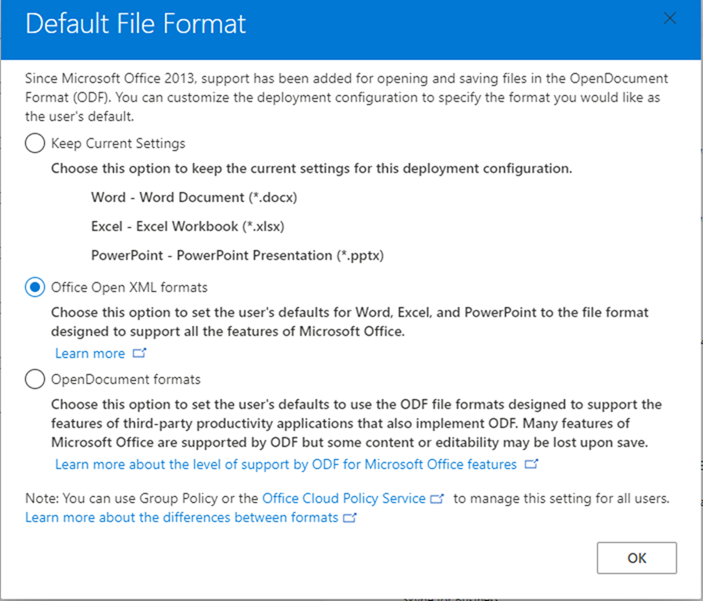
In the example I named this custom file Office2019Configuration
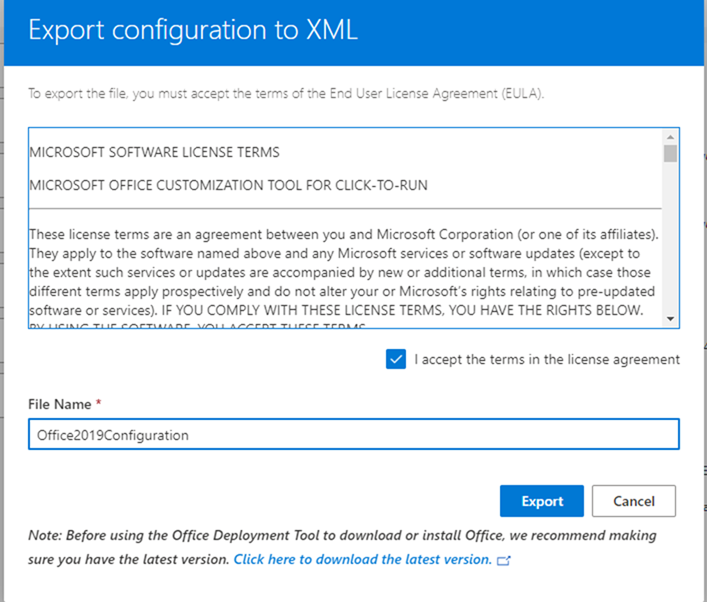
Then choose to open the file in text format and save it in the ODT file directory for example: C:\Users\Administrator\Desktop\ODT
Finally, run CMD with administrator privileges and navigate to the file directory where ODT is located and type: setup.exe /configure Office2019Configuration.xml
Here is a sample screenshot

Installed.
Here is a link for a detailed introduction to ODT: https://learn.microsoft.com/en-us/deployoffice/overview-office-deployment-tool
Best regards,
Ceasar Chen
If the response is helpful, please click "Accept Answer" and upvote it.
Note: Please follow the steps in our documentation to enable e-mail notifications if you want to receive the related email notification for this thread.
