Share via

The touchpad buttons arent working suddenly

Anonymous
2023-03-19T18:24:07+00:00

I have a HP Envy, fully updated on windows10.

Just woke up today to work on my laptop and the right/left "buttons" area dont really work when i press.

the touchpad itself works so using one/two fingers i can work, but i dont understand what to do.

i tried checking for touchpad updates but nothing. I think i managed to do troubleshooting and nothing.

any advice?

Windows for home | Windows 10 | Devices and drivers

Locked Question. This question was migrated from the Microsoft Support Community. You can vote on whether it's helpful, but you can't add comments or replies or follow the question.

0 comments No comments

3 answers

Sort by: Most helpful
  1. Anonymous
    2023-03-20T19:46:58+00:00

    Hello and thank you for the answer!

    I am forwarding the below screenshots in case they can help.

    My laptop right now has files and i havent backed up yet, so im a bit afraid to do anything that will jeopardize my files. (i will be buying a new external drive soon)

    It happened yesterday morning. Nothing weird happened the day before. I woke up to continue my work, and i noticed it. My touchpad can work with finger taps as well so i have been doing that. i thought maybe it needs time to rework or something. But same thing continues today.

    Will any of the ways you mentioned above help? Is there a chance the issue is with the computer itself? like something underneath the pad is not letting it work properly? i cant press on the "button" spots very well nor it makes a sound when i try like it used to.

    But i havent done anything to it so im not sure. the whole surface works for tap-clicks though.

    1 person found this answer helpful.
    0 comments No comments
  2. Anonymous
    2023-03-20T07:14:58+00:00

    Hello Evie Liontou,

    Good to see you in Microsoft Community.

    Firstly, could you let me know the specific system version? You can check it by pressing the Win key + R key, and typing "winver", then press Enter, please take a screenshot/photo of it, and only send the relevant information without PII in the next reply.

    Did this occur recently, or has it been going on for a while? If it was recent, did you have any special actions (such as installing system updates*,* hardware changes*, etc.*) before that?

    You may uninstall the touchpad in Device Manager ("Win*" + "X" > "Device Manager" > "Mice and other pointing devices", find the device, then right click > "Uninstall device"*), then reboot to see if it works. The system will automatically search and install the driver suitable for your device generally.

    If it still does not work, you may go to the official website of your device manufacturer (Official HP® Laptop Drivers and Software Download) to download the corresponding model driver and install it manually. After the installation is completed, reboot and see if the device works properly.
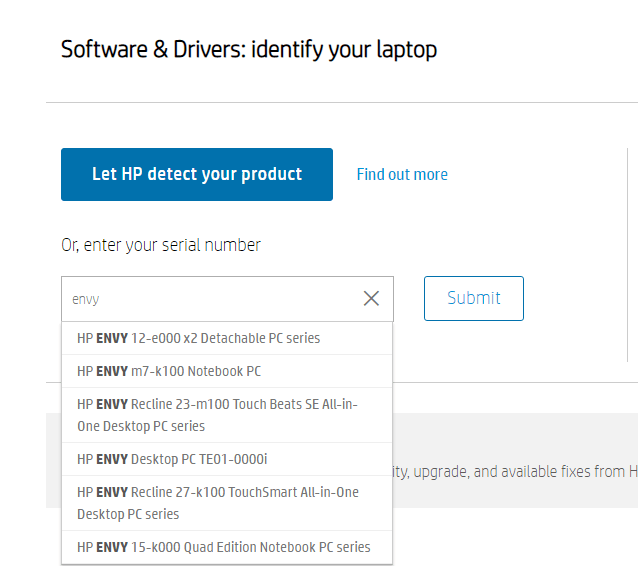
    Disclaimer*: This is a non-Microsoft website. The page appears to be providing accurate and safe information. Watch out for ads on the site that may advertise products frequently classified as PUP (Potentially Unwanted Products). Thoroughly research any product advertised on the site before you decide to download and install it.*

    And you may Perform a clean boot **** to see if the touchpad works fine, this is a troubleshooting step. In this mode, we can further confirm whether it is caused by system problem or third-party software or personalized settings. So, please be patient.

    Disclaimer*: A “clean boot” starts Windows with a minimal set of drivers and startup programs. It helps to determine whether a background program is interfering with your game or program and to isolate the cause of a problem.*

    These steps of "clean boot" might look complicated at first glance. However, to avoid any trouble for you, please follow them in order and step-by-step so that it will help you get you back on track.

    If anything is unclear, please do not hesitate to let me know.

    Best Regards,

    Mosken_L - MSFT | Microsoft Community Support Specialist

    1 person found this answer helpful.
    0 comments No comments
  3. Anonymous
    2023-03-30T01:48:30+00:00

    The above troubleshooting steps (installing the driver and clean boot) will not affect the data on your disk, and are just some means to identify the problem, which can help us further confirm your specific problem (whether it is a system problem or a hardware problem). So you don't have to worry too much.

    And, you are right, the current anomaly may indeed lie in the computer hardware itself, such as the presence of foreign objects between the touchpad panel and the response panel. Therefore, it is a good choice to seek further technical support from the after-sales service of your computer equipment manufacturer to help you with hardware inspection. Hope your problem will be solved soon!

    In addition, I noticed that there is a system device firmware in your device manager that needs to be updated, I suggest you go to the official website of your device manufacturer to download the corresponding model driver and install it manually. After the installation is completed, reboot and see if the device works properly.

    0 comments No comments
