Share via

Second monitor suddenly stopped working, now gives me "No Signal"

Anonymous
2023-05-12T18:58:53+00:00

I'm using an Acer Predator Helios 300 with Windows 10 on it, and I keep a second monitor (an LG TV) connected to it at all times. One day, right after I turned on the computer, it started showing me a "No Signal" message on the TV screen, despite the fact that the computer recognizes there's a second monitor plugged in (and what exactly this second monitor is, an LG TV). Yes, I'm in the correct input in the TV. Now, I've tried many, many things:

  • It's not the fault of the HDMI cable as I was able to plug in something else to this TV using the same cable, in the same input, and I tried different cables as well
  • I tried connecting the computer to a different TV but it gave me the same No Signal message
  • I've tried rebooting/turning off and on again both the computer and the TV, as well as disconnecting all the peripherals and reconnecting them again, in different orders
  • I tried updating the NVIDIA driver (as this laptop uses both Intel UHD Graphics and an NVIDIA GeForce RTX 2060) but nothing happened
  • Right clicking both display adapters in the device manager and choosing Update tells me the drivers are up to date
  • Installed the available Windows updates
  • Pressed Windows logo Key + Ctrl + Shift + B

The only thing that worked was using a system restore point that dated the day before the second monitor stopped working (if I'm not mistaken it said something about a Windows module installer), but it only lasted a day or so before the second monitor stopped working again. So I did the same thing yesterday, a system restore point and it worked again, but then today right after I turned on the PC, while the second monitor was working, it then started blinking/flickering to black and then stopped working again.

All of this started happening after I got back from a trip, so the computer hadn't been turned on for about 10 days. It worked fine the first time I booted it up after I got back, but then it stopped working the day after. The only new thing that I installed then was a new wireless Logitech mouse.

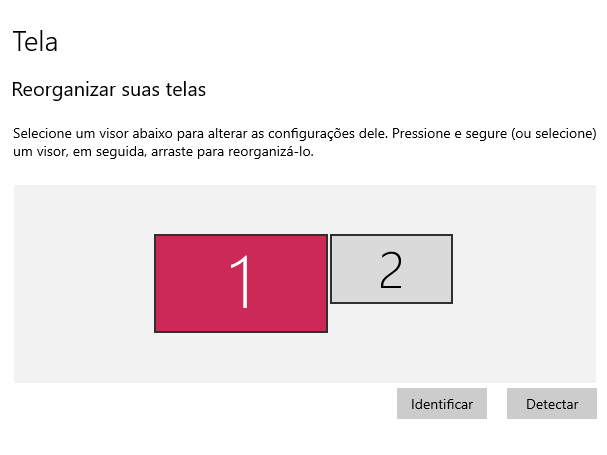
If I go to Display Settings it shows me this:
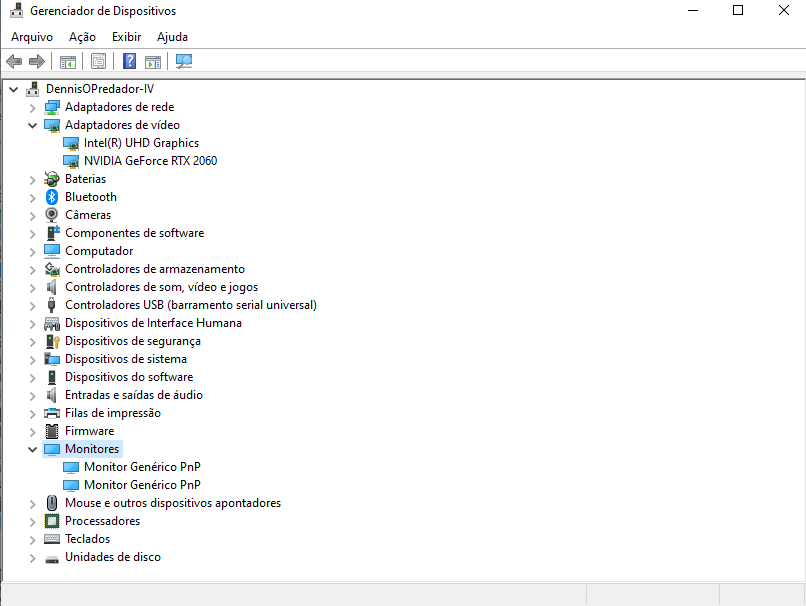
If I go to device manager it shows me two Generic PnP monitors under Monitors (I'm using the laptop screen and have the second monitor connected):
My specs:

Acer Predator PH315-53

Windows 10 Home Single Language 64 bits

Intel Core i7-10750H CPU @ 2.60GHz

Intel UHD Graphics (27.20.100.8280 version of driver)

NVIDIA GeForce RTX 2060 (Studio Driver version 531.41)

Windows for home | Windows 10 | Devices and drivers

Locked Question. This question was migrated from the Microsoft Support Community. You can vote on whether it's helpful, but you can't add comments or replies or follow the question.

0 comments No comments

8 answers

Sort by: Most helpful
  1. Anonymous
    2023-05-12T19:32:05+00:00

    Hello! My name is Cristiano. I'm an Independent Advisor. I'm glad to help you.

    Here are some things you can try:

    1. Make sure that the cable connecting your computer to the second monitor is secure and not damaged. Try using a different cable if you have one.
    2. Make sure that the monitor is set to the correct input and that the resolution and refresh rate are set to the correct values.
    3. Make sure that the drivers for your graphics card and monitor are up to date. You can download the latest drivers from the manufacturer's website.
    4. Reset the graphics card by pressing the Windows key + Ctrl + Shift + B.
    5. If you have both an Intel and NVIDIA graphics card, you can try disabling the Intel graphics in the Device Manager.
    6. If you have multiple ports on your computer, try using a different port to connect the second monitor.
    7. If you have tried all of the above and your second monitor is still not working, you can contact the manufacturer for further assistance.

    Based on the information you have provided, it seems likely that the problem is with the second monitor itself. If you have tried all of the above and your second monitor is still not working, you can contact the manufacturer for further assistance.

    40+ people found this answer helpful.
    0 comments No comments
  2. Anonymous
    2023-05-12T20:15:28+00:00

    I have tried all of the above, and the issue persists. The second monitor works if I plug in something else, and the same issue persists if I try to connect the computer to other monitors as well. If it were an issue with the second monitor itself, then why would using a system restore point work (for a time, until the problem popped back in again?)

    20+ people found this answer helpful.
    0 comments No comments
  3. Anonymous
    2023-09-16T03:32:09+00:00

    Turn of gsync in the Nvidia settings and it should work.

    10 people found this answer helpful.
    0 comments No comments
  4. Anonymous
    2023-05-14T03:01:48+00:00

    So I spent the entire day trying out different things, from disconnecting, turning things off and on again, reinstalling/updating drivers and nothing worked, I kept getting the No Signal message on the second screen... and then when I turn the PC on today, plug the HDMI in, the second screen turns on like normal. Well then.

    It did turn back off after a few seconds though, spent some time getting the same No Signal, and then it started flickering on/off after a while until it finally stayed on, and it's been working for the rest of the day. I'm not sure what happened, if I did anything, or if it'll continue to work in the following days, but yeah. I guess if it goes bad again tomorrow or afterwards I could post here again, but so far it works.

    Thank you for trying to help though!

    9 people found this answer helpful.
    0 comments No comments
  5. Anonymous
    2023-05-12T22:56:47+00:00

    Hi, ana_pudim,

    Sorry to hear you're experiencing this issue.

    Usually, this problem is related to a corrupted or outdated driver. There is a new version(531.79) on the Nvidia website released on 02/05/2023 and a new version (31.0.101.2115) on the Intel website released on 12/29/2022, downloading and installing these versions should fix the problem. You can download them at these links.

    https://www.nvidia.com/Download/driverResults.a...

    https://www.intel.com/content/www/us/en/support...

    Note: This is a non-Microsoft website. The page appears to be providing accurate, safe information. Watch out for ads on the site that may advertise products frequently classified as a PUP (Potentially Unwanted Products). Thoroughly research any product advertised on the site before you decide to download and install it.

    7 people found this answer helpful.
    0 comments No comments
