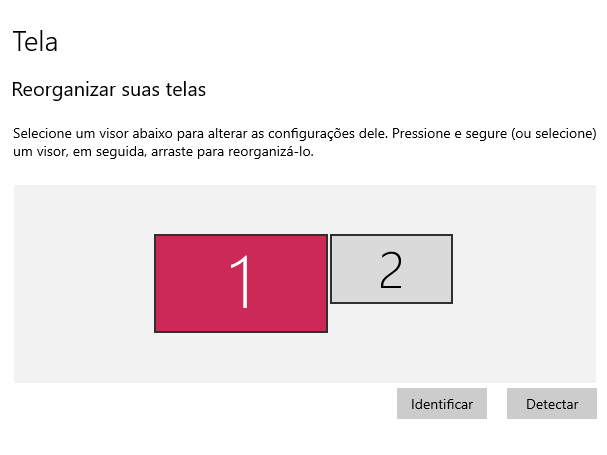
I'm using an Acer Predator Helios 300 with Windows 10 on it, and I keep a second monitor (an LG TV) connected to it at all times. One day, right after I turned on the computer, it started showing me a "No Signal" message on the TV screen, despite the fact that the computer recognizes there's a second monitor plugged in (and what exactly this second monitor is, an LG TV). Yes, I'm in the correct input in the TV. Now, I've tried many, many things:
- It's not the fault of the HDMI cable as I was able to plug in something else to this TV using the same cable, in the same input, and I tried different cables as well
- I tried connecting the computer to a different TV but it gave me the same No Signal message
- I've tried rebooting/turning off and on again both the computer and the TV, as well as disconnecting all the peripherals and reconnecting them again, in different orders
- I tried updating the NVIDIA driver (as this laptop uses both Intel UHD Graphics and an NVIDIA GeForce RTX 2060) but nothing happened
- Right clicking both display adapters in the device manager and choosing Update tells me the drivers are up to date
- Installed the available Windows updates
- Pressed Windows logo Key + Ctrl + Shift + B
The only thing that worked was using a system restore point that dated the day before the second monitor stopped working (if I'm not mistaken it said something about a Windows module installer), but it only lasted a day or so before the second monitor stopped working again. So I did the same thing yesterday, a system restore point and it worked again, but then today right after I turned on the PC, while the second monitor was working, it then started blinking/flickering to black and then stopped working again.
All of this started happening after I got back from a trip, so the computer hadn't been turned on for about 10 days. It worked fine the first time I booted it up after I got back, but then it stopped working the day after. The only new thing that I installed then was a new wireless Logitech mouse.
If I go to Display Settings it shows me this:
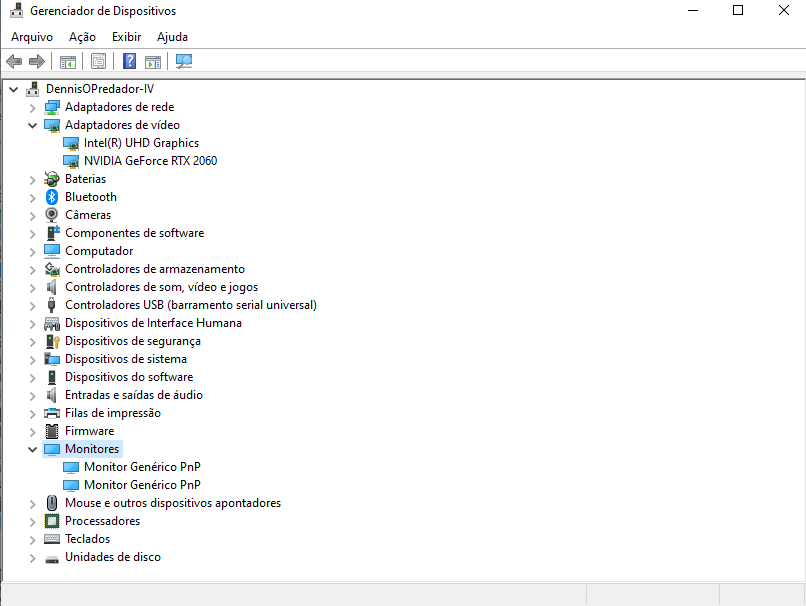
If I go to device manager it shows me two Generic PnP monitors under Monitors (I'm using the laptop screen and have the second monitor connected):
My specs:
Acer Predator PH315-53
Windows 10 Home Single Language 64 bits
Intel Core i7-10750H CPU @ 2.60GHz
Intel UHD Graphics (27.20.100.8280 version of driver)
NVIDIA GeForce RTX 2060 (Studio Driver version 531.41)
' cx='32' cy='32' r='32' /%3E%3Ctext x='50%25' y='55%25' dominant-baseline='middle' text-anchor='middle' fill='%23FFF' %3EA%3C/text%3E%3C/svg%3E)
