Share via

Keyboard shortcuts not working in Microsoft white board

Anonymous
2023-07-25T18:08:06+00:00

I am pressing the hot keys in Microsoft white board, but they are not working.

I have uninstalled and reinstalled white board , also restarted my computer , but keyboard shortcuts are not working

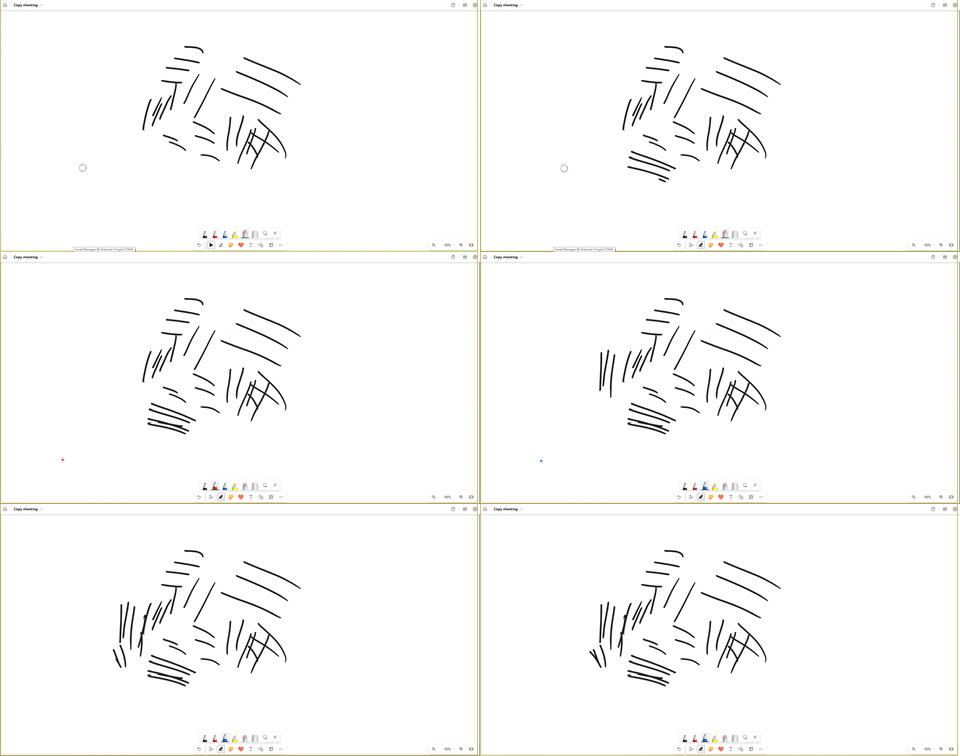
Even if I select eraser with Alt + X +1 , all i get is a black pen, same for pen 2 and pen 3 option.

Only pen 1 is selected whatever I press in keyboard.

WIndows 10.

I7 10 gen

https://i.imgur.com/IL4P6dM.png

Here is a gif

https://media.giphy.com/media/v1.Y2lkPTc5MGI3NjExaWJ1NXd6amYzc3o0eTF6eWc4MDJuYmxwZ3podWZjeGM0cGtsMHNucyZlcD12MV9pbnRlcm5hbF9naWZfYnlfaWQmY3Q9Zw/1lAINtOuvSyQV7m3ST/giphy.gif

Windows for home | Windows 10 | Microsoft Store

Locked Question. This question was migrated from the Microsoft Support Community. You can vote on whether it's helpful, but you can't add comments or replies or follow the question.

0 comments No comments

7 answers

Sort by: Most helpful
  1. Anonymous
    2023-07-26T07:07:52+00:00
    1. Check Keyboard Language Settings: Make sure your keyboard language settings are correct. Sometimes, if your keyboard is set to a different language or layout, it can cause issues with shortcuts. To check this on Windows 10, go to "Settings" > "Time & Language" > "Language." Ensure that the correct language and keyboard layout are selected. (Done -> does not works)
    2. Try Different Keyboard Shortcuts: If certain shortcuts are not working, try using different combinations or alternative shortcuts provided by Microsoft Whiteboard. For example, to select the eraser, you can try using "Ctrl + E" or "Ctrl + Shift + E." (Done -> does not works , as there is no hot key of "Ctrl + E" or "Ctrl + Shift + E." for eraser in new version of white board "Alt + X +1 " is the new hot key )
    3. Ensure Whiteboard has Focus: Make sure the Microsoft Whiteboard application has the active focus on your screen before trying the keyboard shortcuts. Click on the Whiteboard window to ensure it is active. (Done -> does not works)
    4. Check for Conflicting Keyboard Software: If you have third-party keyboard management software installed, it might interfere with the default keyboard shortcuts. Consider temporarily disabling such software and see if the issue is resolved. (No other keyboard)
    5. Update Graphics Drivers: Outdated graphics drivers can sometimes cause compatibility issues with applications. Update your graphics drivers to the latest version from the manufacturer's website. (up to date)
    6. Run Whiteboard as Administrator: Try running Microsoft Whiteboard with administrative privileges. Right-click on the Whiteboard shortcut or executable and select "Run as administrator." This can sometimes resolve permission-related issues. (Done -> does not works)
    7. Reset Whiteboard Settings: If the issue persists, try resetting Microsoft Whiteboard to its default settings. To do this, go to "Settings" > "Apps" > "Microsoft Whiteboard," and click on "Advanced options." Then, click "Reset" to reset the app. (Done -> does not works)
    8. Create a local administrator account and check whether the problem disappears under the new account. (Done -> does not works)

    This is more of an internal issue in White board (some programming or coding error), as when I am selecting the options by clicking on them, they are being selected. But when I am pressing hot keys they are being selected on the bottom panel, but white board is not reflecting them on software.

    (see the image )

    https://i.imgur.com/UTchkPk.png

    Also there seems to be some issue with white board not able to properly take inputs from mouse and writing pad at the same time. It seems to be getting confused.

    Please repair it ASAP. the problem has only come up in last 6-7 days.

    5 people found this answer helpful.
    0 comments No comments
  2. Anonymous
    2023-11-01T13:54:55+00:00

    I have just reinstalled Microsoft Whiteboard from the Microsoft Store today and it did not help. What I did find through trial and error was that some of the shortcuts are incorrectly labelled and need Ctrl as well. For example the shortcuts for the different pens is shown in the tooltip as being Alt+W+1 or 2 or 3. That does not work, but Ctrl+Alt+W+1 or 2 or 3 does work. Some of them (Eraser, ruler) don't need you to press Crtrl.

    @Microsoft, please sort out the shortcuts and toltips, as they are a mess.

    Update: Using the above shortcut keys does select the correct option, but does not apply it. I.e. I have my pens set to black, red, blue. Ctrl+Alt+W+1 selects the black pen, but if the red pen weas previously selected, even though the black pen is selected and the cursor is black, the pen is red.

    This is clearly a bug, please fix it. Thanks

    4 people found this answer helpful.
    0 comments No comments
  3. Anonymous
    2023-08-19T20:16:21+00:00

    I have the same issue. Is it resolved by now?

    In my case, hotkeys don't even select the objects in the panel.

    4 people found this answer helpful.
    0 comments No comments
  4. Anonymous
    2023-08-20T05:38:00+00:00

    Sorry has not been resolved, so much frustrated with bad Microsoft customer support.

    3 people found this answer helpful.
    0 comments No comments
  5. Anonymous
    2023-07-26T06:12:48+00:00

    Hi

    Welcome to Microsoft community.

    If you are experiencing issues with keyboard shortcuts not working as expected in Microsoft Whiteboard, there are a few troubleshooting steps you can try:

    1. Check Keyboard Language Settings: Make sure your keyboard language settings are correct. Sometimes, if your keyboard is set to a different language or layout, it can cause issues with shortcuts. To check this on Windows 10, go to "Settings" > "Time & Language" > "Language." Ensure that the correct language and keyboard layout are selected.
    2. Try Different Keyboard Shortcuts: If certain shortcuts are not working, try using different combinations or alternative shortcuts provided by Microsoft Whiteboard. For example, to select the eraser, you can try using "Ctrl + E" or "Ctrl + Shift + E."
    3. Ensure Whiteboard has Focus: Make sure the Microsoft Whiteboard application has the active focus on your screen before trying the keyboard shortcuts. Click on the Whiteboard window to ensure it is active.
    4. Check for Conflicting Keyboard Software: If you have third-party keyboard management software installed, it might interfere with the default keyboard shortcuts. Consider temporarily disabling such software and see if the issue is resolved.
    5. Update Graphics Drivers: Outdated graphics drivers can sometimes cause compatibility issues with applications. Update your graphics drivers to the latest version from the manufacturer's website.
    6. Run Whiteboard as Administrator: Try running Microsoft Whiteboard with administrative privileges. Right-click on the Whiteboard shortcut or executable and select "Run as administrator." This can sometimes resolve permission-related issues.
    7. Reset Whiteboard Settings: If the issue persists, try resetting Microsoft Whiteboard to its default settings. To do this, go to "Settings" > "Apps" > "Microsoft Whiteboard," and click on "Advanced options." Then, click "Reset" to reset the app.
    8. Create a local administrator account and check whether the problem disappears under the new account.

    Please feel free to let me know if you have any further updates, thanks.

    Best regards

    Derrick Qian | Microsoft Community Support Specialist

    1 person found this answer helpful.
    0 comments No comments