Hello The Ham
Thanks for raising your concerns about High Precision Event Timer (HPET).
Generally Speaking, Disabling the High Precision Event Timer (HPET) is a troubleshooting step that has been suggested in the past to address certain gaming issues, particularly related to micro-stuttering or frame rate inconsistencies. However, whether it is worth disabling HPET in 2023 depends on various factors.
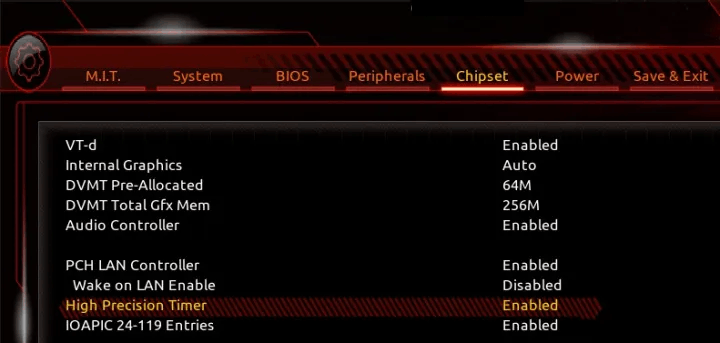
Some motherboard manufacturers may have this feature turned on by default in the BIOS, here is a reference image from my own BIOS, for which you can see that the feature is on. From my personal experience, turning this feature off does not actually improve frame rates much. You can try going to the BIOS yourself to see if this setting exists and follow the motherboard manufacturer's instructions.
| Here are some conclusions, In recent years, advancements in hardware and software have made HPET less critical for most systems. <br><br><br><ol><li><p data-prewrap="true">Modern operating systems and hardware components typically utilize more accurate and efficient timers, such as the <strong><em>ACPI Power Management Timer (PMT)</em></strong> or the <strong><em>system's default HPET implementation.</em></strong></p><p data-prewrap="true"></p></li><li><p data-prewrap="true">Disabling HPET may not have a noticeable impact on your gaming performance or the specific issue you described. It's more likely that the cable change you mentioned, upgrading to DisplayPort 1.4 and unlocking G-Sync, will have a greater impact on resolving your stuttering issue.</p><p data-prewrap="true"></p></li><li><p data-prewrap="true">If you are not experiencing any significant issues or performance problems,<strong><em><span style="color: rgba(0, 128, 57, 1)"> it is advisable to leave HPET enabled, as it can still be beneficial for some applications and system functions. Disabling it without a specific reason may introduce unforeseen complications or instability in certain scenarios.</span></em></strong></p></li></ol> |
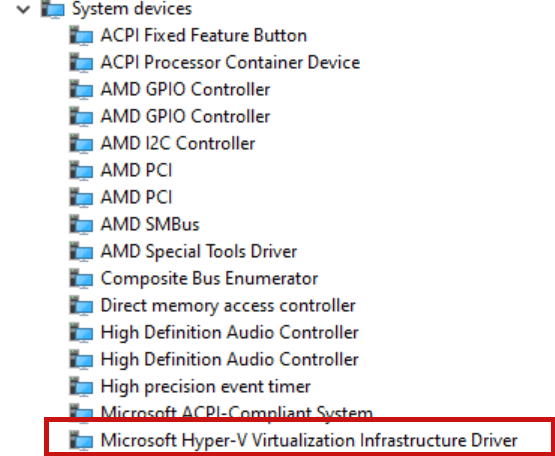
In the meantime, I have observed that the current computer has the Hyper-V Virtualization Infrastructure Driver on System devices, as shown in the image. Although your current device appears to be Windows 10, I think you could try turning off some of the Windows features and defender settings for virtualisation and see if it helps with frame rate performance.
Please see the following article on how to disable these features (Windows 11 is used as a reference, but if these settings exist in Windows 10, it is also worth looking at)
Options to Optimize Gaming Performance in Windows 11 - Microsoft Support
Hope it helps! If any update, welcome to share with us.
Best regards,
Chandy |Microsoft Community Support Specialist
' cx='32' cy='32' r='32' /%3E%3Ctext x='50%25' y='55%25' dominant-baseline='middle' text-anchor='middle' fill='%23FFF' %3EA%3C/text%3E%3C/svg%3E)
