Share via

How to PERMANENTLY disable Handsfree Telephony for a bluetooth device in Windows 11?

Anonymous
2023-06-15T02:37:19+00:00

I need to disable Handsfree Telephony to make my Sony WH-1000XM4 headphones work in MS Teams (as resolved in this thread).

But, the setting keeps being enabled again - possibly during reboot or bluetooth re-connection.

Is there a way to PERMANENTLY disable the setting for this device?

Aside: I'm open to a fix in powershell if anyone knows the API calls for toggling the setting based on BT connection trigger.

Windows for home | Windows 11 | Devices and drivers

Locked Question. This question was migrated from the Microsoft Support Community. You can vote on whether it's helpful, but you can't add comments or replies or follow the question.

0 comments No comments

42 answers

Sort by: Most helpful
  1. Anonymous
    2023-06-18T12:25:32+00:00

    Hi,

    I haven't found a way to switch off hands free telephony permanently - no matter what I do, it always turns itself back on.

    Disabling the microphone device in sound control panel does not prevent windows 11 switching to headset mode whenever an application uses a microphone.

    The solution I found was to disable the hands free driver for the device:

    Using the device property page found from "Control panel" -> "Hardware and sound" -> "Devices and printers" go to the hardware page and disable the hands free system device.

    After this process, even though hands free telephony turns back on, it is unable to select the hands free device and the headphones stay in audio mode, rather than headset mode.

    100+ people found this answer helpful.
    0 comments No comments
  2. Anonymous
    2024-05-22T00:03:35+00:00

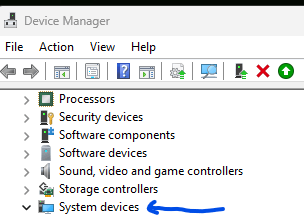
    Not sure if this will help, but for me I was able to permanently disable the handsfree part of my bluetooth headphones by disabling the system device entry for it in the Device Manager->System Devices area on my Windows 11 machine. (Note that the system device is different from the driver and represented by a different icon (for me a computer tower and blue pane monitor):
    Image

    Simply right-click and disable:

    Image

    I have noticed that this method requires me to have to hit the connect button in Bluetooth & devices -> Devices more often / almost every time I turn my headphones back on, but it has helped me not have to disable the handsfree device every time which I found just a bit more cumbersome. Teams also now picks up the proper device so I don't lose audio.

    SOLVED !!!!

    NOTE: This will only show under "System Devices" (as pictured) IF you have the headphones connected AND have NOT unchecked handsfree telephony in [ Devices and Printers > Headphone Properties > Services ]

    I have been dealing with this for YEARS and THIS IS THE ONLY PERMANENT SOLUTION I have found. Not to mention it is SO easy.

    Before this solution, I had a link on my desktop to "Devices and Printers" and had to uncheck "Handsfree Telephony" every time my computer booted for my headphones to work normally while gaming and using discord.

    I use Bose Quiet Comfort 35 Wireless Headphone II

    So, once again for the search algorithms:

    HOW TO PERMANENTLY DISABLE HANDSFREE TELEPHONY ON WINDOWS 11 FOR BOSE QUIETCOMFORT 35 WIRELESS HEADPHONE II FOR PERFECT AUDIO QUALITY WHILE GAMING AND USING DISCORD.

    HUGE thanks to @ElectricDrake

    40+ people found this answer helpful.
    0 comments No comments
  3. Rodrigo Queiroz 77,250 Reputation points Independent Advisor
    2023-06-15T03:13:37+00:00

    Hi logularjason,

    I'm Rodrigo and I'll help you.

    If the Hands-free telephony option is reenabling after the restart, another option is to disable the hands-free device under Settings > System > Sound > More Sound Settings > Recording tab and under Playback tab.

    Test it and tell if it changes after the restart or reconnection. if it doesn't work we can try other fixes.

    Example:

    30+ people found this answer helpful.
    0 comments No comments
  4. Anonymous
    2024-04-08T18:05:07+00:00

    Not sure if this will help, but for me I was able to permanently disable the handsfree part of my bluetooth headphones by disabling the system device entry for it in the Device Manager->System Devices area on my Windows 11 machine. (Note that the system device is different from the driver and represented by a different icon (for me a computer tower and blue pane monitor):

    Simply right-click and disable:

    I have noticed that this method requires me to have to hit the connect button in Bluetooth & devices -> Devices more often / almost every time I turn my headphones back on, but it has helped me not have to disable the handsfree device every time which I found just a bit more cumbersome. Teams also now picks up the proper device so I don't lose audio.

    20+ people found this answer helpful.
    0 comments No comments
  5. Anonymous
    2024-06-03T05:52:25+00:00

    To completely disable hands-free for all bluetooth devices, you can open terminal and do the following commands:

    reg add HKLM\SYSTEM\ControlSet001\Control\Bluetooth\Audio\Hfp\HandsFree /v Enabled /t REG_DWORD /d 0 /f

    reg add HKLM\SYSTEM\ControlSet001\Control\Bluetooth\Audio\Hfp\AudioGateway /v Enabled /t REG_DWORD /d 0 /f

    10+ people found this answer helpful.
    0 comments No comments

