Share via

"Install error - 0x80070bc9" when attempting to install the latest update (KB5027223)

Anonymous
2023-06-14T16:46:26+00:00

I am at my wits end on this issue although I am thankful at least that the issue does not seem to affect the regular use of the device - so it's a minor problem in the grand scheme of things.

The title is a good summary of the issue, seen here:
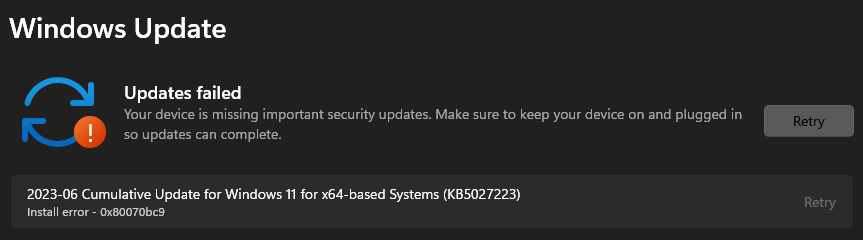
For whatever reason, ever since the last couple of updates, this would be what I see in attempting a Windows Update.

What is most curious to me is that it's only been the Cumulative Update types that face this problem. (My last successful one was 2023-04 KB4023057)

Others, for instance Driver, Definition, etc. seems to get by just fine.

Thus far, some attempts at resolving this by myself as follows:

  1. The classic: I restarted the PC. (Interestingly, it would display the "updating" messages, show some progress but never go beyond 35% before stopping and rolling back - it's generally quicker than I can snap a photo of for reference, so hopefully this description explains enough).
  2. I tried the solutions in this link, which I realise afterwards isn't technically the same issue. But well, it's an attempt.
  3. I also tried this link (with the exception of option (3), did not touch the registry).
  4. In the above's option (1) performing SFC/DISM scans, the SFC step leads me to below screenshot.
  5. And attempting manual installation of the Cumulative Update (from the Update Catalogue) also fails.

(Restarting doesn't change this, just for good measure, I restarted after I got this and this still showed when attempting the SFC scan)

So there, bearing in mind I'm a layman with virtually no in-depth technical know-how, this is about as far as I can get without more professional or technical assistance. I hope y'all might have better ideas or solutions.

Windows for home | Windows 11 | Windows update

Locked Question. This question was migrated from the Microsoft Support Community. You can vote on whether it's helpful, but you can't add comments or replies or follow the question.

0 comments No comments

Answer accepted by question author

  1. David-M 110.5K Reputation points Independent Advisor
    2023-06-18T13:23:38+00:00

    Thanks for the screenshot.

    The TPM 2.0 appears to be disabled on your motherboard BIOS.

    Go to the BIOS settings and check if TPM 2.0 is disabled. If it is disabled, enable it and try again.

    The procedure varies depending on the manufacturer. Consult your motherboard manual if necessary. Manufacturers usually make the manual available in the support area of their websites.

    2 people found this answer helpful.
    0 comments No comments

Answer accepted by question author

  1. David-M 110.5K Reputation points Independent Advisor
    2023-06-16T18:47:39+00:00

    Thanks for the clarifications.

    This service stops after some time and starts when needed. It's normal behavior. The fact that it starts correctly when you click on "Start" confirms that the service is working correctly, and we can rule it out as the cause of the error.

    In that case, I suggest you do an In-place Upgrade. This procedure reinstalls Windows.

    But don't worry. You have the option to keep files, settings, and apps.

    1. Download the Windows 11 ISO file from the link below;

    https://www.microsoft.com/en-us/software-downlo...

    1. Double-click the ISO to run;
    2. On the "Install Windows 11" screen, uncheck "I want to help make the installation of Windows better" and select "Change how Windows Setup download updates";
    3. On the next screen, select "Not right now" and click "Next";
    4. Accept the terms of use;
    5. On the "Ready to install" screen, select "Choose what to keep" and select what you want to keep.
    6. Click on "Install" and wait for the procedure to finish. Your computer may restart several times.
    2 people found this answer helpful.
    0 comments No comments

13 additional answers

Sort by: Most helpful
  1. Anonymous
    2023-06-15T11:06:44+00:00

    Hi David, thank you for taking the time! Unfortunately, those don't seem to work. Just to be sure, I tried this with the regular updating (via Settings) and also the manual installation file. Both fails (the regular method giving me the same error code).

    0 comments No comments
  2. Deleted

    This answer has been deleted due to a violation of our Code of Conduct. The answer was manually reported or identified through automated detection before action was taken. Please refer to our Code of Conduct for more information.


    Comments have been turned off. Learn more

  3. David-M 110.5K Reputation points Independent Advisor
    2023-06-14T17:25:43+00:00

    Hi. I'm David, and I'm happy to help you.

    See if the "Windows Installer" service is disabled.

    1. Press "Windows key + R, type "services.msc" and click Ok;
    2. Look for "Windows Installer" and double-click to open the properties;
    3. Set the "Startup type" to "Manual";
    4. Click "Start" in that same window and see if the service will start correctly;
    5. Click Ok.

    See if you can install the update.

    Feel free to ask back any questions.

    0 comments No comments
