The batch file I linked to in my first reply is mostly the same as the one referenced in that video. It simply sets the target folder's attributes to hidden and system and renames the folder to "Control Panel.{21EC2020-3AEA-1069-A2DD-08002B30309D}".
To access your folder, all anyone has to do is show hidden files and system files:
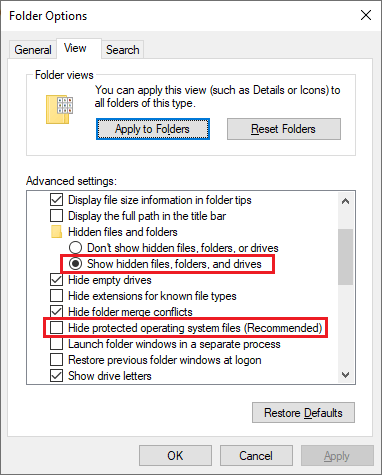
Then they will see the folder named "Control Panel.{21EC2020-3AEA-1069-A2DD-08002B30309D}" and can open it like any other folder. That name does nothing special. It was just chosen in the hope that someone who sees it will think that it's a system thing and not open it.
Also the batch file is designed to be placed in the same folder as the "Private" folder, which, if used that way, first alerts a snoop to look in that location and provides all the information they need to find and access the folder. At the very least, the batch file should be modified to run from a different location (perhaps you've done that). But the batch file is still plain text, so if it's anywhere on your computer, a snoop could find it and then see that you have a private folder.
Any type of "security" like this doesn't stop a determined snoop for long even if they have limited computer skills because the batch file is easily found on the Internet by searching generic key words such as "windows folder lock" or "how to hide a folder in windows", etc.
Anyhow, to answer your original question, the batch file simply checks for the existence of a folder/file named "Control Panel.{21EC2020-3AEA-1069-A2DD-08002B30309D}" and, if found, it "unlocks" the folder by renaming it back to "Private" and setting the attributes to not hidden and not system. If not found, it "locks" the folder by renaming it to that specific name and setting the attributes to hidden and system. If the batch file is failing to perform these steps, it is most likely because it is not finding the target folder. This could be due to moving the batch file (as I mentioned, it is coded to assume it's in the same location as the "Private" folder) or launching the batch file via another method, such as a shortcut, that is not setting the current folder to the batch file's location. It could also be caused by incorrect editing of the batch file.
Also note that if you have a "Private" folder on your desktop, you may have to press F5 to refresh the display between hiding and unhiding. I did not see this issue myself, but it's possible.
Although encryption is really the only way to completely secure your data, I can understand that performance may be an issue for large files, such as movies. In the past, I have looked into some third-party folder and disk locking programs and did find some that worked well and appeared difficult to bypass. They certainly were many levels better than that batch file. However, I haven't looked at such software in a long time and don't have any recommendations. There is an extensive list of such tools at this link. Do note that if such a program were to go wrong in some way, data could be lost (or at least quite difficult to retrieve).
' cx='32' cy='32' r='32' /%3E%3Ctext x='50%25' y='55%25' dominant-baseline='middle' text-anchor='middle' fill='%23FFF' %3EA%3C/text%3E%3C/svg%3E)

' cx='32' cy='32' r='32' /%3E%3Ctext x='50%25' y='55%25' dominant-baseline='middle' text-anchor='middle' fill='%23FFF' %3ELF%3C/text%3E%3C/svg%3E)