Share via

How to activete virtual machine with Widows Server 2019 Standard ?

Jacek Osiński 31 Reputation points
2022-01-26T07:53:00.843+00:00

Hi
I bought Windows Server 2019 Standard with HP DL380 machine (OEM)
Then I install it physically and activate on this machine and install Hyper-V funcion (this is server with only Hyper-V role)

Next I configure it and install as a first VM - Windows Server 2019 Standard Evaluation (I have to use the evaluation ISO because I can't install it from my ISO made from the original DVD, I can't boot from it)

Now I'd like to activate the OS on this VM (my license allow for two virtual OSE if the physical one is only Hyper-V role) but I don't know how.
What is the procedure in that enoirement?
Is VMA also works for this screnario?

Thanks
Jacek

Windows for business | Windows Server | User experience | Other
0 comments No comments

Answer accepted by question author
  1. Anonymous
    2022-01-28T14:12:15.633+00:00

    The mail question was "How to activate VM with the same key as a host OSE?"

    Since you have already converted the evaluation to full you can do
    slmgr /ipk xxxxx-xxxxx-xxxxx-xxxxx-xxxxx
    slmgr /ato

    With the Windows Server 2019 Stadard license I bought 25 User CAL licenses.

    The windows CALs do not get installed anywhere, just hang on to the documentation for record keeping / audit purpose. CALs are required for each instance of windows server.
    A Windows Server CAL is a license that grants access Windows Server. CALs are used in conjunction with Microsoft Windows Server OS licenses to allow Users and/or Devices to access and utilize the services of that windows server

    • User CALs allow a single user access to Windows Server from an unlimited number of devices
    • Device CALs allow an unlimited number of users to access Windows Server from a single device

    --please don't forget to upvote and Accept as answer if the reply is helpful--

    1 person found this answer helpful.

5 additional answers

Sort by: Most helpful
  1. Jacek Osiński 31 Reputation points
    2022-01-26T12:47:02.573+00:00

    I found a way for solve this but myselve just let me know that is correct:

    1. Activate host with a retail key
    2. On virtual machine set up host as a KMS server via Windows PowerShell command: slmgr /skms hostIP When done it will be confirmed by popup box
    3. Then change Evaluatin to Standard with the same Key like for host via command: DISM /online /Set-Edition:ServerStandard /ProductKey:xxxxx-xxxxx-xxxxx-xxxxx-xxxxx /AcceptEula
    4. Reboot virtual machine

    Best

    2 people found this answer helpful.

  2. Jacek Osiński 1 Reputation point
    2022-01-29T13:53:52.157+00:00

    Hi @Anonymous everything works fine now.
    Thanks for the help.


  3. Jacek Osiński 31 Reputation points
    2022-01-28T08:29:05.217+00:00

    Hi @Anonymous
    Thanks In case of installation your way is simplest but Image which I made from may DVD wasn't bootable on VM (I dont know why, because when I meve it to the USB it was bootable on a physical machine)
    The mail question was "How to activate VM with the same key as a host OSE?"

    So now I know when I set KMS server for hostIP then I can activete the VM - is that correct way for this envoirement?

    The second question is related with User CAL licenses.
    With the Windows Server 2019 Stadard license I bought 25 User CAL licenses.
    Is those licenses should be install on a host OSE or I have to have separate for each VM OSE?
    First VM will be used as a Active Directory Domain Controller (15 user accounts), and IIS sever,
    Second is an app server for 10 users works remotelly via client apps.

    Thank you
    Jacek

    0 comments No comments

  4. Anonymous
    2022-01-27T15:38:01.913+00:00

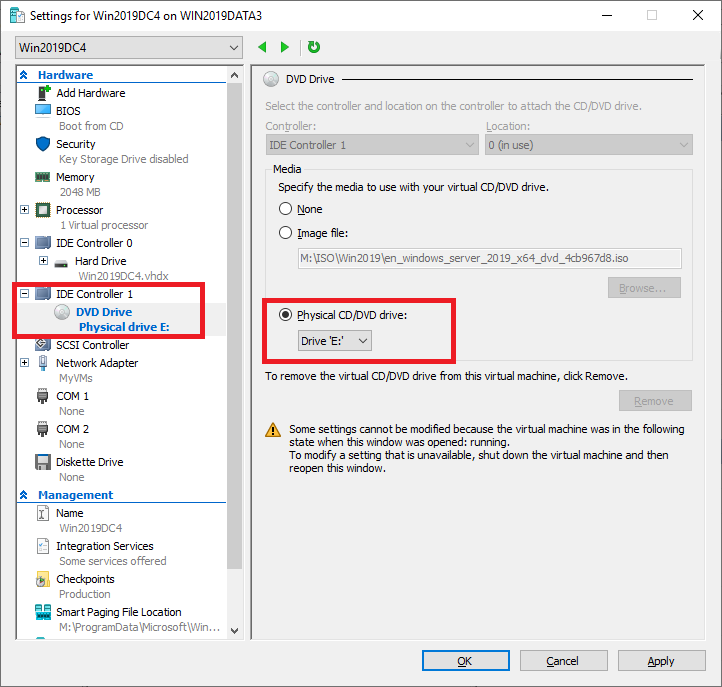
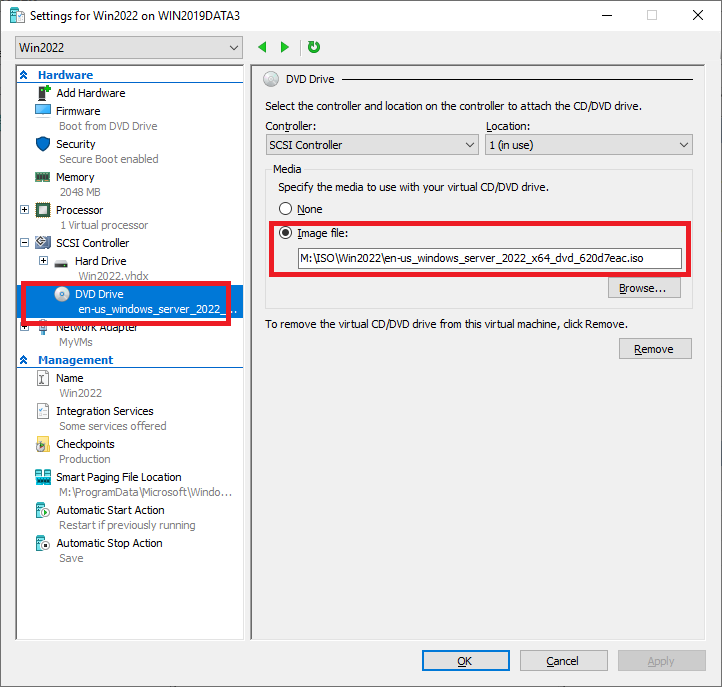
    The simplest solution would have been to pass the host's DVD drive to the VM as a boot device.

    --please don't forget to upvote and Accept as answer if the reply is helpful--

    Gen 1
    169010-image.png

    Gen 2
    169134-image.png

    0 comments No comments

Your answer

Answers can be marked as 'Accepted' by the question author and 'Recommended' by moderators, which helps users know the answer solved the author's problem.