Although it's helpful to know that your High definition audio device is working properly, it's possible, especially given that you've just reinstalled Windows, that you actually have another hardware sound device in the computer and it is that device which is actually connected to your speakers.
Please answer ALL of the questions.
- Do you have a laptop or a desktop/tower?
- If you have a laptop, are you using its built-in speakers or are you using external speakers?
- If you are using external speakers, for either a laptop or a desktop/tower, have you double-checked that they are powered on (most external speakers have a small LED that should be lit when powered on)?
- If you are using external speakers, have you double-checked that they are connected to the proper jack on your computer?
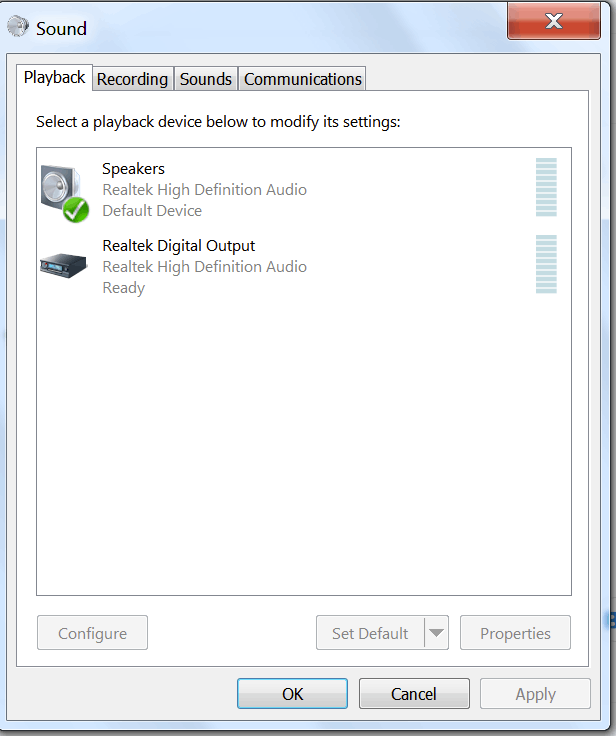
When you were going through the suggestions offered by Bill Smithers, did you open the "Sound" applet? That looks like the screenshot at the end of this post, although you will likely have different icons showing. Open the Sound applet by right-clicking on the Sound icon on your Taskbar and selecting "Playback Devices."
5. What icons are shown in your Sound applet?
6. Which one has the green circle with the white check (like "Speakers" in the screenshot below)?
7. Do any of the icons have a red X? If so, which one(s)?
8. Do you have an icon that says "Speakers"? If this is NOT already marked with the green circle with white check, click on the icon to select it and then click the "Set default" button at the bottom of the window.
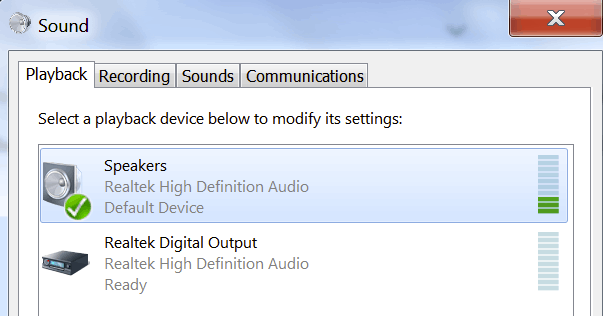
9. Right-click on each of the icons and select "Test." You should see the bar graph at the right of the icon turn green briefly, like this:
 10. For each of the icons:
- Did you see the bar graph turn green briefly after you clicked Test?
- Did you hear any sound?
- Assuming that you have a "Speakers" icon, right-click it and select Properties.
- Does the drop-down list next to "Device usage" show "Use this device (enable)"? If not, change it so that is showing and then click OK
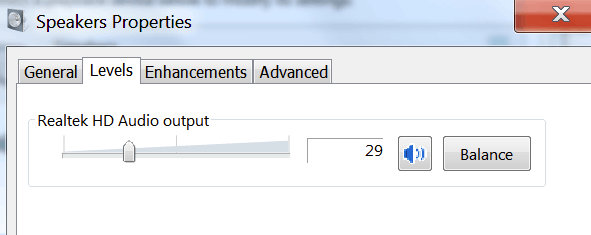
- Click the "Levels" tab. Make sure that the slider at the top of the "Levels" window is somewhere in the middle and -- importantly -- that there is no red line through the speaker icon (see below). If there is a red line through the speaker, click it to remove the red line
' cx='32' cy='32' r='32' /%3E%3Ctext x='50%25' y='55%25' dominant-baseline='middle' text-anchor='middle' fill='%23FFF' %3EA%3C/text%3E%3C/svg%3E)

' cx='32' cy='32' r='32' /%3E%3Ctext x='50%25' y='55%25' dominant-baseline='middle' text-anchor='middle' fill='%23FFF' %3EL%3C/text%3E%3C/svg%3E)