Share via

HP printer compatibility issue with Windows 11 on new Dell computer

Anonymous
2023-09-19T13:19:42+00:00

I bought a new Dell computer - Inspiron 15 (3520) with Windows 11. When I try to print to my HP Officejet 5740 and open my print queue I get the following message "Get an app to open this 'ms-print-queue'. Your PC doesn't have an app that can open this link". I have installed updated drivers and then I also removed and reinstalled my printer but that does not resolve the issue. I also instaIled the HP Smart app but that also didn't fix the issue. It seems to be a problem specifically related to the "print queue". Is there a compatibility issue between a Dell computer with Windows 11 and an HP printer? I have tried different ways of troubleshooting this problem but nothing seems to work.

I should note that I am able to print a Windows Printer Test Page from Settings and the message at the top says "You have correctly installed your HP Officejet 5740 series on....". So it appears that the printer installation was sucessful. But if I try to print anything else I get the "Get an app to open this 'ms-print-queue' message.

Has anyone else encountered this before? Can anyone assist with this issue?

Windows for home | Windows 11 | Devices and drivers

Locked Question. This question was migrated from the Microsoft Support Community. You can vote on whether it's helpful, but you can't add comments or replies or follow the question.

0 comments No comments

8 answers

Sort by: Most helpful
  1. Anonymous
    2023-09-19T18:08:29+00:00

    Hi Ivan,

    thanks for this! I actually had contacted Dell Support yesterday and they did run the command prompt you mentioned but no issues were identified. I also uninstalled and reinstalled the drivers as you indicated but unfortunately it didn't solve the issue.

    I did get in touch with HP but they said that the Support life has ended on my printer since i have had it for more than 5 years so I have been going around in circles. They recommended I buy a new printer. It might have to come to that. It's just unfortunate because the printer was still working perfectly, it's just this printer queue glitch that I can't seem to resolve. Thanks anyway for your help.

    Laura

    3 people found this answer helpful.
    0 comments No comments
  2. Anonymous
    2023-09-19T19:56:07+00:00

    Hi Ivan,

    I actually was able to connect with another Dell Support technician who was able to troubleshoot the issue for me and luckily the issue was resolved. I appreciate your assistance and if the tech support wouldn't have fixed it for me I would have tried this approach but luckily I didn't need to.

    Thanks,

    Laura

    1 person found this answer helpful.
    0 comments No comments
  3. Ivan B 109.3K Reputation points Independent Advisor
    2023-09-19T18:26:17+00:00

    Hii, Laura.

    Okay, let's move on to the last case of reinstalling Windows.

    This process must be followed according to the instructions and will reinstall Windows and thus the applications that were damaged while keeping their files.

    https://go.microsoft.com/fwlink/?linkid=2156295

    Select Download tool now, and select Run. You need to be an administrator to run this tool.

    If you agree to the license terms, select Accept.

    On the What do you want to do? page, select Create installation media for another PC, and then select Next.

    The application will automatically identify the correct version of windows 11 for your system, from Next.

    Select which media you want to use ISO file. Save an ISO file to your PC

    Wait for the application to perform the iso download and after finishing the download it will close automatically.

    After downloading, find the Windows 11 ISO file on your PC, right-click and select “Mount”. If the option is not available, select “Open With” and “Windows Explorer”

    1. Run the “Setup” application, present inside the Windows 11 ISO, to start the installation on the PC.
    2. With the ISO files folder open, click on the “Setup” executable to continue installing Windows 11.
    3. After that, a Get Important Updates window will appear along with the two options Select: Not now
    4. Uncheck the box I want to help improve your Windows installation to skip sending unknown data to Microsoft about the installation process Next
    5. After that, a License Terms window will pop up, here you have to click on the Accept button.

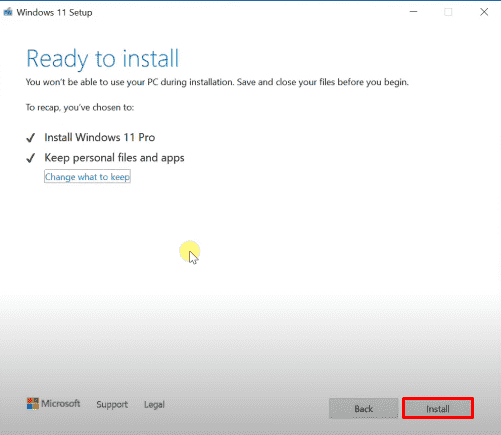
    6.Now another “Choose what to keep” window or “Ready to install” window will pop up.

    At this point, you need to change some settings. Click the “Change what to keep” link

    1. You can now see the “Choose what to keep” window along with the three options given below:

    Select Keep My files and Programs.

    Then click on the Next button.

    Finally, the Ready to Install window will appear along with the Install button.

    In this step, you have to click on the Install button to start reinstalling Windows 11. During this process, your computer or laptop may restart sometimes.

    And just wait for the clean and fully automatic installation procedure.

    Independent Advisor - Community

    Thanks
    1 person found this answer helpful.
    0 comments No comments
  4. Anonymous
    2023-09-19T18:20:20+00:00

    Hi Ivan,

    I just tried that now and even when I try opening the print queue directly from there I still get the same message "Get an app to open this 'ms-print-queue'. Your PC doesn't have an app that can open this link".

    Laura

    1 person found this answer helpful.
    0 comments No comments
  5. Ivan B 109.3K Reputation points Independent Advisor
    2023-09-19T14:04:42+00:00

    Hii, Laura

    I am Ivan, I will help you with this.

    Remove the driver and uninstall anything related to the printer including the HP application.

    Restart the computer, open the command prompt (admin), run the command: Sfc /scannow . Wait for the process to finish and restart.

    Download the driver version (legacy) that leaves the printer disconnected if via a USB cable, and follow the driver procedures below.

    https://ftp.hp.com/pub/softlib/software13/print...

    Note: This is a non-Microsoft website. The page appears to be providing accurate, safe information. Watch out for ads on the site that may advertise products frequently classified as a PUP (Potentially Unwanted Products). Thoroughly research any product advertised on the site before you decide to download and install it.

    Independent Advisor - Community

    Thanks

    1 person found this answer helpful.
    0 comments No comments
