Share via

I cannot find Quick Access in the new updated file explorer.

Anonymous
2023-09-27T14:02:02+00:00

I completed the latest Windows update this morning and opened File Explorer, and the quick access was missing. I can still add files to quick access, but it is nowhere to be seen. When I search the internet, they refer to how great the new file explorer is. Without quick access, it is pretty useless to me, and I want to find out how to get it back.

I do not have AAD. However, the descriptions I see on the internet imply that I am looking at the AAD version and not the consumer version. A lot of the information to describe the new file explorer states the following "Users signed in with Azure Active Directory (AAD) will see a recommended files strip with thumbnail previews. Consumer devices will only show the “Quick Access”, “Favorites” and “Recent” sections."

I wish to see the “Quick Access”, “Favorites” and “Recent” sections." but cannot work out how to do it.

Windows for home | Windows 11 | Windows update

Locked Question. This question was migrated from the Microsoft Support Community. You can vote on whether it's helpful, but you can't add comments or replies or follow the question.

0 comments No comments

Answer accepted by question author

  1. Anonymous
    2023-09-29T08:01:11+00:00

    Hi,
    Same problem here.
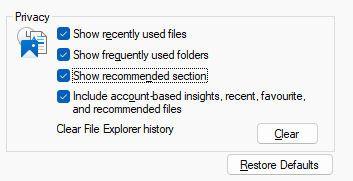
    Under Privacy, here is just no such setting. All I can see is:
    Image

    What can I do now? I just can't pin anything. Can't add folders to Home. Best I can do is pin them to Start which is far from ideal.

    Thanks

    Quentin

    I fixed this by un-checking the Show Recommended Section option.

    Quick access tiles are back, but they are now arranged in a horizontal list. Seems like a couple of bugs here. But at least I have my quick action icons back.

    700+ people found this answer helpful.
    0 comments No comments

202 additional answers

Sort by: Most helpful
  1. Anonymous
    2023-10-02T17:48:59+00:00

    Yes this worked!

    UN-Check the "Show Recommended" section.

    200+ people found this answer helpful.
    0 comments No comments
  2. Anonymous
    2023-09-28T20:46:48+00:00

    Hi,
    Same problem here.
    Under Privacy, here is just no such setting. All I can see is:

    What can I do now? I just can't pin anything. Can't add folders to Home. Best I can do is pin them to Start which is far from ideal.

    Thanks

    Quentin

    100+ people found this answer helpful.
    0 comments No comments
  3. Anonymous
    2023-11-11T10:10:37+00:00

    Thanks for your detailed response - I just have to mention how absurd and unacceptable it is that users should have to jump through hoops like this in order to fix the messes that Microsoft inflicts on its users, with no response or reaction from them to the issue.

    Unfortunately none of this worked for me and I have tried all your recommendations, as well as several others recommended by others, for hours. My 'Privacy' section in Explorer Options has the 'Show recommended section' greyed out so it can be neither checked nor unchecked.
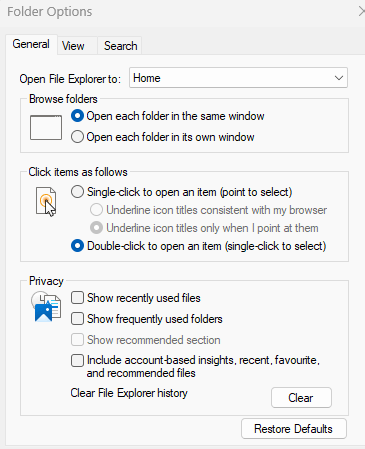
    The 'Open File Explorer to' does not have a 'Quick Access' option so this has obviously been tampered with at Microsoft, for who knows what good reason. I cannot even pin a foder to the Start menu - trying to do this simply pins the entire File Explorer to the Start menu.

    The most frustrating part of all these things (and this is not the first time by any means) is when the so-called Microsoft Experts post solutions in the forums (such as this one) that simply do not work or do not even exist. While Microsoft itself sits in its ivory tower and profoundly ignores everybody.

    100+ people found this answer helpful.
    0 comments No comments
  4. Anonymous
    2023-10-02T21:46:48+00:00

    Worked also for me, I will do a feedback but it is absurd that with every update Microsoft messes things up. Unbelievable

    60+ people found this answer helpful.
    0 comments No comments