
This question is asking for a scaling solution specifically for the LOGIN SCREEN.
This browser is no longer supported.
Upgrade to Microsoft Edge to take advantage of the latest features, security updates, and technical support.
' cx='32' cy='32' r='32' /%3E%3Ctext x='50%25' y='55%25' dominant-baseline='middle' text-anchor='middle' fill='%23FFF' %3EA%3C/text%3E%3C/svg%3E)
Is there a way to change the fonts and/or resolution of the information on the login screen? On my laptop the login picture & name are so large it reminds me of sitting in the first row of a movie theatre.
Changing the default scaling in Settings seems to change it a bit but not enough. I have Windows set to 125% scaling.
Locked Question. This question was migrated from the Microsoft Support Community. You can vote on whether it's helpful, but you can't add comments or replies or follow the question.
This question is asking for a scaling solution specifically for the LOGIN SCREEN.
Hello, Dave Schudel
Welcome to Microsoft Community.
If the text size feels too large when navigating through Windows, you can make the text bigger. This affects, for example, title bars, menus, and icon texts.
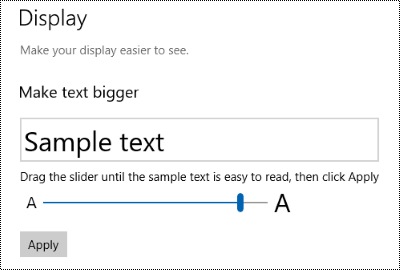
In the meantime, you mentioned that the zoom level is 125%, could you please check if it appears next to (recommended), sometimes your screen zoom level is related to the screen size of your device. If the screen size of your device is small, it may be an expected behaviour for the background and icons of the login screen to be larger, or could you please adjust the zoom to 100% and see how the problem behaves?
Hope it helps! If any update, welcome to share with us.
Best regards,
Chandy |Microsoft Community Support Specialist