' cx='32' cy='32' r='32' /%3E%3Ctext x='50%25' y='55%25' dominant-baseline='middle' text-anchor='middle' fill='%23FFF' %3EA%3C/text%3E%3C/svg%3E)

Hi George Wilson6,
Welcome to Microsoft Community.
It sounds like the quality update you uninstalled may have caused some system file corruption, which is likely causing the issues with the Start menu and Cortana not working. Here are a few steps you can try to fix the problem:
- RESTART WINDOWS EXPLORER
Step 1: Use Ctrl + Shift + Esc keys and open the Task Manager menu.
Step 2: From the Processes tab, select Windows Explorer.
Step 3: Click on the Restart button at the bottom and close Task Manager.
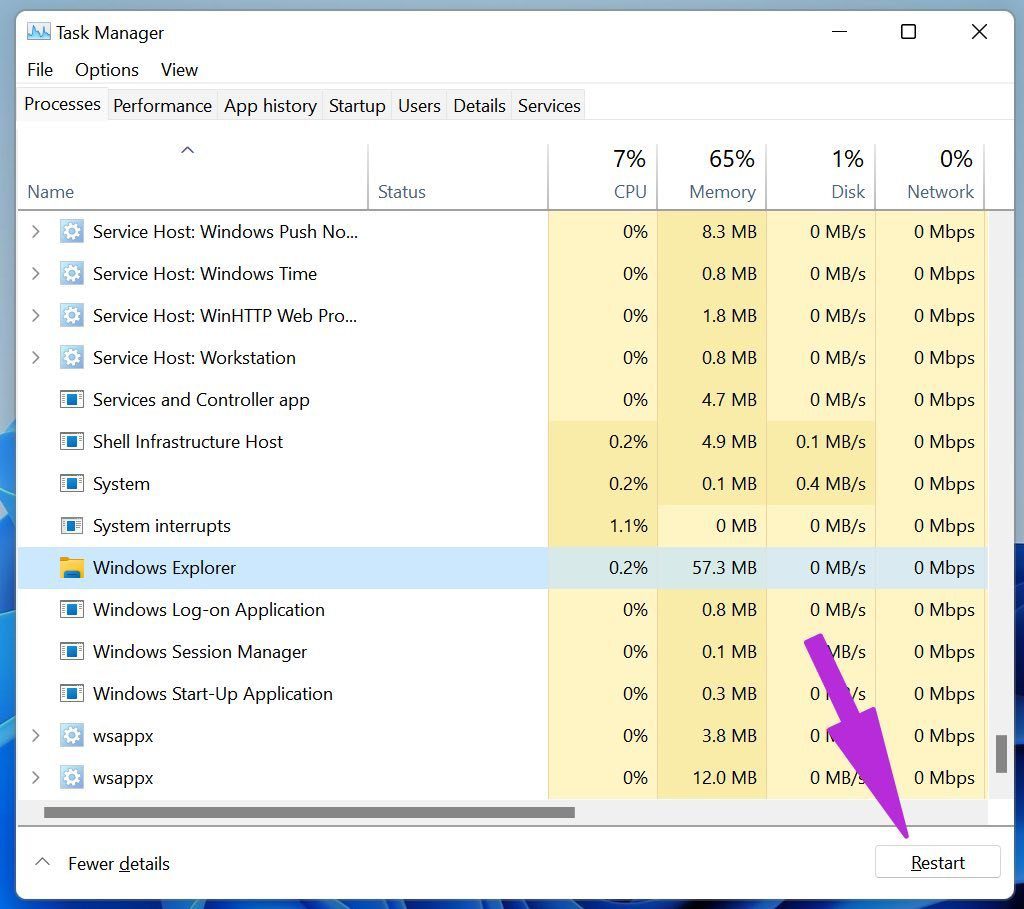
Try accessing the Start menu again.
- RESTART START MENU SERVICES
By default, Start menu services start running in the background as soon as you turn on the PC. If there are issues with background services and processes, you need to reset the Start menu service. Here’s how.
Step 1: Press Ctrl + Shift + Esc keys and open Task Manager.
Step 2: Move to the Details tab.
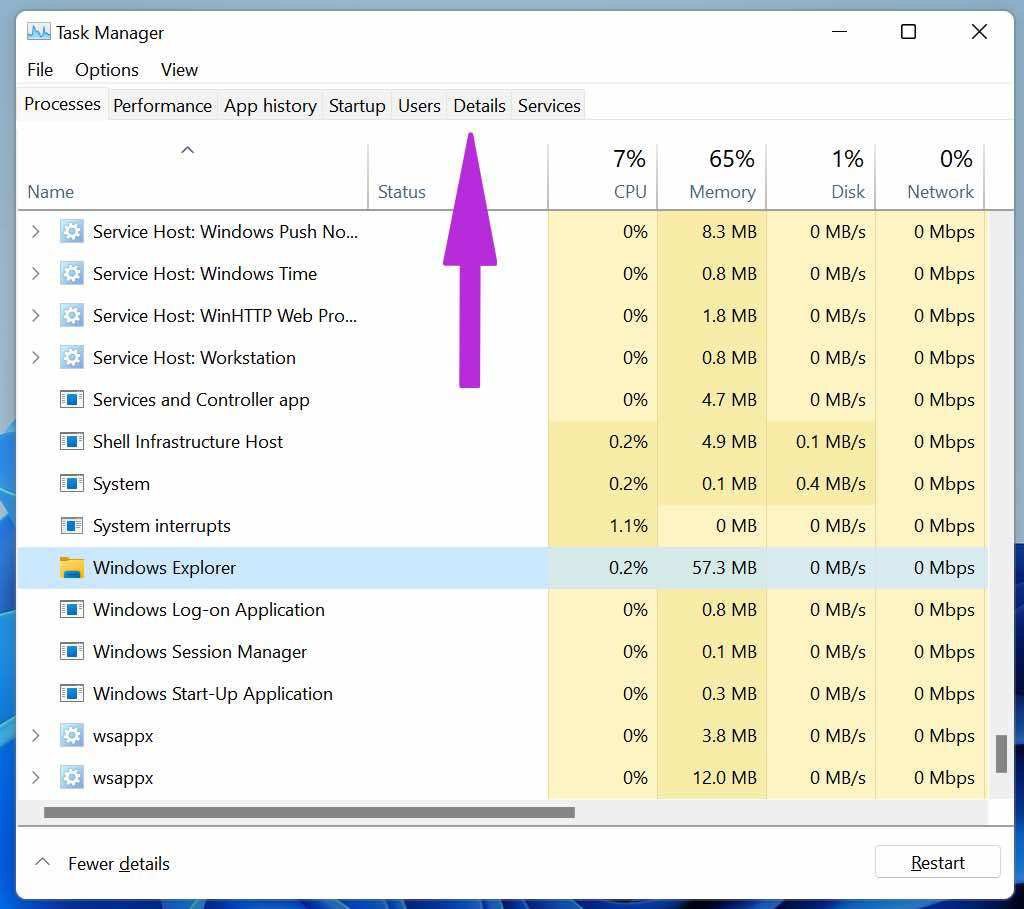
Step 3: Find StartMenuExperienceHost.exe from the menu.
Step 4: Click on it and select End task at the bottom.
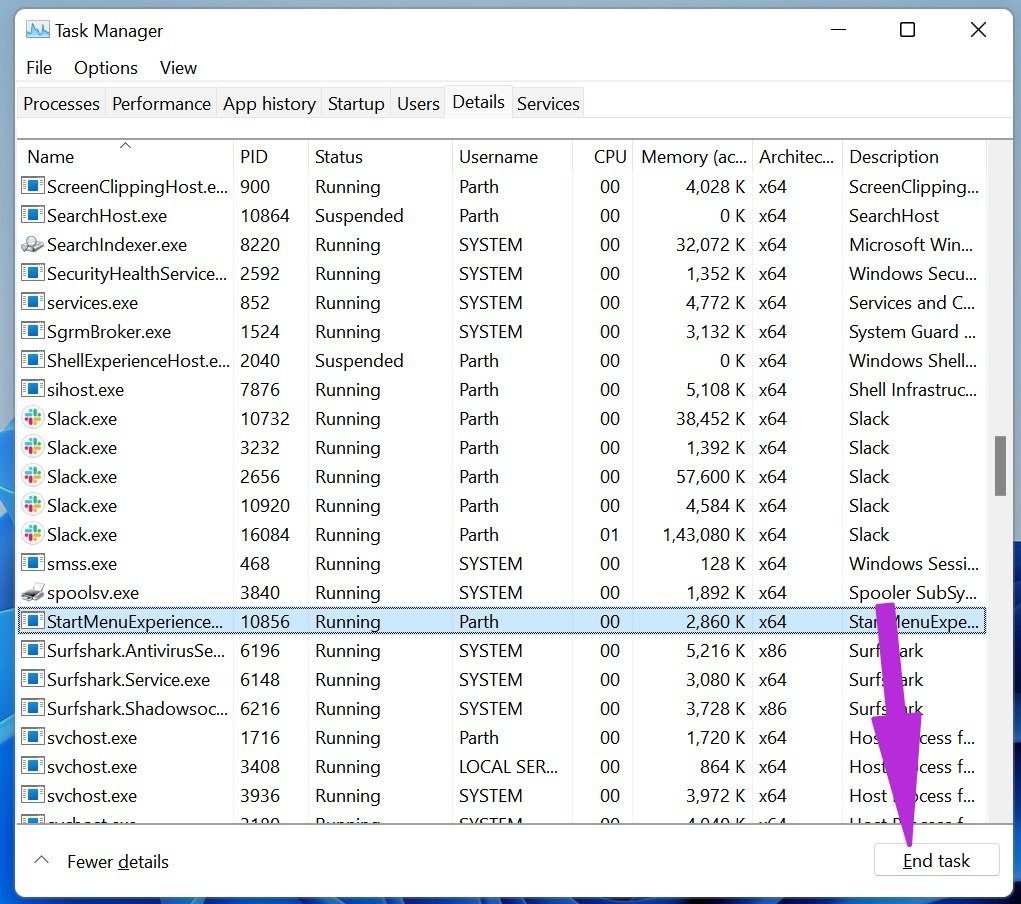
Restart PC using Alt + F4 keys (since your Start menu isn’t working, you can’t reboot PC with the traditional method) and see if the Start menu is working again or not.
- REBUILD SEARCH INDEX
The universal search menu is a part of the Start menu. Microsoft collects the search history to deliver relevant and quicker search results. If the search database gets corrupted, it might mess up with Start menu functions. You need to rebuild the search index on your PC. Here’s how to do it.
Step 1: Press Windows + R keys and open the Run menu.
Step 2: Type control /name Microsoft.IndexingOptionsand hit ok at the bottom.
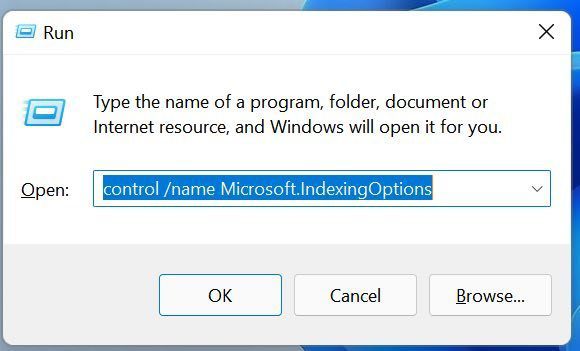
Step 3: It will open the Indexing Options menu. Select Modify at the bottom.

Step 4: Select Show all locations.

Step 5: Uncheck all locations from the list and click on OK.

Step 6: Select the Advanced button and click on Rebuild from the Troubleshooting menu.

Reboot your PC and try using the Start menu.
- UPDATE GRAPHICS DRIVERS
Outdated graphics drivers might interfere with Windows UI elements such as the Start menu. You can update graphics drivers to the latest version from the Device Manager menu.
Step 1: Use Windows + X keys and open the Device Manager menu.
Step 2: Find an integrated or external graphics card from the list and right-click on it.
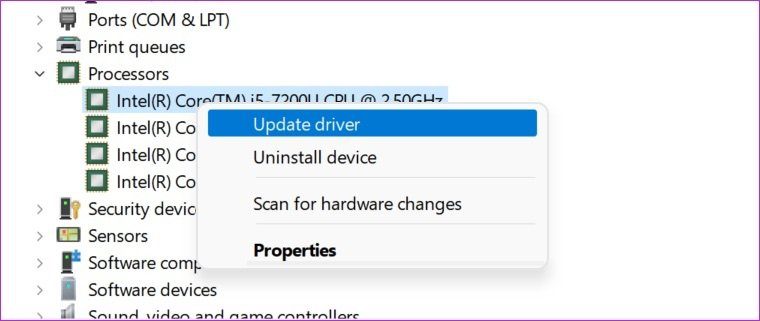
Step 3: Select Update driver and download the newest drivers from the web.
Thank you for your patience and understanding, if you have any questions, please feel free to leave us a message.
Best regards
Brandon | Microsoft Community Support Specialist