Hello, Bazsl1
Welcome to Microsoft Community.
I’m sorry to hear that you’re having trouble with deleting text messages from Phone Link on Windows 11. Unfortunately, you cannot manage or delete messages on your PC with Phone Link, as you can see in this article: Send and receive text messages from your PC - Microsoft Support
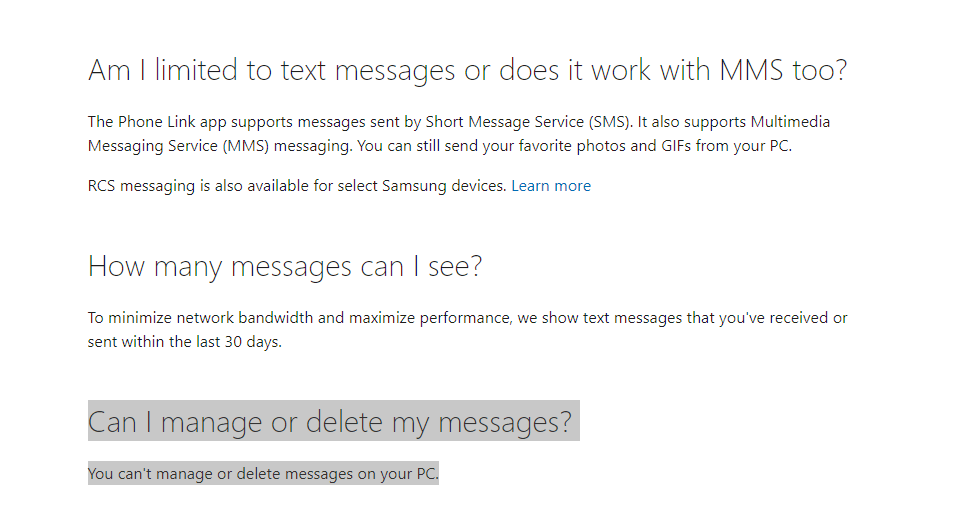
This means that even if you delete a message on your phone, it will still remain on your PC app. This is a limitation of the current version of Phone Link and not a bug or error.
However, if you have a Samsung device, you may be able to delete messages from both your phone and PC by using the Link to Windows feature on your Samsung devices. This feature allows you to mirror your phone screen on your PC and access your phone apps, including messages. To use this feature, you need to have the Link to Windows app installed on your phone and the Phone Link app on your PC. You also need to sign in with the same Microsoft account on both devices. To delete messages using Link to Windows, follow these steps:
- On your PC, open the Phone Link app and select Link to Windows.
- On your phone, open the Link to Windows app and tap Start.
- Wait for your phone screen to appear on your PC.
- On your PC, use your mouse cursor to click the Messages app on your phone screen.
- Select the message thread that you want to delete and tap the Trash icon.
- Confirm that you want to delete the message thread.
- The message thread should be deleted from both your phone and PC.
The best course of action would be to provide your feedback and suggestions to the developers, expressing your desire for deleting messages in Phone Link app in future versions. To submit feedback to the developers, simultaneously press the Windows logo key and the F key on your keyboard. Please note that while your feedback is important, the decision lies with the developers and subsequent versions may or may not incorporate such changes.
Let me know if you have any other concerns.
Best regards
Yuhao Li
Microsoft Community Technical Support
' cx='32' cy='32' r='32' /%3E%3Ctext x='50%25' y='55%25' dominant-baseline='middle' text-anchor='middle' fill='%23FFF' %3EA%3C/text%3E%3C/svg%3E)
