' cx='32' cy='32' r='32' /%3E%3Ctext x='50%25' y='55%25' dominant-baseline='middle' text-anchor='middle' fill='%23FFF' %3EA%3C/text%3E%3C/svg%3E)

Hello ,
Good to see you in Microsoft Community.
If you want to share files between Windows 10 laptop and Windows 11 PC, you can do it through Windows Shared Directory. But it requires that both devices are on the same private network.
- Turn on network discovery Go to Network in File Explorer, and see an error message ("Network discovery is turned off…."), you'll need to turn on network discovery to see devices on the network that are sharing files. To turn it on, select the Network discovery is turned off banner, then select Turn on network discovery and file sharing.
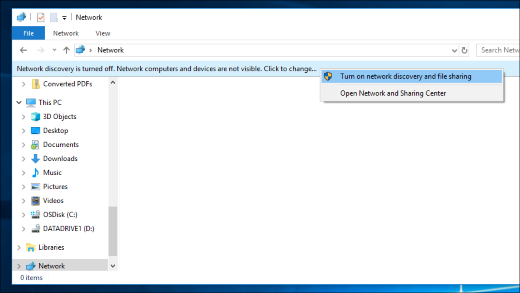
- It should be noted that you need to put both devices on the same network and set the network as a Private Network, so that other devices in the same network are trustworthy and can be connected to both devices.
- Private network. Use this for networks you trust, such as a network at home or work. When a network is set to private, your PC is discoverable to other devices on the network, and you can use your PC for file and printer sharing.
- Public network. Use this for networks you connect to when you’re out and about, such as a Wi-Fi network at a coffee shop. Your PC will be hidden from other devices on the network, and you can’t use your PC for file and printer sharing.
- On the right side of the taskbar, select the Wi-Fi network icon.
- Under the name of the Wi-Fi network that you’re connected to, select Properties.
- Under Network profile, select Private.
- Share a file or folder in File Explorer:
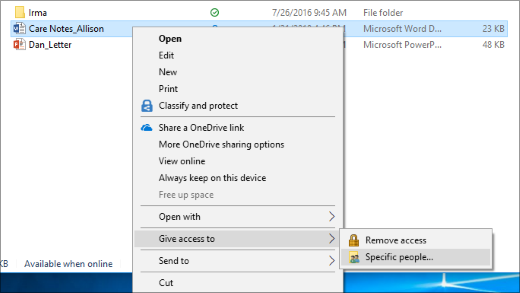
- Right-click or press a file, select Give access to> Specific people.
- Select a file, select the Sharetab at the top of File Explorer, and then in the Share withsection select Specific people.
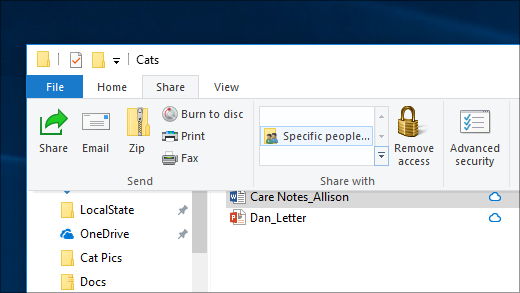
- Select a user on the network to share the file with, or select Everyoneto give all network users access to the file.
- If you select multiple files at once, you can share them all in the same way. It works for folders, too—share a folder, and all files in it will be shared.
- Right-click or press a file, select Give access to> Specific people.
And you can visit File sharing over a network in Windows - Microsoft Support for more details.
If anything is unclear, please do not hesitate to let me know.
Best Regards,
Mosken_L - MSFT | Microsoft Community Support Specialist